
Sound & vibration
Key sounds, haptics, and how to tune or silence them.
Every key press can confirm itself two ways: a short vibration and a click sound. Both are tunable on their own, down to which events buzz and which don’t. Haptics are on by default. The sound is off.
Haptic feedback
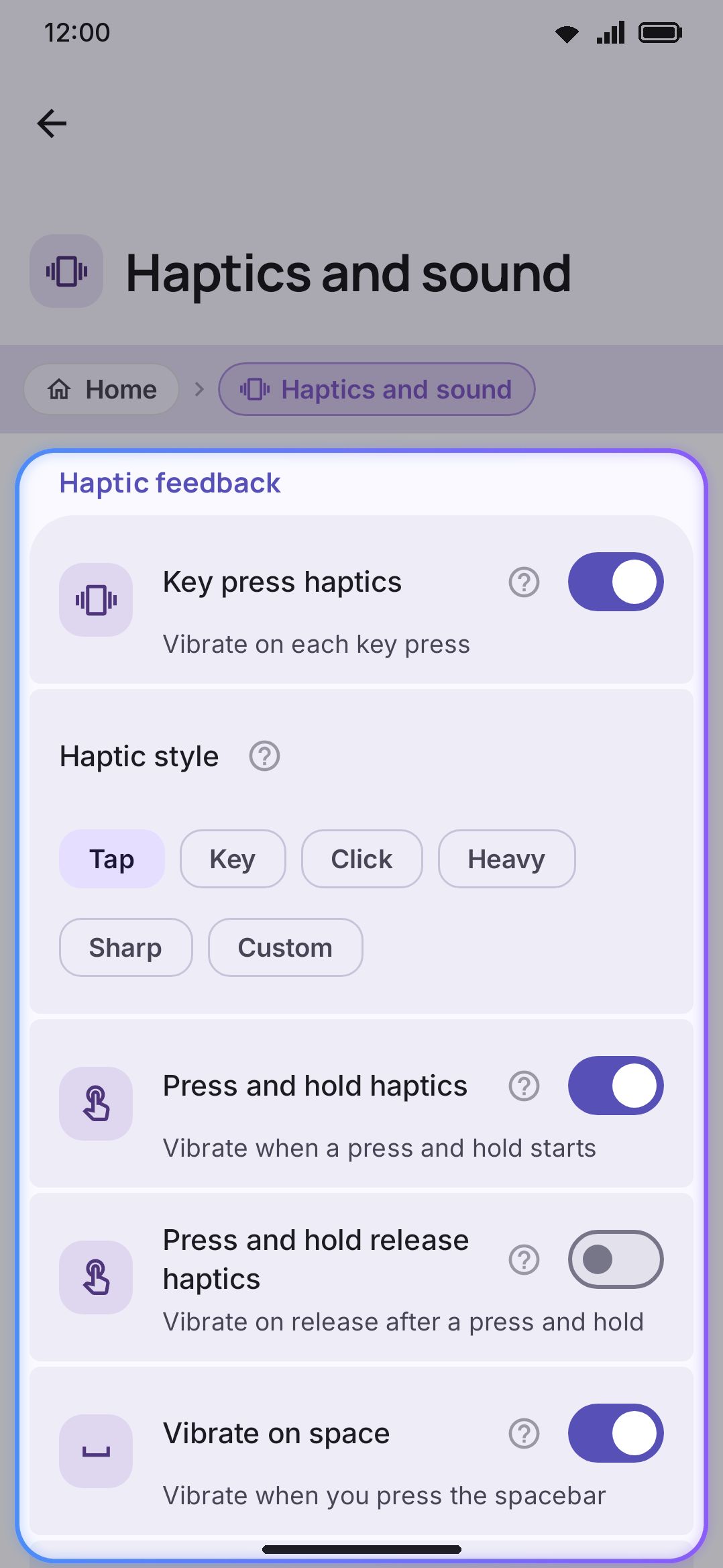
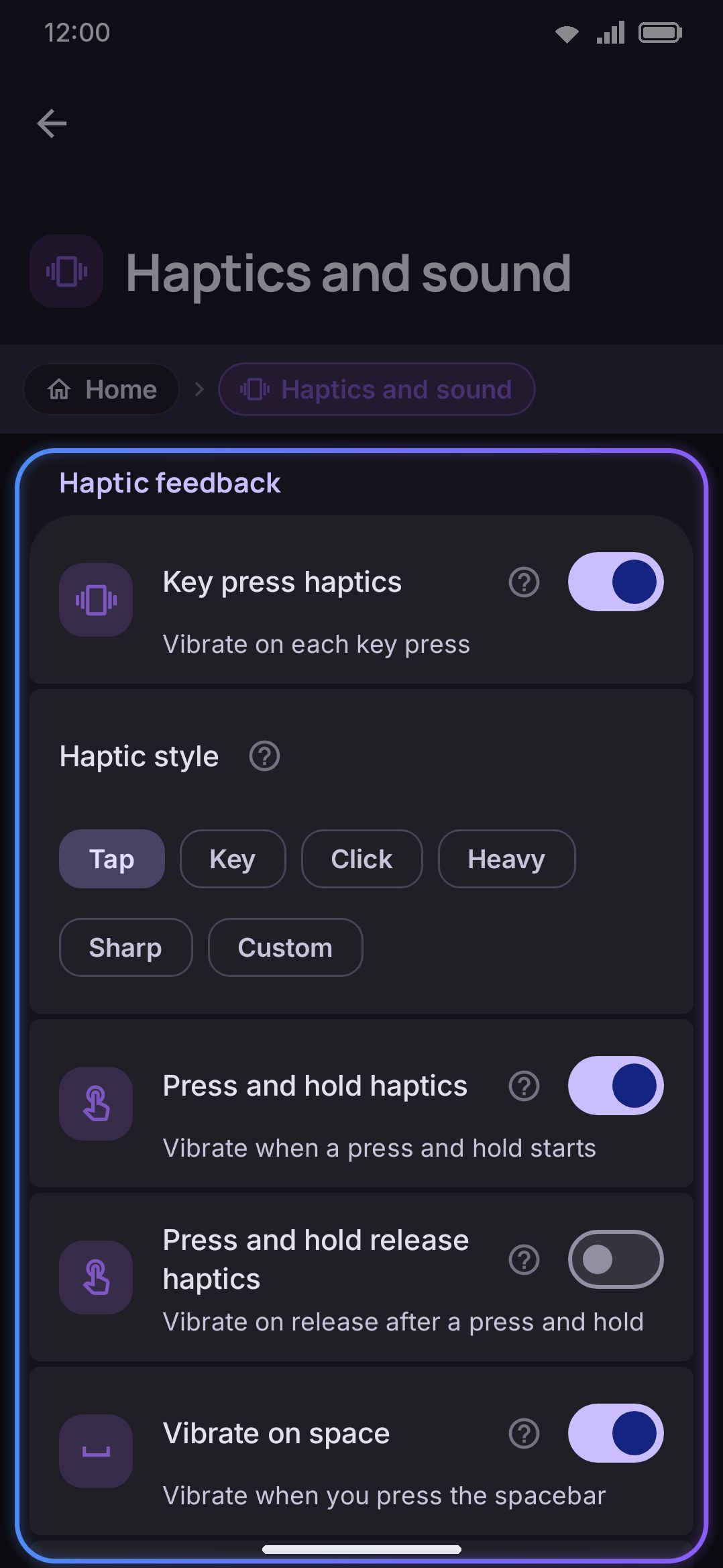
Section titled “Haptic feedback”Key press haptics vibrates on every key press, including the small steps as you swipe-drag a cursor across the Space bar. It’s on by default. Turn it off and the keyboard goes quiet for touch, though the sound still plays if you’ve turned that on.
With haptics on, Haptic style picks how the buzz is produced:
| Style | What it does | Requires |
|---|---|---|
| Tap | Platform’s own “keyboard tap” haptic, the one vendors tune for keyboards (default) | Any device |
| Key | Platform’s own “virtual key” haptic, the general button press | Any device |
| Click | Hardware-tuned click effect | Android 10+ |
| Heavy | Hardware-tuned heavy-click effect | Android 10+ |
| Sharp | Hardware click primitive, strength follows the intensity slider | Android 11+ |
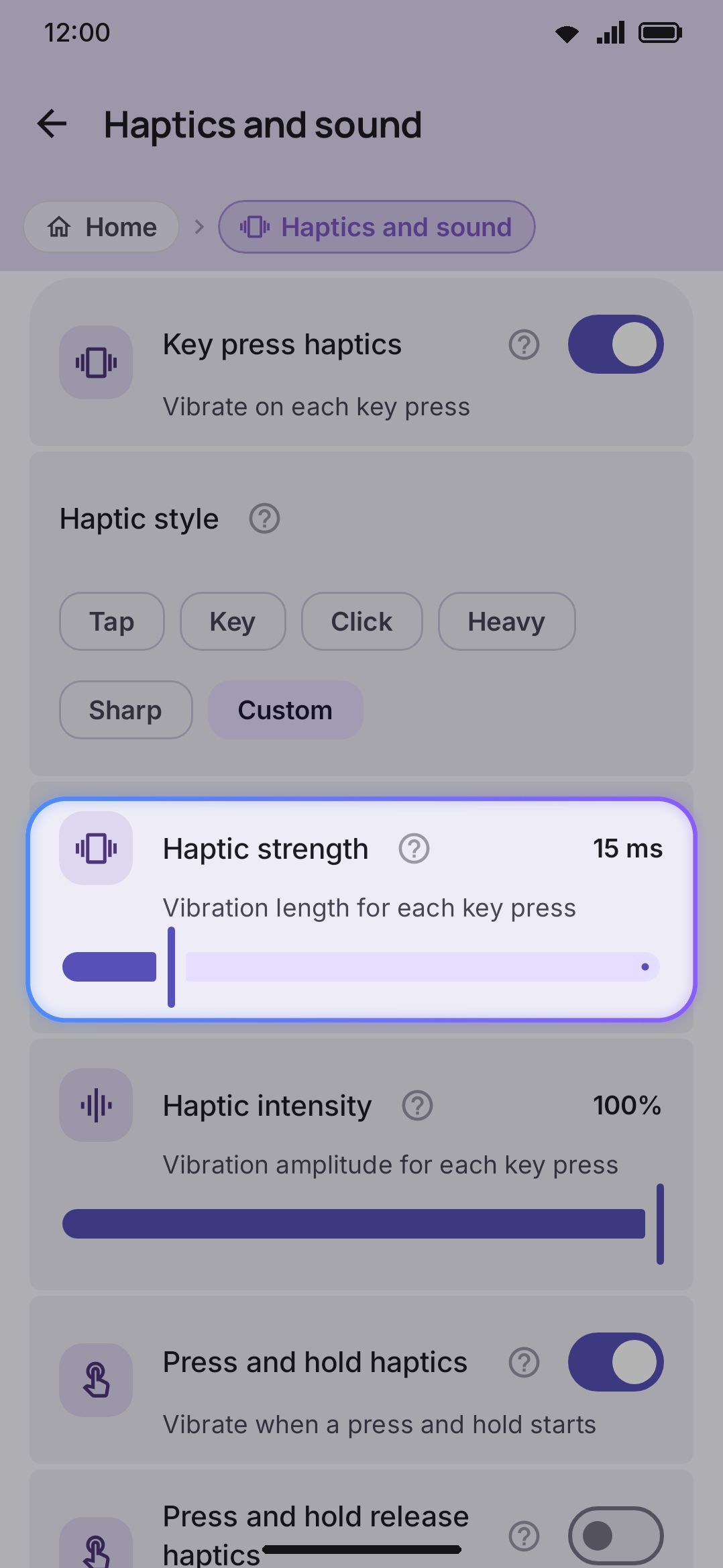
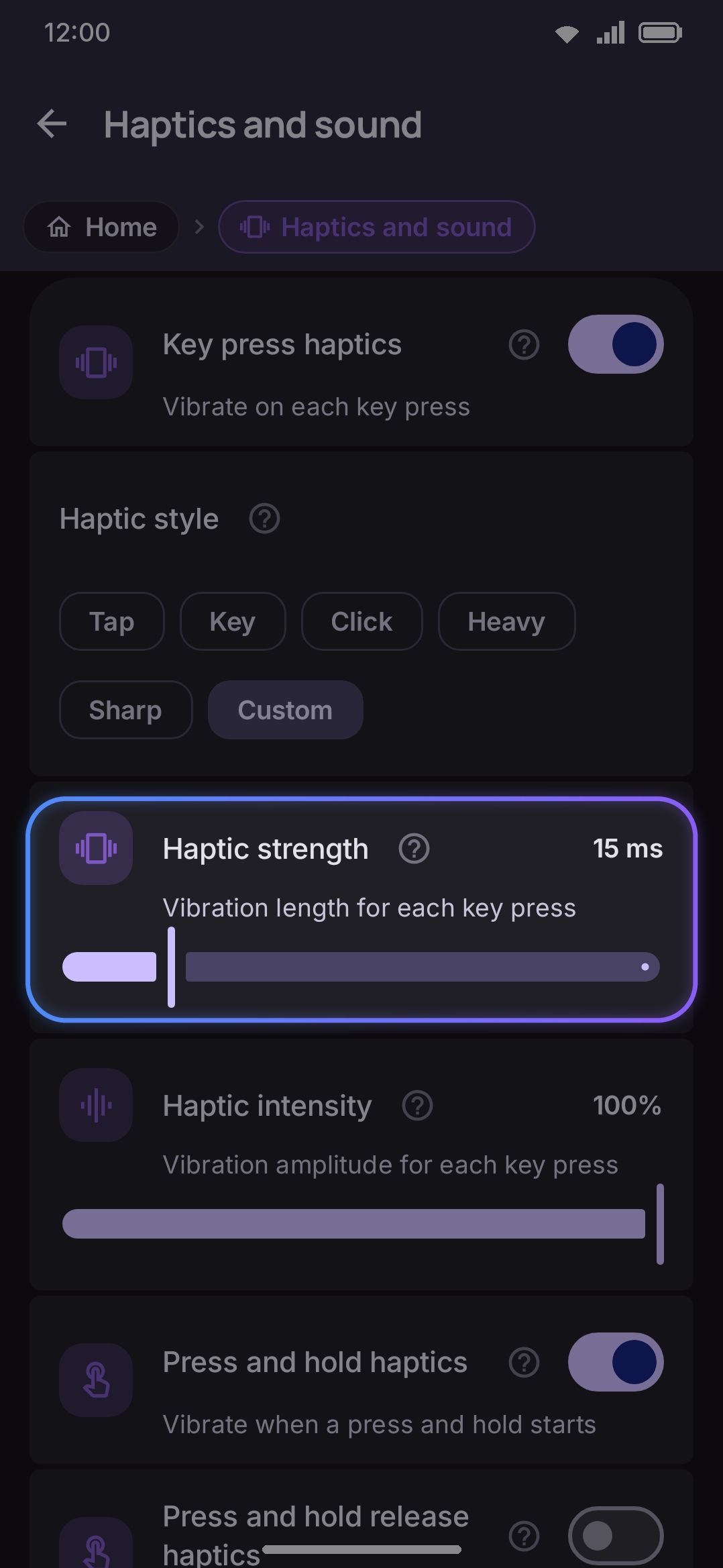
| Custom | Drives the vibration motor directly by duration and intensity | Android 8+ |
Tap and Key are the two to reach for first. They hand the buzz to the same platform call stock keyboards use, so a phone with vendor-tuned haptics (Samsung, Pixel) gives you that crafted click, and it follows the system’s own haptic-intensity slider on its own.
Tap is the default, and on most phones it’s the one you want. Vendors usually tune a separate waveform for keyboards, and Tap is what their own keyboard plays, so it tends to feel crisper than Key even though the two are only one constant apart. On a Galaxy S25 Ultra, for instance, Tap and Key resolve to genuinely different Samsung effects, and Tap is the one Samsung Keyboard uses. Switch to Key if Tap feels wrong on your device. That happens on phones whose vendor never bothered to tune a keyboard-specific effect.
Click, Heavy, Sharp and Custom bypass the platform call and drive the motor more directly, which is useful if you want a feel the platform styles don’t offer. When a style isn’t available on a device, it falls back to a hardware Click and then to Custom, so every style produces some feedback everywhere.
Custom exposes two sliders: Haptic strength (5–60 ms, vibration length) and Haptic intensity (1–255, how hard the motor is driven). Sharp exposes intensity too, to control the punch of its click primitive, but not strength, since the hardware fixes the primitive’s length. The system-wide touch-feedback vibration setting still scales the final strength on top of whatever you set here.
Two more toggles cover the edges of a long press. Long-press haptics (on by default) buzzes the moment a long press registers, whether that’s the alternate-character popup opening or a long-press action firing, so your finger knows it can let go. Long-press release haptics (off by default) adds a second buzz when you lift your finger afterward. It’s off because a third vibration in one gesture reads as excessive to a lot of people.
What the setup wizard picks
Section titled “What the setup wizard picks”Tap is the app’s own default, but it may well not be the style you find selected after a first run, and that isn’t a bug. The setup wizard asks the vibration motor once, at the top of a fresh install, and writes whichever style the device can actually play. That’s Key on a phone whose motor supports the predefined click effects, and Heavy where the motor reports them unsupported, or where the phone is older than Android 11 and support can’t be read at all. It only ever happens on a genuine first run, never on a replay of the wizard, so it can’t overwrite a choice you’ve already made. If you wanted Tap, pick it from the chips. Nothing will move it back afterwards.
Per-event vibration
Section titled “Per-event vibration”Six more toggles, visible only while Key press haptics is on, let you keep the buzz everywhere except one event, rather than trading it all for silence:
- Vibrate on space (on) is the Space bar’s own press buzz. Turning it off doesn’t silence the space key outright, since the key press sound still plays if it’s on.
- Vibrate on delete swipe (on) buzzes on each word a ⌫ swipe removes. Off turns clearing a sentence into one smooth pull instead of a buzz-saw. A plain backspace tap is unaffected either way.
- Vibrate on key repeat (on) buzzes on every auto-repeat while ⌫ or Space is held. Off keeps only the first press buzzing.
- Click on key repeat (on) is the sound half of the same thing: every auto-repeat plays the key sound too. Off leaves only the first press audible, which is worth having if you hold backspace with the sound on. It does nothing unless the key sound is on.
- Follow the system touch feedback setting (off) is the odd one out, since it isn’t per event. By default the keyboard keeps buzzing even when Android’s own touch-feedback switch is off, because the keyboard has its own switch for that. Turn this on and the system switch silences the keyboard too.
- Mute haptics in Do Not Disturb (off) is covered in Silent and Do Not Disturb below.
Key press sound
Section titled “Key press sound”Key sound plays a click on every key press. Unlike haptics, it’s off by default. Turning it on immediately previews whatever style is currently selected, so you hear what you’re about to turn on.
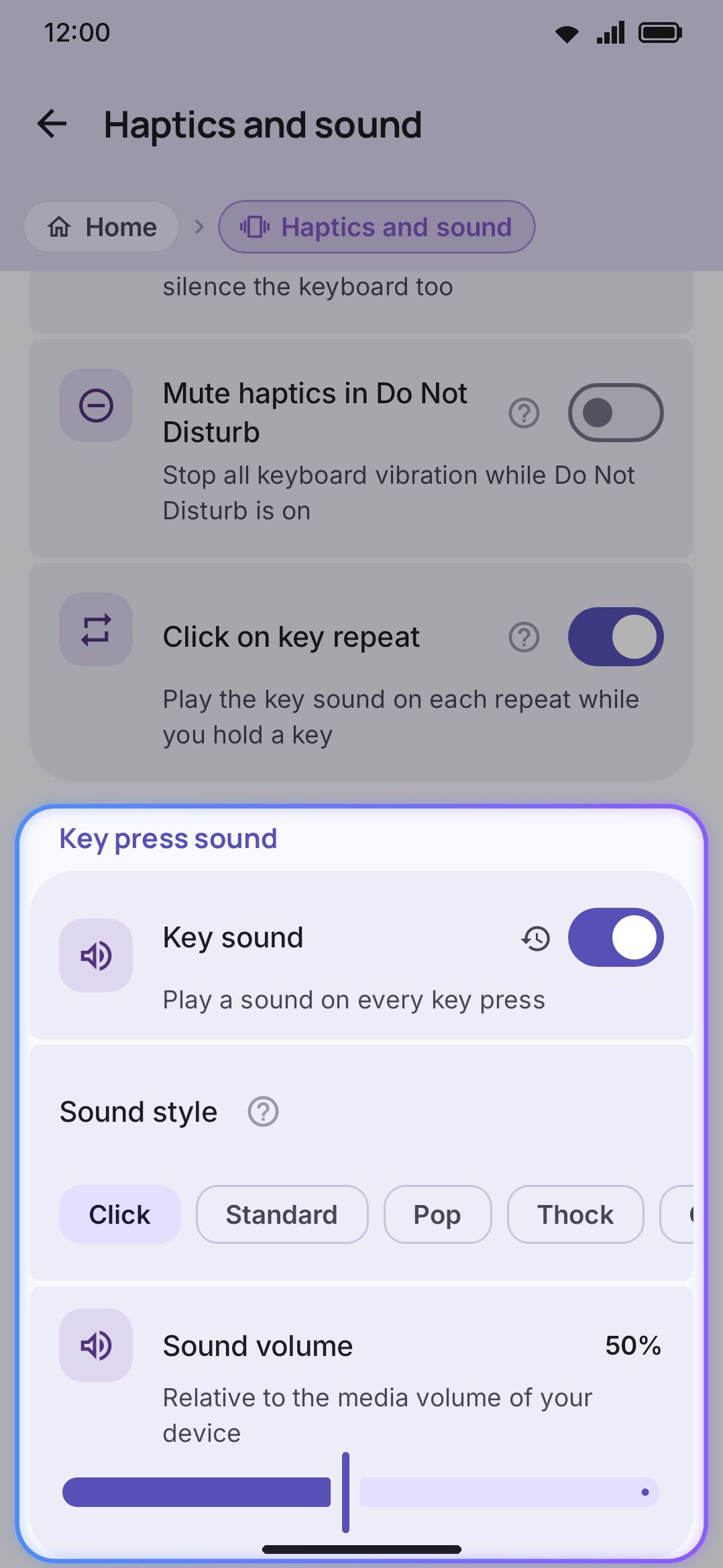
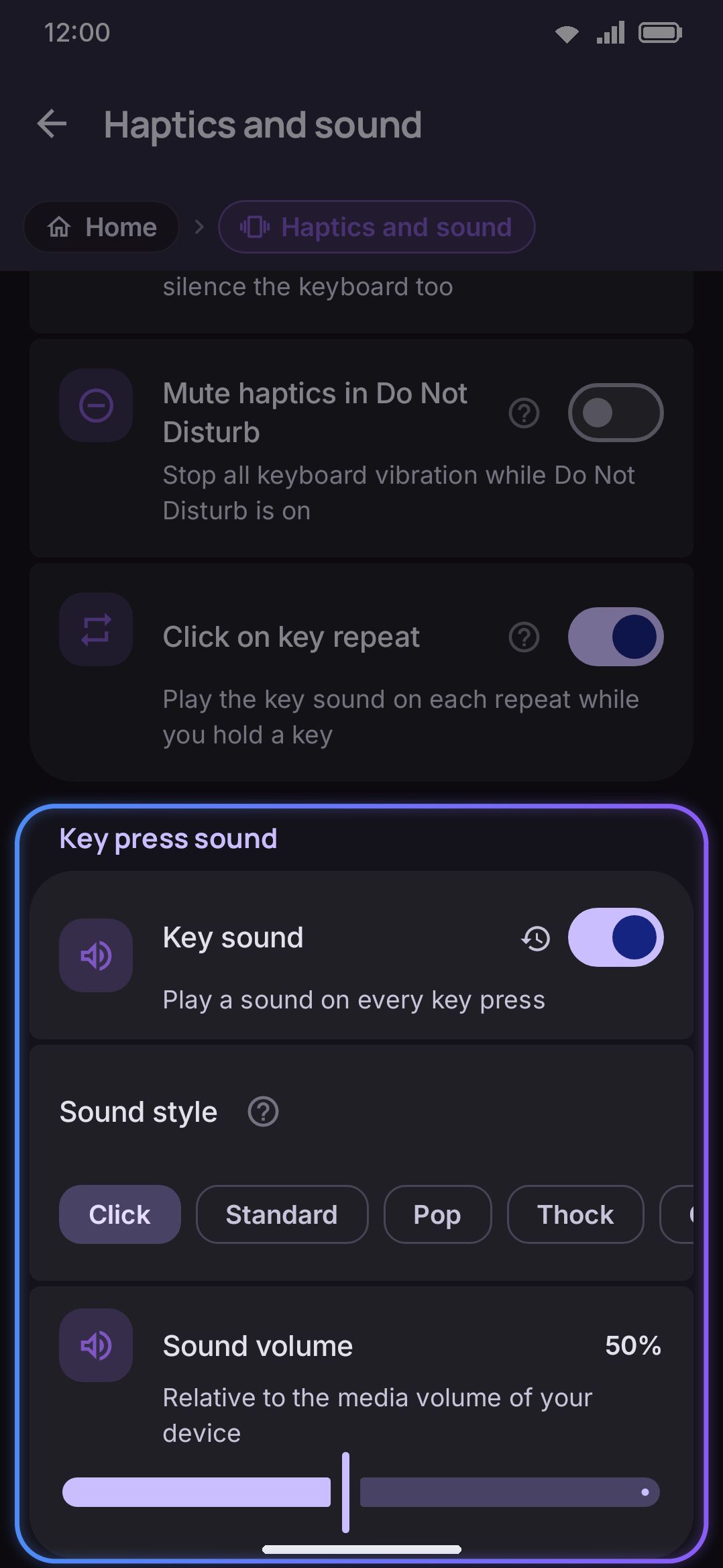
Sound style offers seven options as chips:
| Style | Source |
|---|---|
| Click | Device’s system sound pack: the classic key tick, matching the stock keyboard |
| Standard | Device’s system sound pack: the softer AOSP key press |
| Pop | Built into WM Keyboard: a soft bubble pop, identical on every device |
| Thock | Built into WM Keyboard: a deep mechanical bottom-out, identical on every device |
| Chime | Built into WM Keyboard: a small bell ring, identical on every device |
| Custom | A single sound file you’ve installed (see Installing more key sounds) |
| Sound pack | An installed pack of many recordings, one picked per key press and, on some packs, another when you lift (see Sound packs) |
Click and Standard come from the device’s own system sound pack, so they vary phone to phone the way the stock keyboard’s clicks do. Pop, Thock and Chime are synthesized in-app and sound the same everywhere.
All seven chips are on the settings screen. On the keyboard’s own Sound & haptics panel, Custom and Sound pack appear only once one of them is already selected, since neither names a fixed waveform and there’s no file picker on the keyboard. Pick them from the settings screen the first time.
Sound volume (5%–100%) is relative to the system media volume rather than an absolute level.
Installing more key sounds
Section titled “Installing more key sounds”Pick the Custom chip to reveal your installed sound library and an Import a sound file (.mp3) button that also accepts .ogg and .wav. A sound you haven’t chosen falls back to the system click rather than staying silent, so a key press never goes unheard because a file went missing.
You can grow that library two ways: import a file directly here, or install a key sound addon from an addon repository. Both land in the same list. See Installing addons for the general install flow. A key sound addon lands under Key press → Sound style and, like themes and layouts, offers to switch to it right after install.
Sound packs
Section titled “Sound packs”A sound pack is a key sound with more than one recording in it. Pick the Sound pack chip to reveal your installed packs and an Import a sound pack (.wmsoundpack) button.
Why it exists: a single file can’t sound like a real keyboard, because a real keyboard never makes the same noise twice. A pack holds up to 32 recordings of the same board, and the keyboard picks one for each key press, so a run of the same letter doesn’t come out as a loop. The row under each pack’s name tells you how many recordings it holds.
The same recording never plays twice in a row, which is a small but audible difference from how monkeytype does it. Monkeytype picks uniformly across the whole list, so on a three-recording set roughly every third keystroke repeats the previous one, which is exactly what the recordings are there to avoid.
Key release sound
Section titled “Key release sound”A mechanical keyboard makes two noises per key: the switch going down, and the stem coming back up when your finger leaves. Packs recorded from real switches carry both, and the keyboard plays each when it happens. Hold a key and you hold the second sound too, instead of it firing on a timer.
Packs that have it say so on their row (“10 recordings • keys sound on the way up”), and a Key release sound switch appears under the list to turn it off. The switch is hidden for packs without key-up recordings, because there’d be nothing for it to do. Every other sound style is one sound per press and is unaffected either way.
Tap a pack in the list and it plays a whole keystroke (press, a short hold, release) rather than just the way down, since half a pack is a different pack.
Separate sounds per key
Section titled “Separate sounds per key”A pack can also carry different recordings for different kinds of key: the Space bar, Enter, ⌫, and the modifier row (Shift, ?123, the globe and so on). On a real board those genuinely do sound different, mostly because of the stabilizers under the longer keys.
Most packs don’t fill those slots and don’t need to. When a pack does, its row says so: “10 recordings • separate sounds for space, enter”. A slot a pack leaves empty falls back to the pack’s main recordings, so nothing ever goes silent. This is independent of the key-up recordings above. A spacebar recorded on its own still uses the pack’s ordinary key-up sound unless it brought one.
Where packs come from
Section titled “Where packs come from”Same two routes as single sounds: import a .wmsoundpack file here, or install one from an addon repository. The Monkeytype Key Sounds repository ships pre-added and carries 26 packs built from monkeytype’s own sound files, including recordings of Cherry MX, Kailh, Akko, Tealios and Razer switches. Twelve of them (the mechanical switch sets, the typewriter and the two boards) have their key-up sounds cut out of the recordings, so they behave like the keyboards they came from.
Before installing, an addon’s page offers a Preview that plays each recording in the pack separately, key-downs and key-ups on their own rows, so you can hear how much it actually varies rather than guessing from one sample.
If a pack goes missing while it’s selected, the key press falls back to the system click rather than going quiet, exactly as a missing single sound does.
Silent and Do Not Disturb
Section titled “Silent and Do Not Disturb”The ringer switch and Do Not Disturb are handled differently, and it’s worth knowing which is which:
- Key press sound follows the ringer switch automatically, with no setting for it. It plays through the same system sound-effect stream the rest of Android uses, so silent and vibrate mode mute it the way they’d mute any other system sound. The toolbar “Sound & haptics” panel (see below) shows a live warning whenever the sound is on but the ringer would swallow it: “Your device is on vibrate. The key press sounds do not play.”, or the same line with “silent” in place of “on vibrate”.
- Haptics do not follow Do Not Disturb, by default. DND targets notifications rather than touch feedback, so the keyboard keeps buzzing under DND unless you turn on Mute haptics in Do Not Disturb. With that on, every keyboard vibration stays silent for as long as DND is active, down to the long-press and per-event buzzes.
Ringer mode and DND are independent Android states. Sound only checks the ringer, haptics only check DND, and neither one looks at the other.
A toolbar shortcut
Section titled “A toolbar shortcut”Sound and haptics settings are reachable straight from the keyboard, without opening the Settings app. Add the Sound & haptics tool to your toolbar and its panel gives you the master toggles in a compact view: haptic style with its intensity and strength sliders, sound style and volume. The per-event toggles and long-press options stay on the full settings screen. Every change here writes to the same settings either way. As on the settings screen, a slider on this panel stores its value when you lift your finger rather than on every step of the drag; see Settings overview.
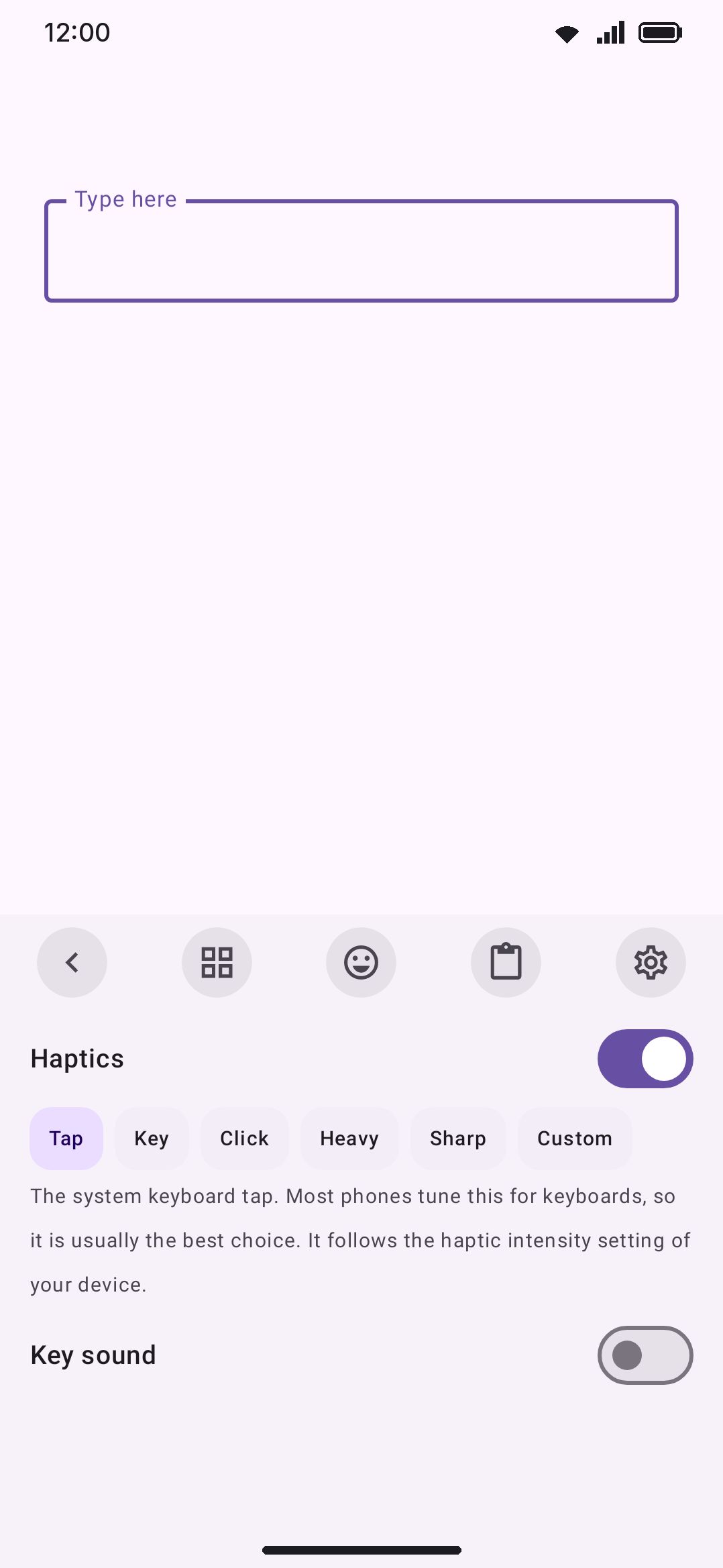
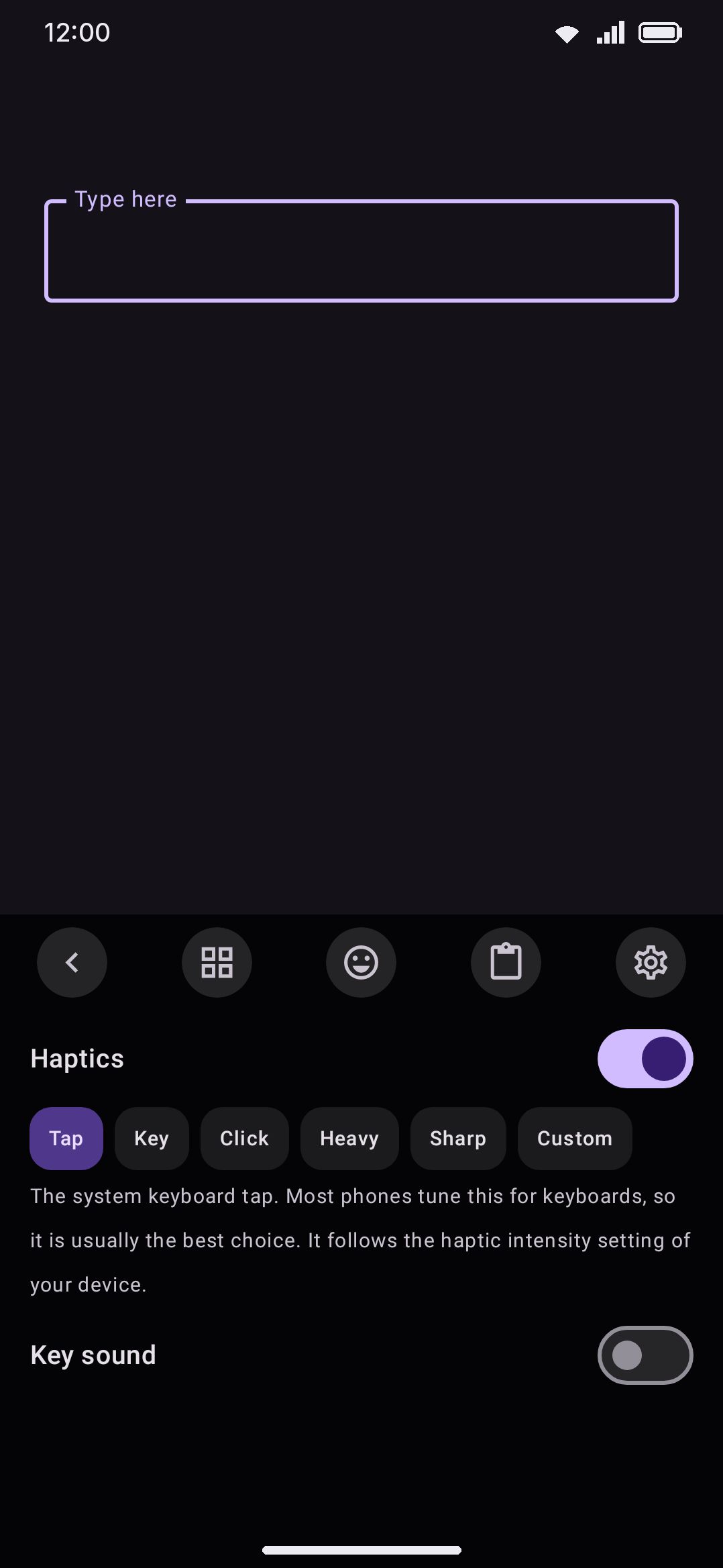
No onboarding answer switches it on, not even “Show me everything”, so if you finished the setup wizard you’ll need to enable it from WM KeyboardTools first. Either way, drag it from the toolbox up onto the toolbar to pin it. See The toolbar for how pinning works.
Options
Section titled “Options”| Setting | Default |
|---|---|
| Key press haptics | On |
| Haptic style | Tap (but see what the wizard writes) |
| Haptic strength (Custom only) | 15 ms |
| Haptic intensity (Custom, Sharp) | 255 |
| Long-press haptics | On |
| Long-press release haptics | Off |
| Vibrate on space | On |
| Vibrate on delete swipe | On |
| Vibrate on key repeat | On |
| Click on key repeat | On |
| Follow the system touch feedback setting | Off |
| Mute haptics in Do Not Disturb | Off |
| Key sound | Off |
| Sound style | Click |
| Sound volume | 50% |
Open the Key press tile on the settings home grid, or search “Key press” in settings search. For the field-by-field breakdown, including the key popup and the long-press editing shortcuts that share this screen, see Key press settings.
Details & edge cases
Section titled “Details & edge cases”- You’ll see a slimmed-down version of this during setup. The onboarding wizard’s “Typing feedback” page is three plain on/off switches: Key press haptics, Key press sound and Key popup. Turning either of the first two on plays what you just chose. Everything finer (the style chips, strength, per-event toggles, DND) lives only on the full settings screen.
- Fast typing won’t feel like a smear. Rapid presses coalesce with a short minimum gap between vibrations, so rollover typing still reads as distinct taps rather than one continuous buzz. The key sound skips that coalescing deliberately, since two clicks overlapping is not the problem two vibrations overlapping is.
- Power saving turns both off out of the box. While Power saving is active, its Key vibration and Key sounds switches override whatever you’ve set here, and your choices come back the moment it deactivates. Both of those switches ship on, and each can be turned off on its own under WM KeyboardToolsPower saving if you would rather keep the buzz or the click while the battery is low.
- Nothing on this page is edition-gated. Haptics, key sounds and sound addons all work identically on the full and lite builds.
See Accessibility for how touch feedback interacts with screen-reader use, and Installing addons for the general addon install flow that key sound packs go through.