
Switching languages
Four ways to switch: spacebar swipe, hold-drag picker (list or carousel), globe key, system switcher.
Once more than one layout is enabled, there are four ways to move between them on the touchscreen: swipe the spacebar, hold the spacebar and drag through a list, use a dedicated key, or reach for Android’s own input-method switcher. All four call the same underlying switch. Pick whichever suits your hands, because nothing about what a switch does changes. A physical keyboard adds a fifth: its own language key, or Ctrl+Space. See Hardware keyboards for those.
However you make it, the switch lands right away. A half-typed word is committed as it stands, the keys redraw, and the suggestion strip refills from the new language’s dictionary immediately, so you don’t have to type a letter first to stop being offered words from the language you just left.
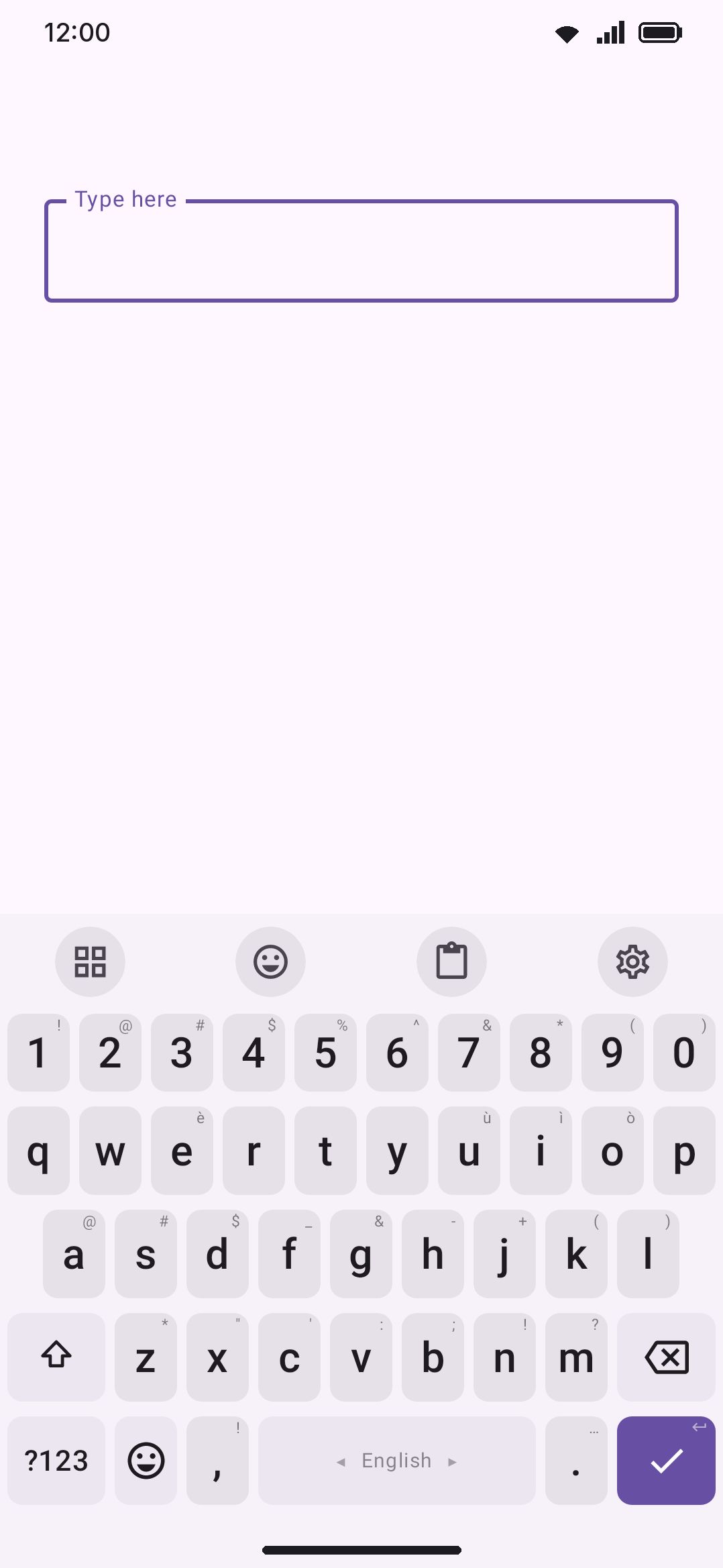
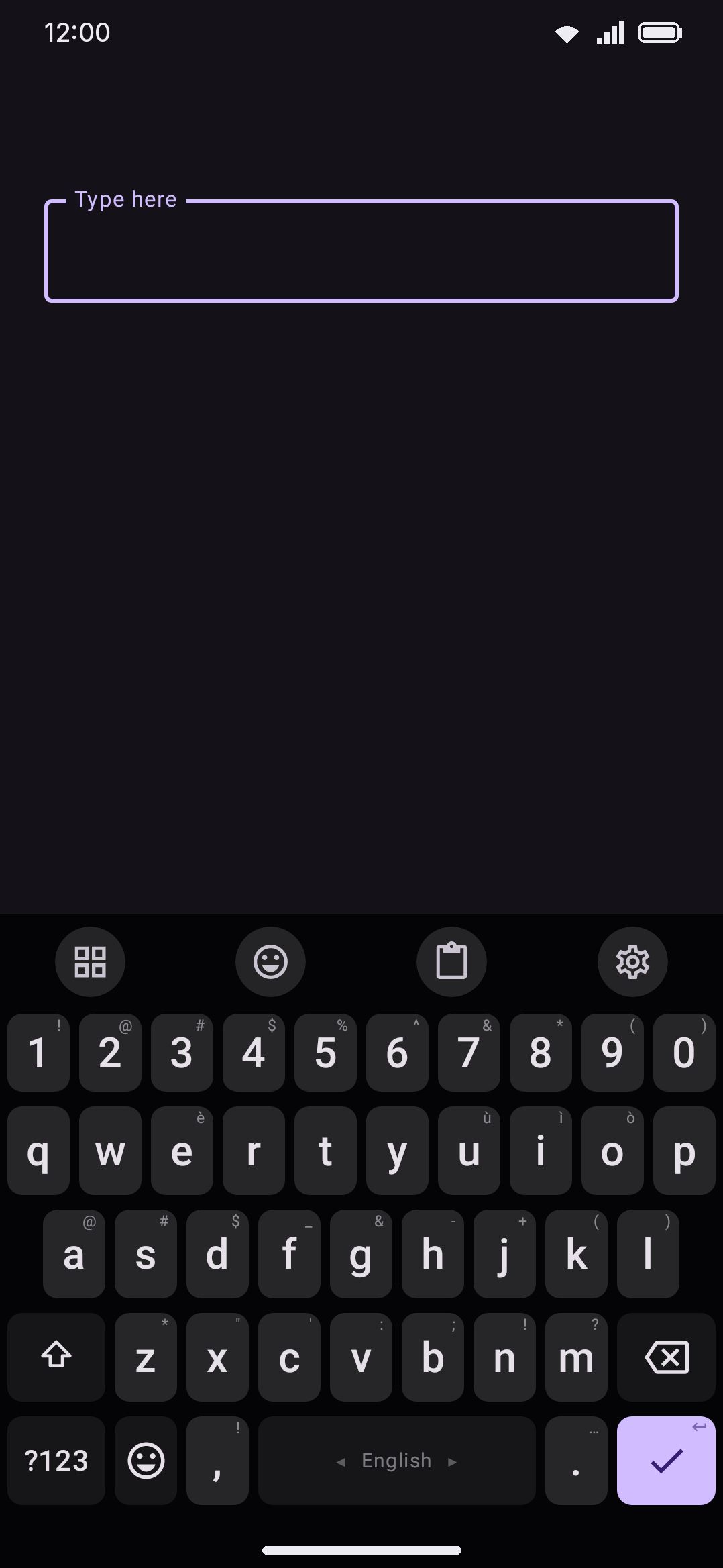
Swiping the spacebar
Section titled “Swiping the spacebar”The spacebar has two independent swipe slots, each set under WM KeyboardTypingGestures:
- Quick swipe on the spacebar: a swipe that starts moving right away. Defaults to Language.
- Press and hold, then swipe: hold briefly, then swipe. Defaults to Cursor.
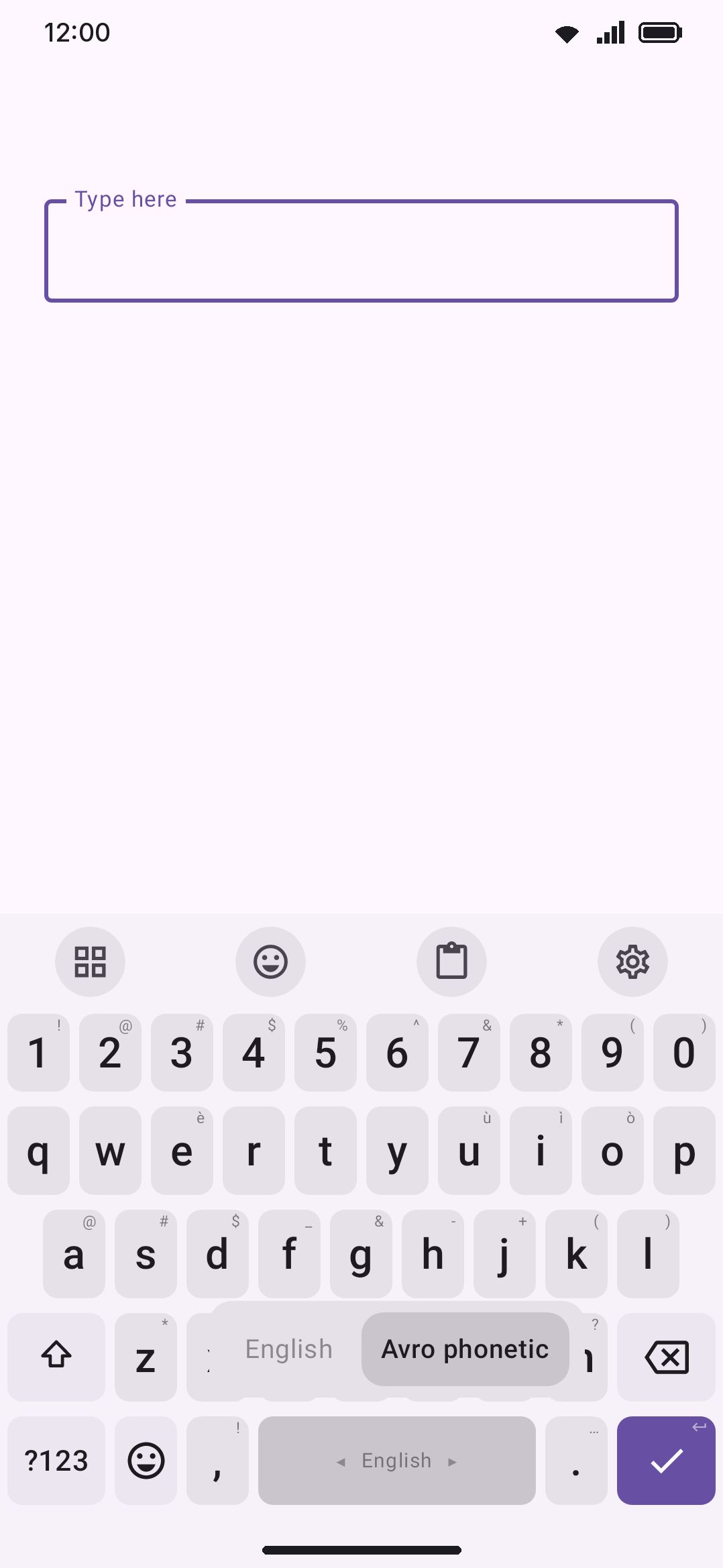
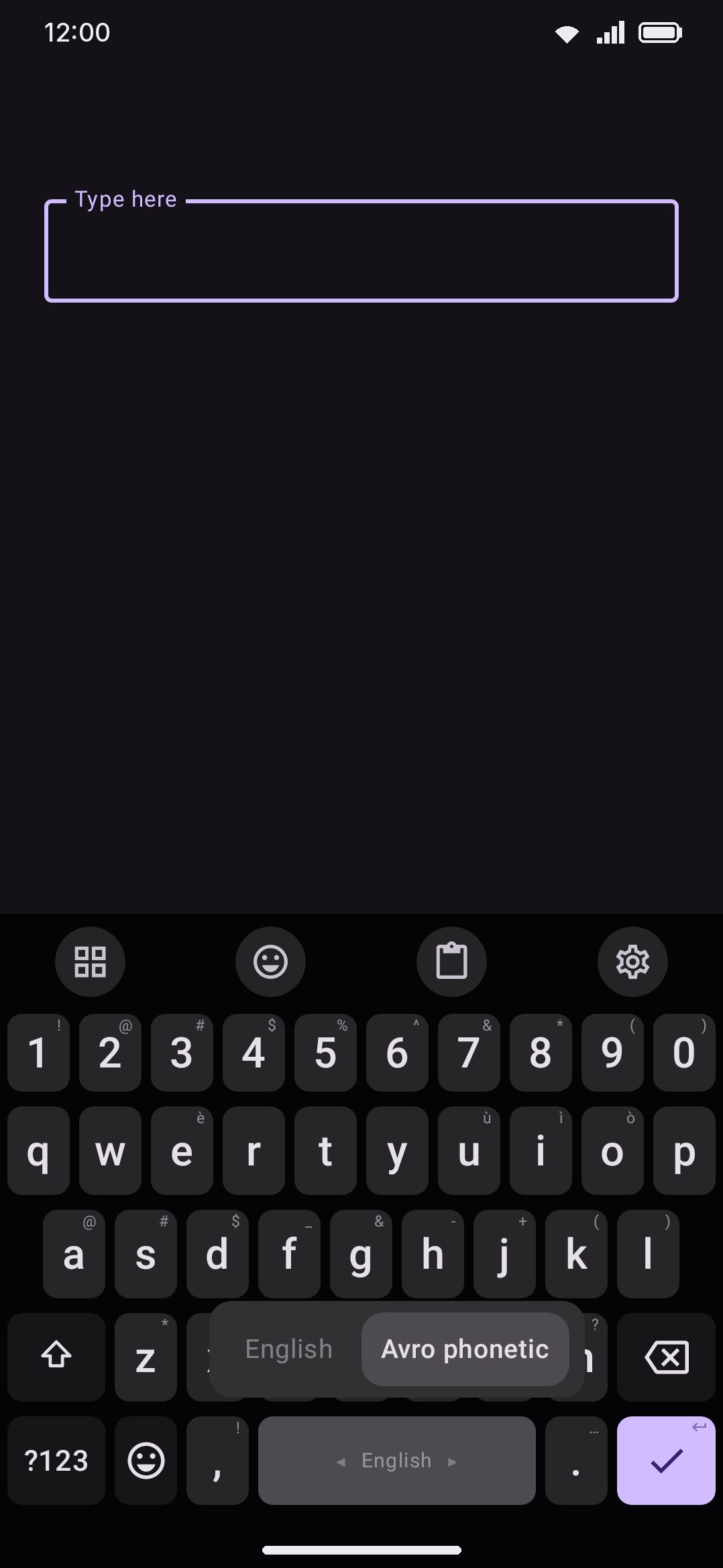
Each slot can be set to Nothing, Language, Cursor, or Numpad. Which slot fires depends on when the drag starts, not on how far you drag. The reference point is the long-press delay, 300ms by default. A swipe that crosses the touch-slop threshold before that delay uses the quick-swipe slot, and one that starts after it uses the hold + swipe slot. Once the language preview or the picker list is up, any further drag switches language whatever the slot is set to. You are looking at a language chooser by then, so the drag does what it looks like it does. That never overrides your hold + swipe slot, because the chooser only appears on a hold when that slot is set to Language or Nothing (see below).
With exactly two layouts enabled, a swipe toggles to the other one. Dragging further in the same direction doesn’t toggle again. Reverse direction to switch back. With three or more layouts, a quick flick moves exactly one layout over, however fast or far it travels, so the one in the middle is always a flick away. To go further, keep the swipe moving: after a short pause (about a fifth of a second) each further 44dp of horizontal drag steps to the next one in your switch order, while reversing direction answers straight away. After a quick flick the preview stays up for a moment after you lift, so even a flick shows which layout it landed on. A slow swipe that rested on its layout for a quarter of a second or more has already shown it, so the preview goes the instant you lift. Either end of the list resists wrapping around, since a wrap costs 2.5× the travel of a normal step, so the boundary layout “parks” until a deliberate extra pull cycles you back to the start. (Two layouts of the same language still toggle rather than cycle. The count that matters is enabled layouts, not distinct languages.)
While a language swipe is in progress, a preview pops up above the spacebar showing every enabled layout as a row of chips: the current selection bold and highlighted, the rest dimmed. With more than five layouts enabled it shows a five-chip window centered on your selection instead of the whole list. Release to commit the highlighted layout. A tap with no movement always types a space.
The resting spacebar label follows The spacebar shows (also under Typing → Gestures), which offers Language (the default), Layout, or Both. In Language mode, a transliterating layout such as Avro always shows its own name instead of the shared language name. Avro, Probhat and Jatiya all display as বাংলা, so the language name alone wouldn’t say which method is under your fingers. In Both mode, a transliterating layout shows the combined form instead, such as বাংলা (Avro phonetic). That’s the same as any other layout whose name differs from its language. Otherwise, whenever two enabled layouts share a language, the label adds the layout name alongside it so you can tell them apart. The ◀▶ hint arrows need three things at once: Arrows on the spacebar on (the default), one of the two swipe slots set to Language, and more than one layout enabled.
Holding to drag through the list
Section titled “Holding to drag through the list”Two things have to be true first: more than one layout enabled, and Press and hold, then swipe set to Language or Nothing. That slot is the setting for what a hold does, so pointing it at Cursor or Numpad hands it the hold outright and no picker opens. Otherwise the picker swallows the very drag you asked for, which is what used to happen. A fresh install ships that slot on Cursor, so this gesture is opt-in: set the slot to Language (or Nothing, if you would rather the hold only ever open the picker) to get it.
With that done, press and hold the spacebar. Shortly before the long-press delay would fire (250ms, or your long-press delay if that is shorter), one of two things opens:
- The inline preview from the section above, if you have four or fewer layouts enabled and the quick-swipe slot is set to Language.
- A scrollable picker list, once you have more than four layouts enabled, or if you’ve reassigned the quick-swipe slot to something other than Language.
Keeping the preview past four layouts
Section titled “Keeping the preview past four layouts”The switch to the list at five layouts is a setting. Picker for more than four layouts ships on. Turn it off and the hold keeps the sideways inline preview however many layouts you have on. The preview shows five layouts at a time and slides along as you drag, so the ones off screen are still in reach, and the hold-drag keeps moving the same way the swipe does. The quick-swipe rule still applies: with that slot set to something other than Language, the hold opens the picker at any length. The 🌐 key’s long press always opens the picker.
Once the list is open, drag vertically to walk it one row at a time. The first bit of finger movement after the list appears is absorbed as calibration, so drift from before the hold fired never selects a neighbor by accident. Lift your finger after moving and the highlighted row is selected. Lift without moving at all and the list stays open, so you can tap the row you want.
Keeping the drag sideways: the carousel
Section titled “Keeping the drag sideways: the carousel”The list has one awkward side. The swipe that switches language moves left and right, but the list walks up and down, so the moment you have enough layouts to need it the same gesture changes direction on you. Language picker shape offers a Carousel instead of the list. It is the same picker turned sideways: one strip of chips above the spacebar, centred on the layout you are typing in, with the rest scrolling off either end.
With the carousel on, a spacebar hold-drag walks left and right, one chip per 44dp, the same step the plain swipe uses, and the strip slides to keep the highlighted chip in the middle so your finger never has to chase it. Everything else about the hold is unchanged: the first bit of movement is still absorbed as calibration, lifting after a move selects the highlighted chip, and lifting without moving leaves the strip up so you can tap a chip or scroll it by hand. The 🌐 key’s long press opens the same carousel.
The setting ships on List, so nothing changes until you pick the carousel. It only decides what the picker looks like. The four-layout threshold above (and whether it applies at all), and the quick-swipe slot, still decide whether the picker or the inline preview opens.
A second setting takes this whole gesture away on purpose, the same way the hold + swipe slot does. Put characters into Spacebar long press keys under Typing → Gestures and the hold opens your own popup instead of the picker, which is what you want if you type in one language and would rather have your emoji there. The globe key and the spacebar swipe still switch language. Clear the field to get the picker back.
The last row, Other keyboards…, isn’t a layout. It opens Android’s own “Choose input method” sheet, which is how you hand the field to a different keyboard app entirely. It sits below the scrolling part of the list so it’s always in reach however many layouts you have on, and the hold-drag walk skips it: it’s a tap-only row. In the carousel it is the keyboard glyph past the divider at the strip’s end, and the same rules apply.
Using the globe key
Section titled “Using the globe key”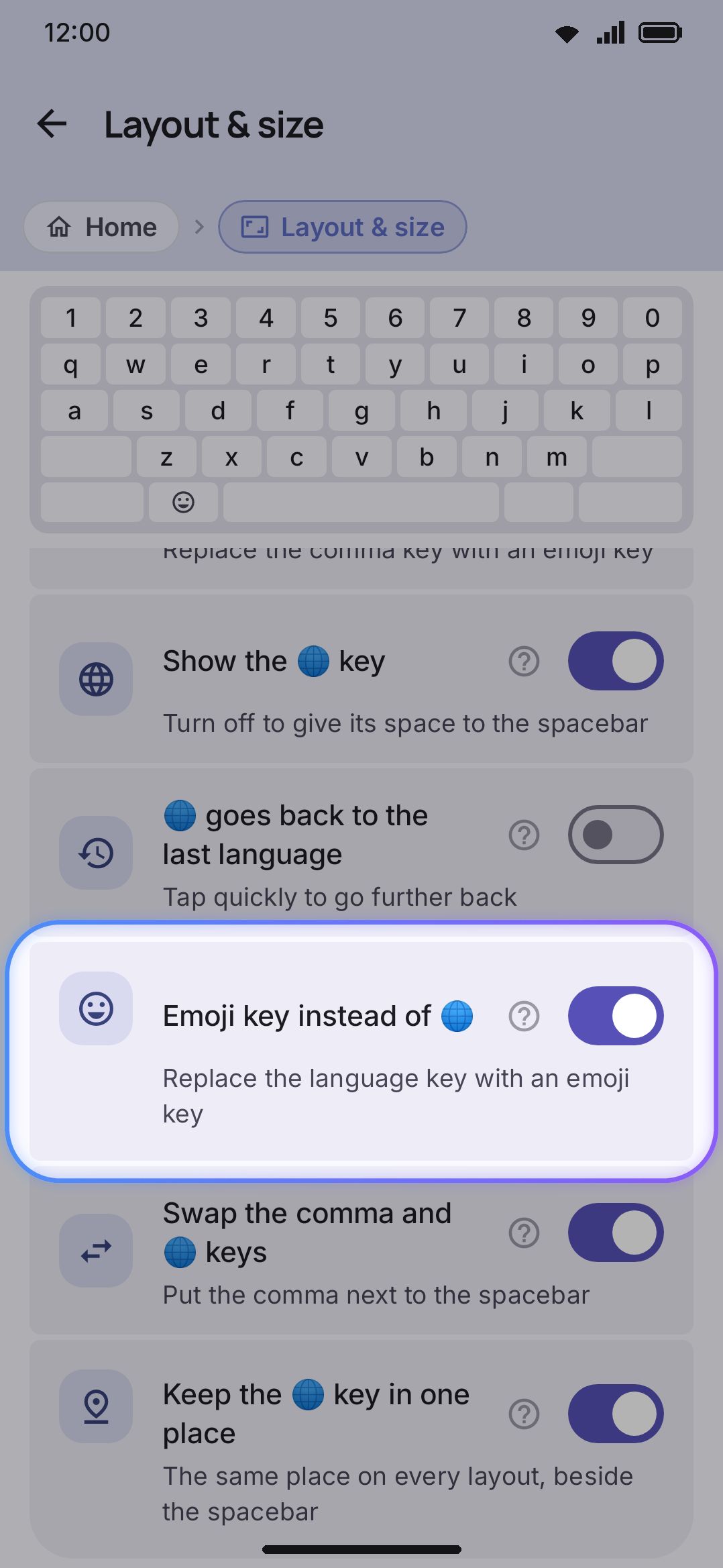
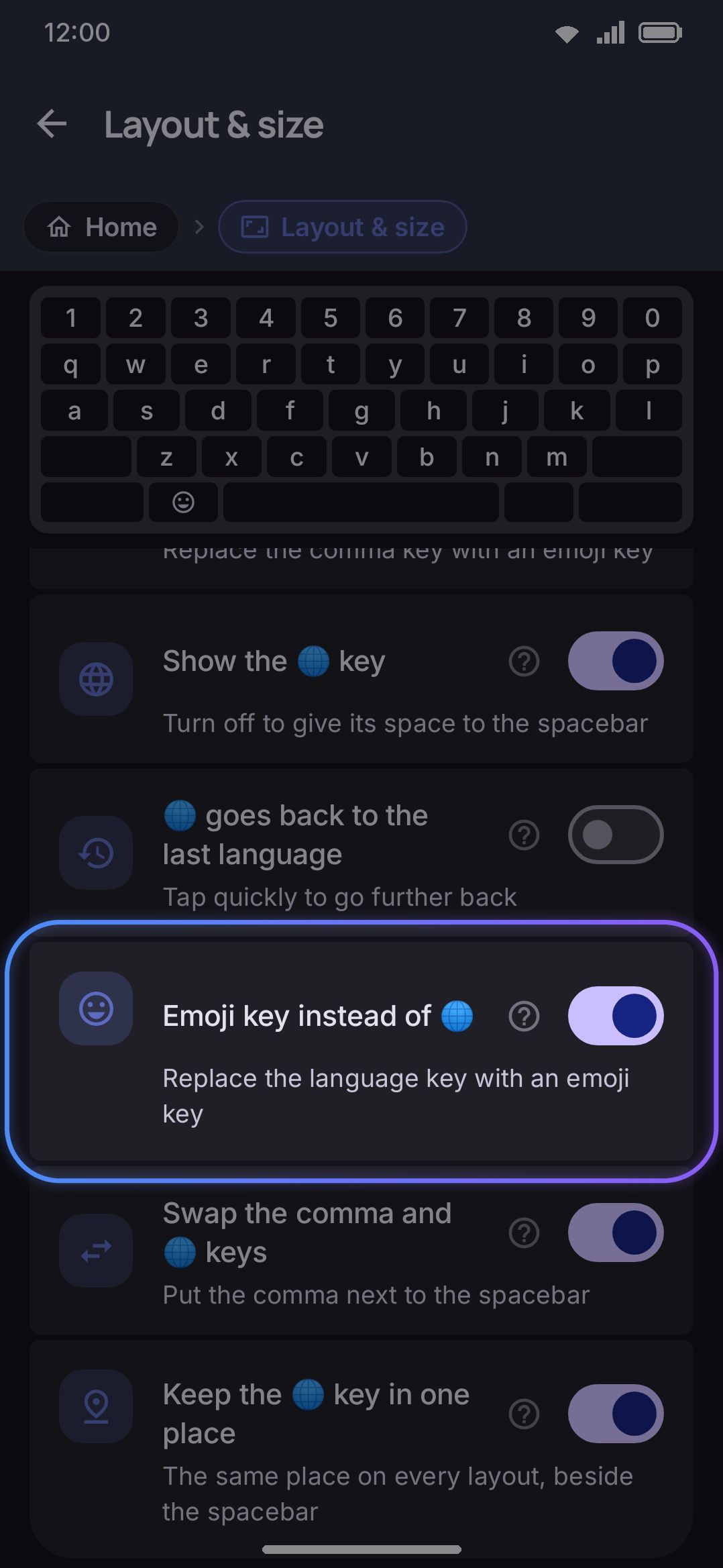
Turn this toggle off in WM KeyboardLayout & sizeBottom row keys to get the language key back. With it off, the bottom-row key behaves as a dedicated language switcher:
- Tap cycles to the next enabled layout (not language) in your switch order, wrapping from the last back to the first. Three layouts of the same language still count as three separate stops.
- Long-press opens the same picker the spacebar hold-drag uses (the list, or the carousel if you chose it), regardless of how many languages you have enabled.
Going back to the last language
Section titled “Going back to the last language”With many languages enabled, you often type only two or three of them at a time, and a different two or three depending on who you’re writing to. Cycling in a fixed order then means tapping past languages you aren’t using. Turn on 🌐 goes back to the last language (off by default) and the key goes by what you used most recently instead, the way Alt+Tab moves between windows:
- One tap goes back to the layout you used before this one. Tap again and you’re back where you started, so any two layouts toggle, wherever they sit in your switch order.
- Quick taps, each within about 0.8 seconds of the last, go further back: the second tap lands on the layout you used before those two, and so on. From the second tap, a list shows the layouts most recently used first, with the one you’re on highlighted. Stop tapping, or type anything, and the list closes.
Only the layout you stop on counts as used, so tapping past a language on the way doesn’t push it up the list. Every switch you make counts, whether it came from the spacebar, the picker or the key, so the list is ready when you turn the setting on. Layouts you’ve never switched to come last, in switch order. With two layouts enabled this works the same as the plain tap. A physical keyboard’s language key follows this setting too. The spacebar swipe doesn’t: it always steps through your switch order.
Ignoring a 🌐 tap right after typing
Section titled “Ignoring a 🌐 tap right after typing”The 🌐 key sits between the comma and the spacebar, so a fast thumb aiming for either lands on it now and then, and the language changes in the middle of a word. Ignore 🌐 right after typing (off by default) sets a short window, from 50 ms up to a full second: a 🌐 tap that comes sooner than that after a typed key does nothing. Letters, space, backspace and enter count as typing. Shift, the mode keys and the tools don’t, and neither does 🌐 itself, so quick taps through the list with 🌐 goes back to the last language still work. A deliberate switch comes after a pause, which is longer than the window, and a press and hold still opens the picker at any time. The window is greyed out while the key is hidden.
Sliding from 🌐 onto a shortcut
Section titled “Sliding from 🌐 onto a shortcut”With Slide from 🌐 for shortcuts on (off by default), putting your finger on 🌐 and sliding it onto a letter runs that letter’s editing shortcut when you lift: onto C copies, V pastes, X cuts, A selects all, Z undoes and Y redoes. They’re the same six actions on the same keys as the hold shortcuts, including any keys you moved them to, but the slide works whether the hold shortcuts are on or off. A line follows your finger from the key, as with the Shift and Ctrl drags. Lifting anywhere else does nothing, and sliding back onto 🌐 before you lift switches language like a tap. The slide has to start before the hold opens the language picker; once the picker is up, the finger belongs to it.
To take the key off the bottom row altogether, turn off Show the 🌐 key in the same group. The spacebar gets its width. Switching still works from the spacebar, so keep a swipe set to Language if you type in more than one.
Reordering and trimming the ring
Section titled “Reordering and trimming the ring”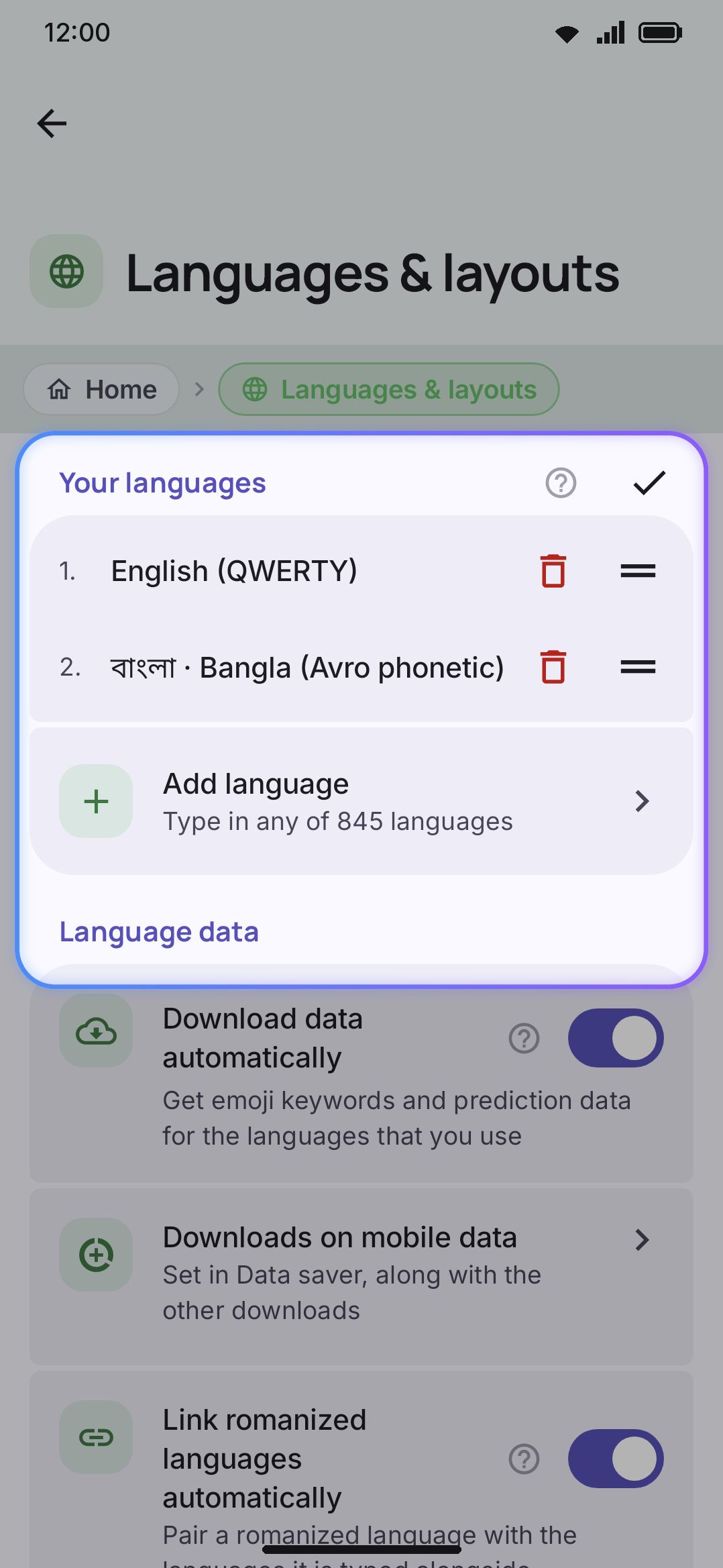
Every key and gesture above cycles through the same ordered list: your enabled layouts, in switch order. A fresh install seeds that list from your phone’s own language settings, taking one layout per language it recognises, and then adds QWERTY. The whole list is capped at four layouts, so a phone set to four other languages fills up before QWERTY gets a slot. A phone set to Bangla and English starts with Avro and QWERTY. A phone set to English alone starts with QWERTY on its own and has nothing to cycle to yet. Everything else in the catalogue sits inactive until you add it. See Languages overview for how the full catalogue works and what’s in it.
The head of that list is also where the keyboard opens. On a phone set to French, the seeded ring is AZERTY (French) then QWERTY, and the first keyboard you see is AZERTY — spacebar label, dictionary and autocorrect included. Reordering the ring moves that starting point with it, right up until the first time you switch language yourself; from then on the keyboard opens in whichever layout you last used, and reordering only changes what the next step lands on.
On the Languages screen:
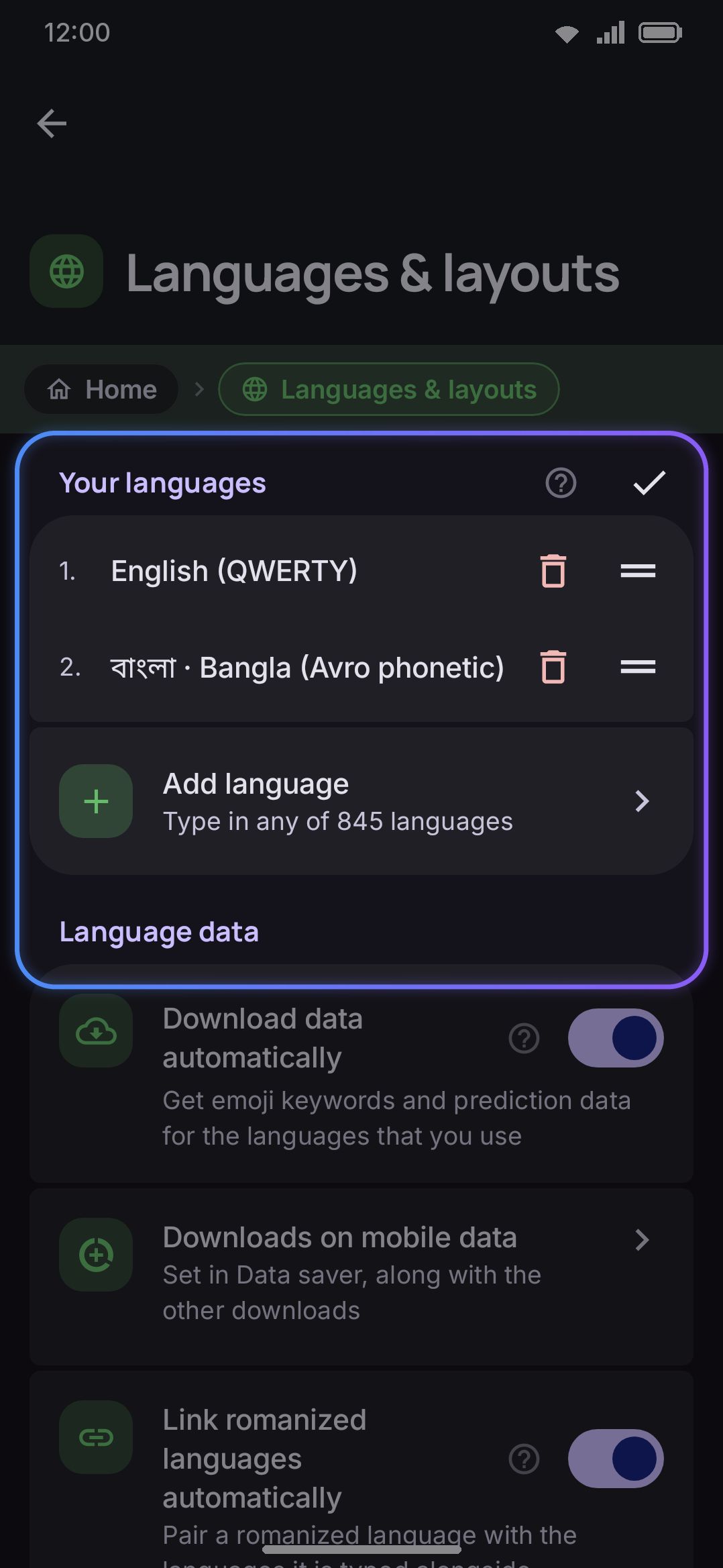
- Your languages lists each enabled language once. Tap one to enable or disable its individual layouts, or to remove the language entirely (only available once you have more than one language enabled, so you can never empty the list).
- Add language searches the whole catalogue and enables an unadded language’s first layout. A language with data to fetch asks about the download first (see Downloads & mobile data), and its Cancel backs out of the language too.
- Switch order appears once you have more than one layout enabled. Drag to reorder the raw layout list, so two English layouts (QWERTY and AZERTY, say) keep independent slots in the ring even though they’re both “English.”
There’s no “maximum visible” setting. (The one recently-used option, 🌐 goes back to the last language, only changes which layout the key visits next, not which ones are in the ring.) The ring is exactly as long as your enabled-layout list, so reordering or removing is the only way to shorten it. Ring length changes behavior on its own at three thresholds: two layouts swipe as a toggle rather than a cycle, more than four turn the hold-drag gesture from an inline preview into a full list (unless Picker for more than four layouts is off), and more than five shrink the swipe preview to a sliding five-chip window.
Switching from Android’s system menu
Section titled “Switching from Android’s system menu”Two things open Android’s keyboard picker straight from the keys: the Other keyboards… row at the bottom of the picker list, and any key you set to Switch keyboard in the layout editor (it’s in the Layers group of the action picker, see Custom layouts). Both put up the system’s “Choose input method” sheet, which is where you change to a different keyboard app. If Android refuses to show the sheet, the keyboard opens the input-method settings screen instead, which reaches the same place.
To skip the list, bind a key to Switch to a specific keyboard (same Layers group) and pick the keyboard app it goes to. One tap then hands the field straight to that keyboard. The choice is remembered by the app’s id, so it keeps working when other keyboards come and go. If that keyboard has since been turned off or uninstalled, the key falls back to the system sheet. Before Android 9 there is no direct switch, so it always opens the sheet.
The settings below are about the opposite direction: getting Android’s own switcher to list this keyboard’s languages. The System language switcher group on the Languages screen connects your switch ring to Android itself:
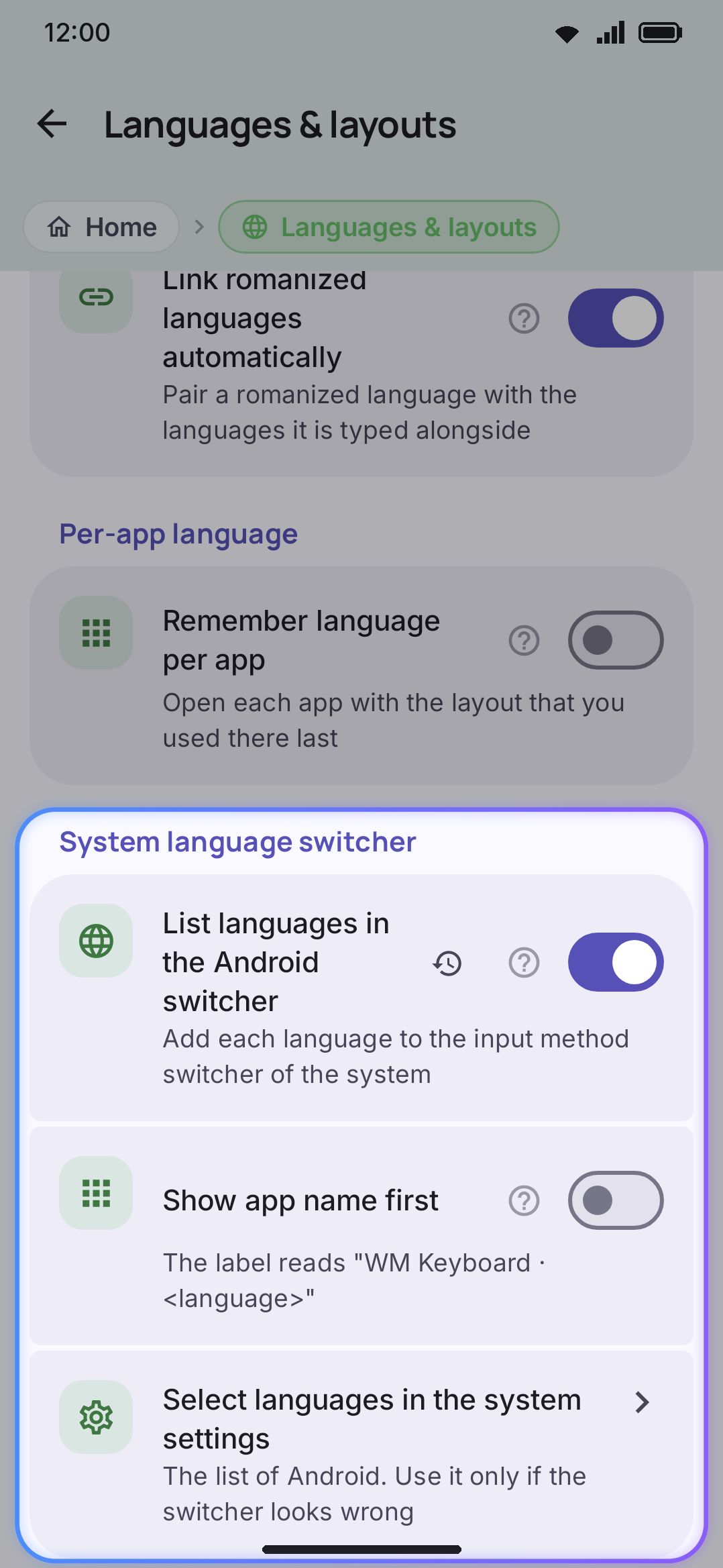
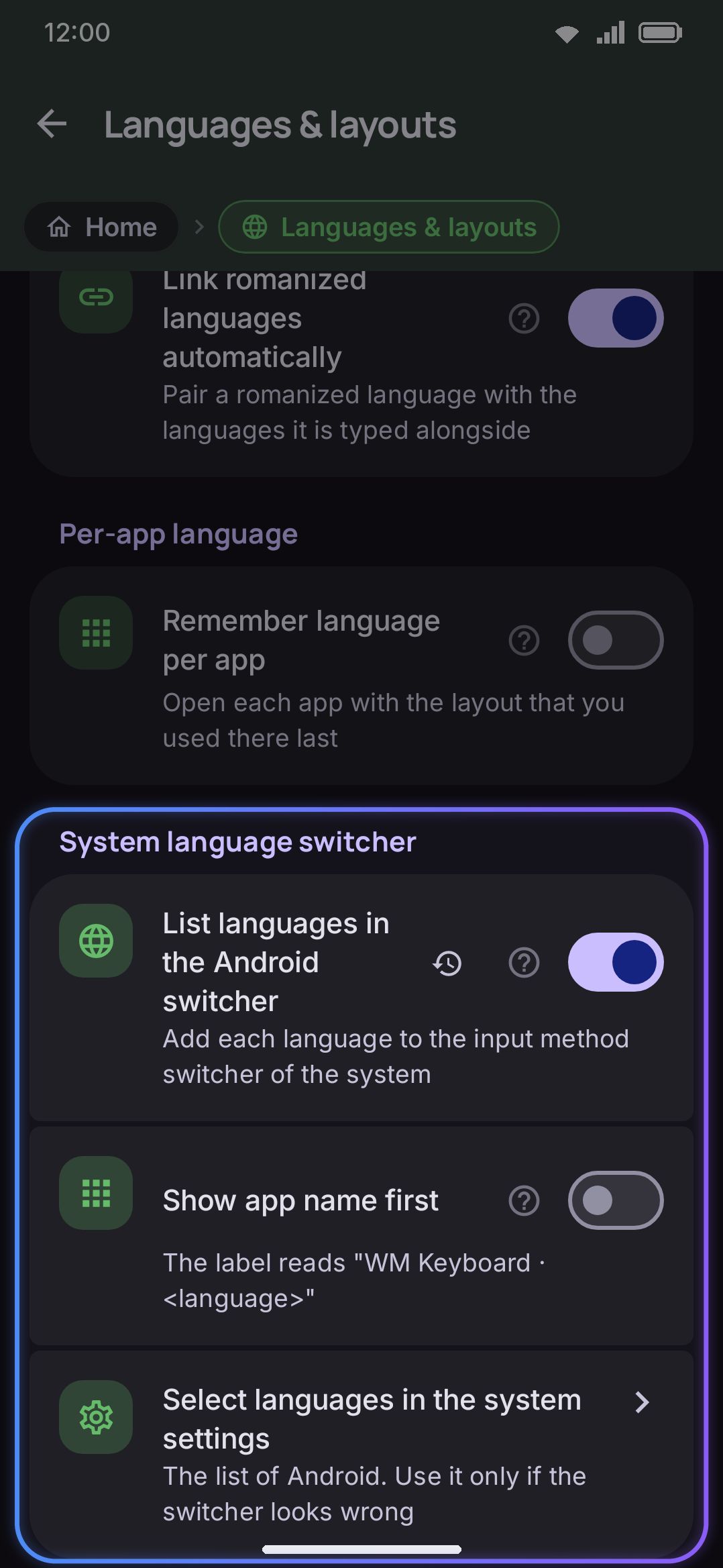
- List languages in the Android switcher (off by default) registers every enabled layout as an Android input-method subtype, so the system’s “Choose input method” sheet lists each one and can switch to it directly. The two stay in sync either way: a switch you make inside the keyboard is mirrored out to Android, and a switch made from the system sheet is followed back into the keyboard. It ships off because the sheet prints a subtype’s label where it would otherwise print the keyboard’s name, so one language name in that row reads as if the keyboard were called that. Left off, switching stays entirely inside the keyboard and Android sees no subtypes at all.
- Show app name first (off by default, shown only while the toggle above is on) puts “WM Keyboard” ahead of the language in the switcher’s label instead of after it. Android still controls which part of the label is bold or greyed; this only changes the text order.
- Select languages in the system settings (also shown only while the first toggle is on) opens Android’s own list of this keyboard’s languages, where each one can be ticked or unticked. See the callout below for when you actually need it.
A separate, unrelated toggle, Remember language per app (under Per-app language, off by default), has the keyboard remember whichever layout you last explicitly switched to in a given app and restore it the next time you type there. Apps you haven’t switched languages in yet follow whatever you last used globally, and a field that demands Latin input or advertises its own language still overrides the memory either way.
Forget remembered apps, further down the Languages screen under Language data, clears that whole map after a confirmation. The row only appears once something is in it, and its subtitle counts how many apps have a language pinned. The feature itself stays on, so apps start being remembered again as you switch language inside them.
Link romanized languages automatically sits in the same group and is on by default. It pairs a romanized language such as Banglish with the languages that share its script, so suggestions come from both. Adding a language only makes that language’s own links, so a link you removed by hand between two languages already on your list stays removed. Turn it off and adding a language links nothing.
Switching from another app or a computer
Section titled “Switching from another app or a computer”Automation apps such as Tasker, and adb on a computer, can switch too. They send an intent that names a layout or a language, or asks for the next or previous one, and the keyboard switches as if you had pressed 🌐. Only layouts you turned on can be reached this way. It is off until you turn on WM KeyboardPrivacyLet other apps control the keyboardNext release. See Automation: adb and Tasker for the intents and a Tasker example.
Options
Section titled “Options”| Setting | Where | Default |
|---|---|---|
| Quick swipe on the spacebar | Typing → Gestures | Language |
| Press and hold, then swipe | Typing → Gestures | Cursor |
| Arrows on the spacebar | Typing → Gestures | On |
| The spacebar shows | Typing → Gestures | Language |
| Language picker shape | Typing → Gestures | List |
| Spacebar text | Typing → Gestures | Blank (live name) |
| Spacebar long press keys | Typing → Gestures | Blank (the hold opens the picker) |
| Show the 🌐 key | Layout & size → Bottom row keys | On |
| 🌐 goes back to the last language | Layout & size → Bottom row keys | Off |
| Ignore 🌐 right after typing | Layout & size → Bottom row keys | Off (50–1000 ms when on) |
| Slide from 🌐 for shortcuts | Key press → Press and hold shortcuts | Off |
| Emoji key instead of 🌐 | Layout & size → Bottom row keys | On |
| Comma key opens emoji | Layout & size → Bottom row keys | Off |
| Your languages / Switch order | Languages | Seeded from your phone’s language list, then QWERTY, capped at 4 layouts |
| Remember language per app | Languages → Per-app language | Off |
| Forget remembered apps | Languages → Language data | A button, shown once apps are remembered |
| Link romanized languages automatically | Languages → Language data | On |
| List languages in the Android switcher | Languages → System language switcher | Off |
| Show app name first | Languages → System language switcher | Off |
Details & edge cases
Section titled “Details & edge cases”- A fresh install shows an emoji key where you might expect the globe. It’s the most common point of confusion with switching, and the callout above covers it. Switching itself is never disabled by the setting. Only the dedicated key’s icon and behavior change.
- The globe key’s tap cycles layouts, not languages. If a language has three enabled layouts, tapping the key visits all three as separate stops rather than skipping straight to the next language. The same goes for the recently-used order: each layout is its own entry.
- With exactly two layouts enabled, swiping toggles instead of wrap-cycling. Piling on more drag distance in the same direction won’t toggle a second time. Reverse direction and you start a fresh toggle. (The count that matters is enabled layouts, so two layouts of the same language toggle too.)
- A held-but-unmoved spacebar or globe-key long-press leaves the picker open for a direct tap rather than dismissing it, list and carousel alike. There’s no need to drag precisely if you’d rather tap the language you want.
- Reordering affects layouts, not languages. If you’ve added a second layout for the same language (AZERTY alongside QWERTY, say), Switch order treats them as independent stops, and moving one doesn’t move the other.
- A subtype that Android hasn’t enabled stays invisible. Registering is ours to do and enabling is Android’s, and before Android 14 only you could bridge the gap. If the system sheet lists one language on an older phone, nothing is broken. Those languages just haven’t been ticked in system settings yet.
- The Android system switcher and per-app memory are independent settings. You can have Android list every layout as a subtype while per-app memory stays off, or the reverse. Turning one off doesn’t touch the other.