
Troubleshooting
When something misbehaves: fixes for the usual suspects.
Most keyboard problems trace back to one of a handful of causes: a permission Android never granted, a dictionary that never downloaded, or a tool panel doing exactly what it’s supposed to. This page walks through the usual suspects and where to go next when the fix isn’t here.
The keyboard doesn’t appear, or won’t stay selected
Section titled “The keyboard doesn’t appear, or won’t stay selected”The setup card on the app’s Home screen covers this fully. It polls Android’s own input-method state and tells you which of three situations you’re in: not enabled, enabled but not selected, or active. See Enable the keyboard for the exact steps. Only two buttons are involved, Turn on keyboard and Switch keyboard, and the card comes back whenever you need it rather than only on first run. Once WM Keyboard is the active keyboard the card shrinks to a one-line “WM Keyboard is your active keyboard” with no buttons at all, since there is nothing left to press.
If WM Keyboard was selected and something knocked you back to a different keyboard on its own, look for a crash rather than a setting. Android quietly swaps in another input method when an IME’s process dies, with no visible error. Open the Diagnostics screen below and check the Crashes section.
A language’s suggestions look empty
Section titled “A language’s suggestions look empty”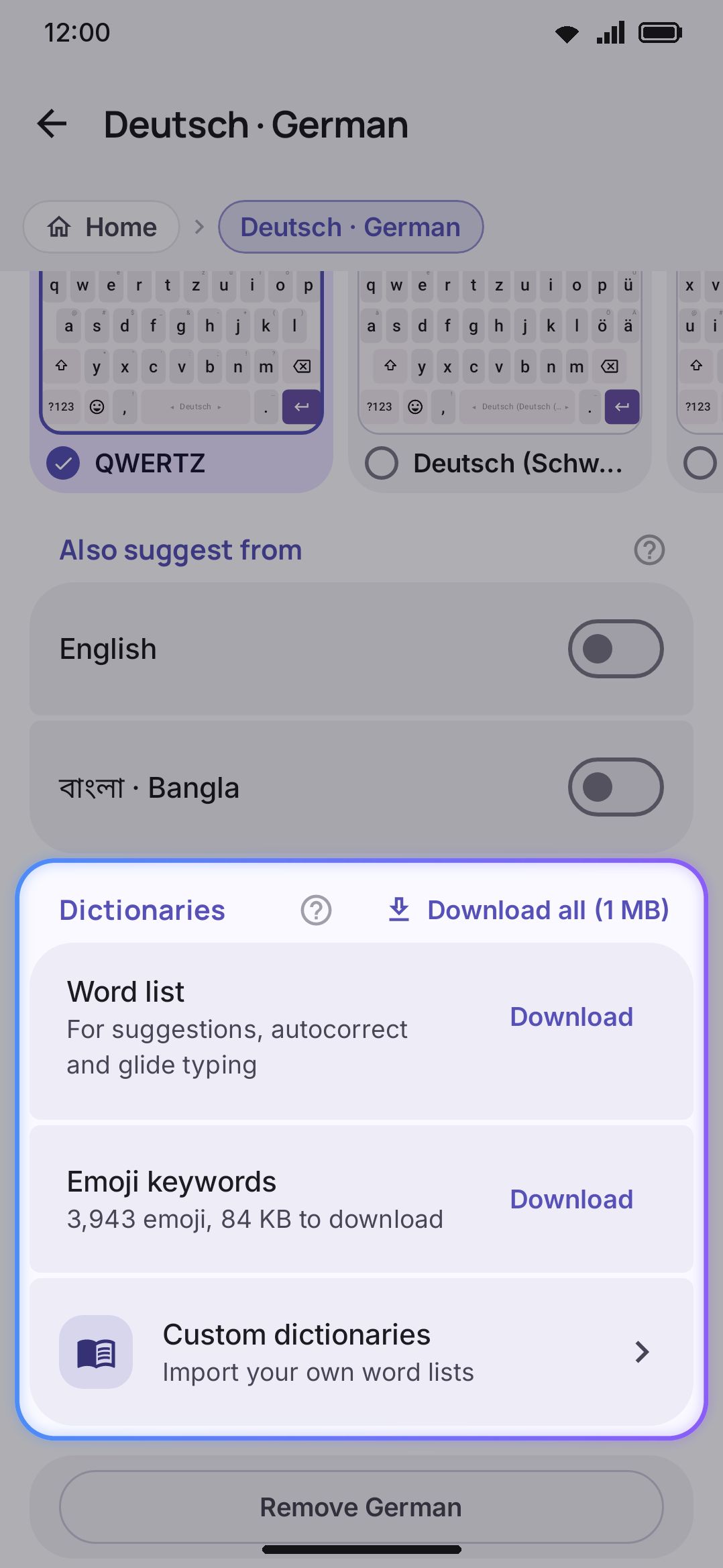
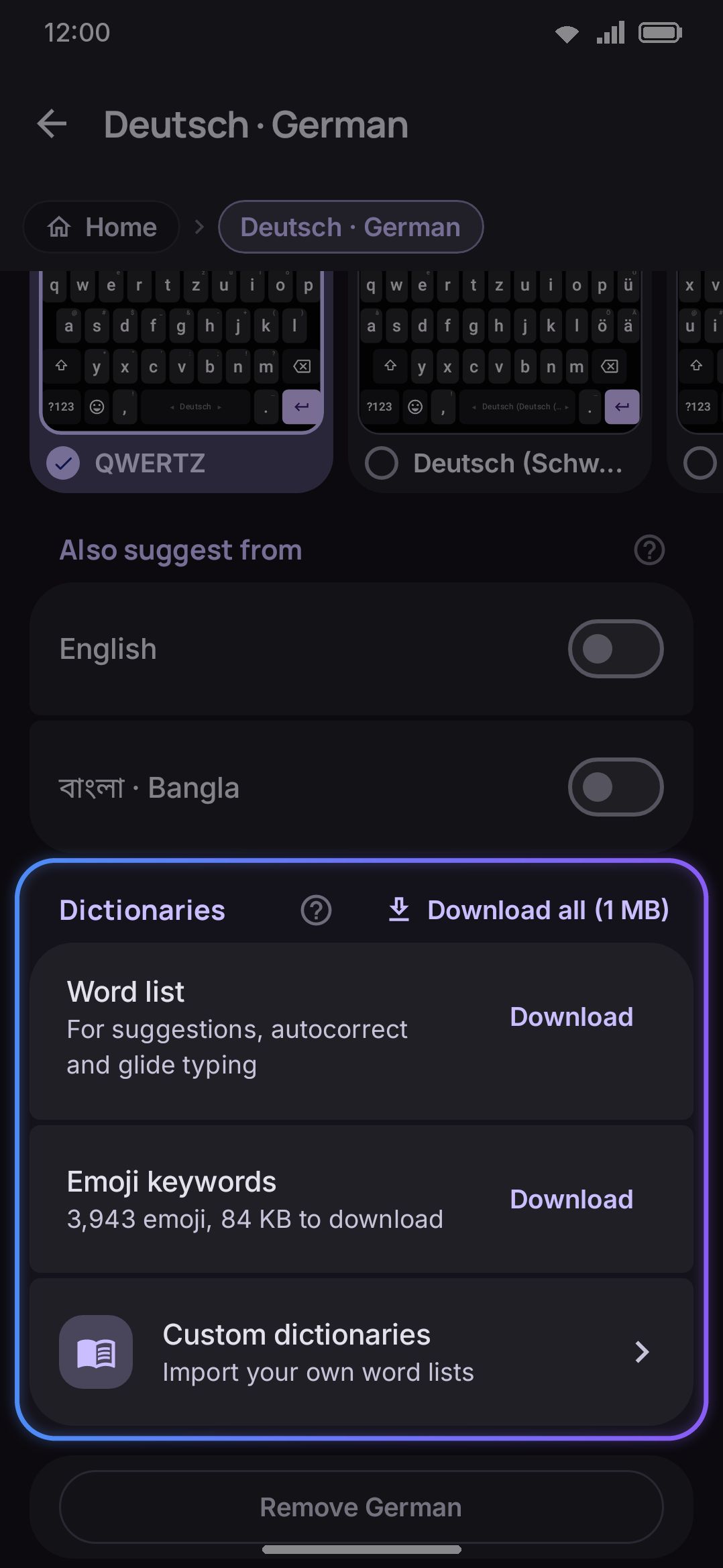
This is almost always dictionary state. A language hasn’t gone missing, because WM Keyboard can’t drop your last enabled layout entirely from the language settings. If suggestions vanish, look at the dictionary first.
Only English and Bangla ship a built-in dictionary. Every other language starts with nothing but what you’ve typed yourself, until you download a wordlist or import your own. See Downloadable dictionaries for the four states a language’s Dictionary section can be in, the three size tiers, and why a failed download shows Retry instead of leaving you guessing.
One setting can also hide suggestions everywhere at once, which is worth ruling out before you suspect a single language:
WM KeyboardTypingSuggestions- Suggestions, on by default. This is the master switch for the whole strip. Turning it off stops completions, correction candidates and next-word prediction. On an ordinary Latin layout it takes autocorrect with it, because the keyboard then stops composing the word you’re typing and there is nothing left for autocorrect to inspect when you press space. Autocorrect keeps its own toggle, but leave Suggestions on if you want it to fire. A phonetic layout such as Avro still transliterates either way, since its composing buffer is how it types at all. See Suggestions & prediction for the rest of that screen.
Password fields and structured keypads (number, phone, and similar) never show suggestions, regardless of this setting.
Typing feels slow, or keystrokes arrive late
Section titled “Typing feels slow, or keystrokes arrive late”Every letter you type kicks off one suggestion pass: a fuzzy walk over your dictionaries, the next-word context, emoji prediction, and a precomputed answer for what the space bar would commit. The keyboard measures how long that takes on your device and runs at most one pass at a time, so a fast burst of typing no longer leaves half a dozen of them running at once. It also waits a little longer for a burst to settle on a device where a pass is expensive, which is why the strip can fill in a beat after you stop on an older phone while staying instant on a newer one.
If letters themselves are landing late rather than the strip just being slow to fill, the pass is costing more than your device can spare. Three things make it expensive, in roughly this order:
- A big dictionary. The tier you picked is the main lever. Bangla’s full list is over 450,000 words, and Everything keeps all of them. Dropping to Medium or Small is one press on a downloaded row, with no delete and re-download involved. See Changing the size of a list you already have.
- Extras layered on top of the strip. Words on the keys asks for a much deeper candidate list than the strip itself shows, and emoji prediction, glide typing and an installed n-gram pack each add work per keystroke. Turning off the ones you don’t use is cheaper than turning off suggestions entirely.
- Everything else the app is holding. Power saving mode trims background work in one switch. The Lite edition leaves out the heavier optional subsystems altogether, which is worth trying on a phone that struggles with the Full build.
To confirm it really is the suggestion pass before you start changing things, turn Suggestions off under WM KeyboardTypingSuggestions and type a line. If the lag goes away, it’s the pass, and one of the levers above will help. If it doesn’t, it’s something else and worth filing with a diagnostics report attached.
The settings app is slow to open screens
Section titled “The settings app is slow to open screens”On a slower phone, turn off WM KeyboardAccessibilitySettings appScreen transitionsNext release. Screens then open with a plain slide instead of moving the setting’s icon and name into the new screen’s heading, and each one skips a second layout pass. The keyboard isn’t affected. See Faster settings screens.
The keyboard uses a lot of memory
Section titled “The keyboard uses a lot of memory”The keyboard and the settings app run in one process, so the number Android shows you covers both, and it’s higher while the settings app is open. With only the keyboard running, this is what it keeps in memory for as long as it’s up:
- The layouts you have switched on. Over 1,500 layouts ship with the app, but only the ones you use, and the ones a settings screen is showing, are ever loaded.
- Your word lists, mostly not. Dictionaries are read straight from storage and cost next to nothing. The exception is a phonetic language like Bangla: the part that turns “valo” into ভালো keeps an index over the whole downloaded list, so the tier you pick matters. The largest Bangla tier (over 450,000 words) needs about 25 MB for it, and Small only a few. See Changing the size of a list you already have.
- Vocabulary packs, a little, if you’ve downloaded any. The nudges only need a small index of which words to watch for. The cards themselves (definitions, examples, translations) are read from the pack when you open one and let go once the keyboard is closed.
- On-device models: the AI tool, Whisper and on-device translation. They load when you use them and are let go as soon as Android asks for memory back.
Power saving mode turns off more of it in one switch. If the number still looks far too high for what you use, file a bug with a diagnostics report attached.
A permission prompt stopped appearing
Section titled “A permission prompt stopped appearing”Camera, microphone, and calendar access all work the same way, because an IME service can’t show Android’s runtime-permission dialog itself. Tap Allow in a tool’s panel and a small, invisible activity opens just long enough to show the system prompt. It closes itself the instant you answer. The keyboard then rechecks the grant the next time it’s in the foreground, so you never need to reopen the panel. Each tool documents the pattern on its own page: Camera, Voice typing, and Calendar.
Contacts access is different, because the Settings app asks for it rather than a tool’s panel. Turn on Suggest contact names or Suggest contact emails under WM KeyboardTypingSuggestions and the Contacts prompt appears right there, the ordinary way any Android app would ask. No invisible activity is involved, since the Settings app is already a regular activity and can show the system prompt itself. Granting it for one of the two toggles covers the other automatically. See Contact-aware typing for what each toggle does.
The one case where nothing happens when you tap Allow, or turn one of these toggles on, is a permanently denied permission. Android stops showing its own prompt once you’ve denied a permission twice (“Don’t ask again”). The fix is then the same regardless of how the permission was first requested. Grant it from your device’s own app settings, outside the keyboard.
Granting Camera access from the Camera tool also covers text scan and the QR scanner, since those two ask for the same permission. The document scanner is the odd one out: it hands the job to Google’s own scanning activity, which asks for whatever it needs on its own account, so WM Keyboard’s camera grant has nothing to do with it.
Media controls use a different mechanism: notification-listener access rather than a runtime permission. Grant it from Settings → Apps → Special app access → Notification access, where WM Keyboard is listed as “WM Keyboard media controls and one-time codes.” One service backs both features, so that single grant covers the media transport and the one-time-code chips together. The same rule applies afterward. Revoke or re-grant it there, and Media controls picks up the change the next time the keyboard comes to the foreground.
None of the Camera, Voice typing, Calendar, or Media controls grants above are keyboard settings in their own right. Each of those tools has its own Turn on switch on its page under WM KeyboardTools, which is a separate thing from whether the OS has granted the tool the access it asked for. Contacts is the exception once more: Suggest contact names and Suggest contact emails are both the setting and the permission trigger in one, with no separate Tools entry.
A tool panel isn’t responding to key presses
Section titled “A tool panel isn’t responding to key presses”This one is by design. Most tools that need typed input (search boxes, the AI prompt, the typing-test scorer, a plugin’s own field) open a panel that captures the keyboard: what you type goes into the panel’s own box, not into the app behind it. Backspace works the same way, deliberately, so it can’t word-delete text in the field behind a panel you can’t currently see.
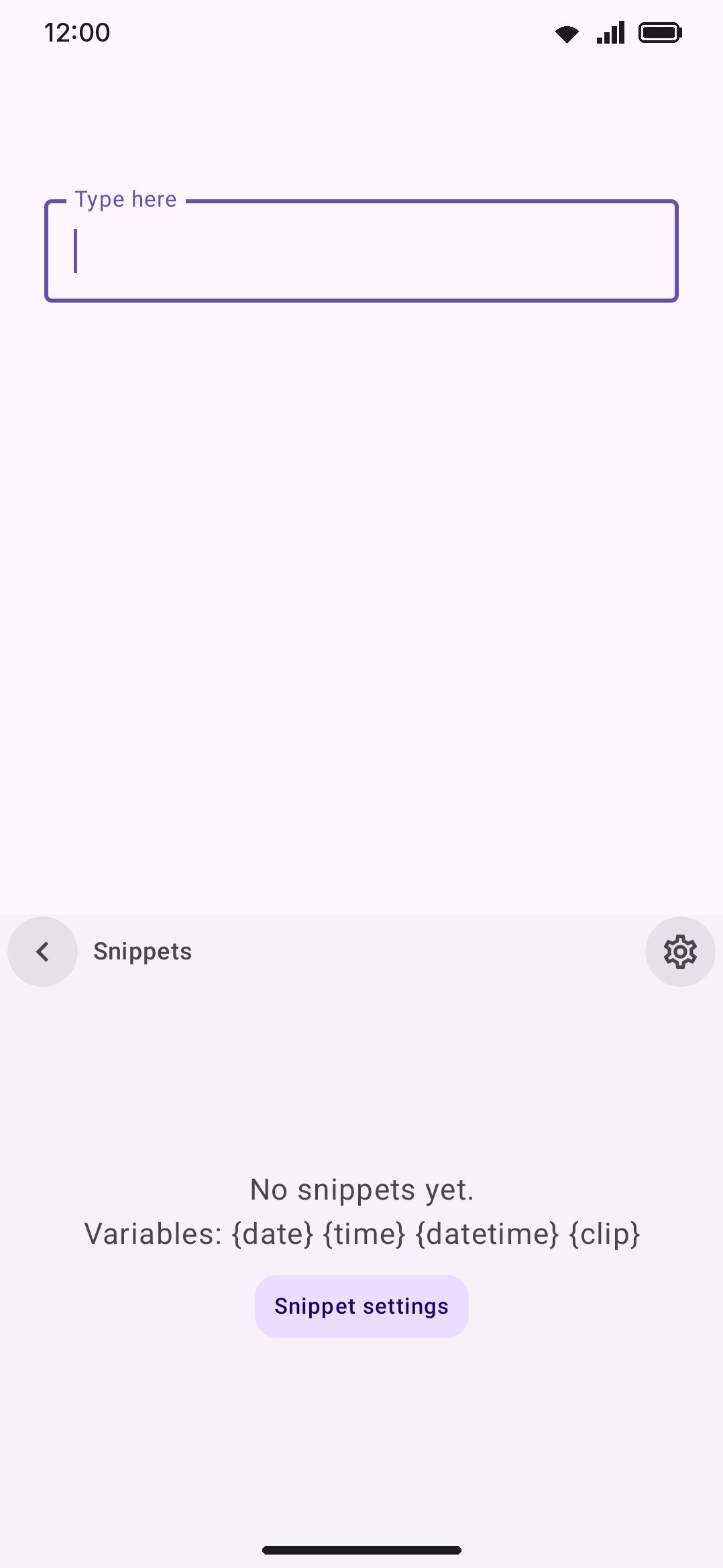
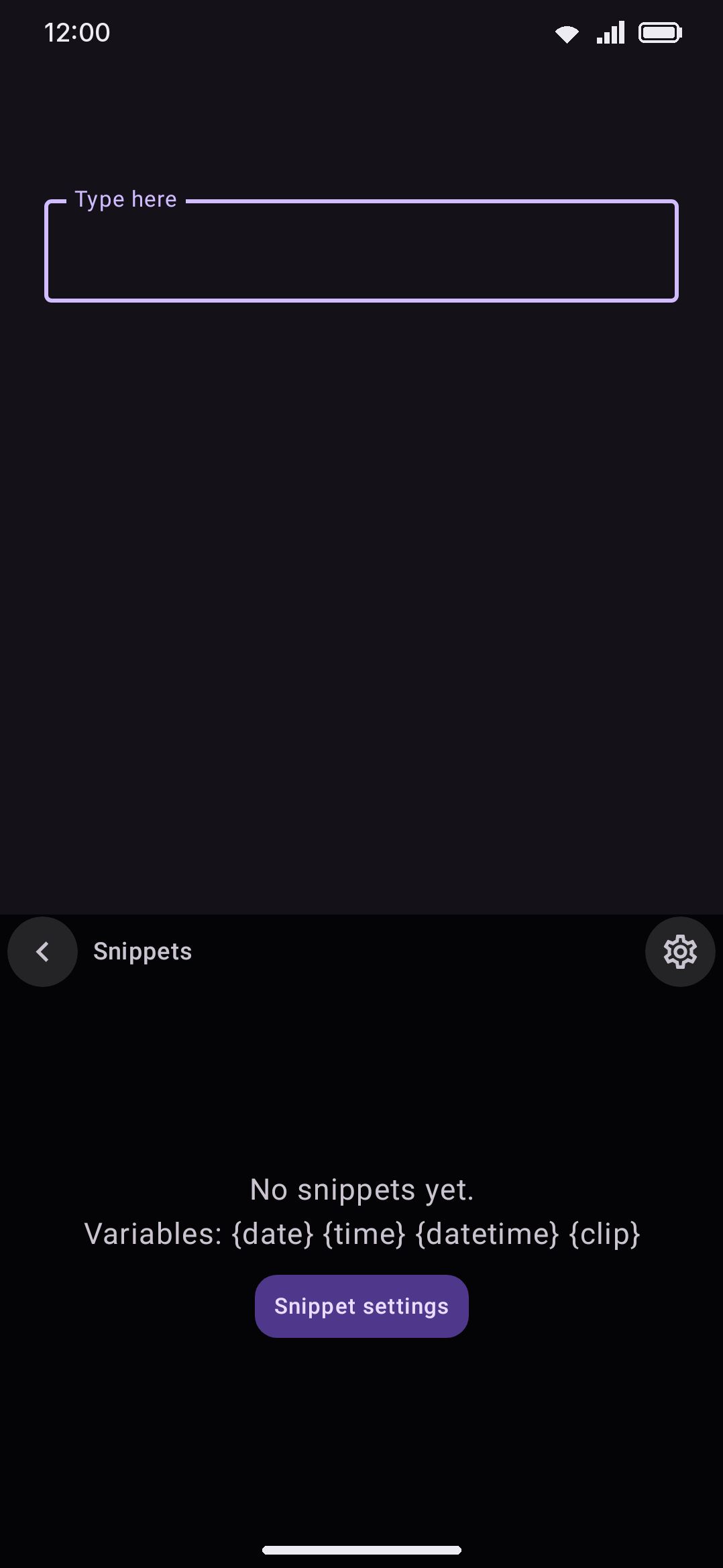
Sensor and generator tools don’t capture keys at all: Compass, Level, Moon phase, Weather, Calendar, Password generator, Media controls, Camera and the scanners replace the key rows entirely, so there’s no letter row to intercept in the first place.
Calculator, Unit converter and Currency converter sit between the two. Each draws its own keypad where the key rows were, and each also takes a physical keyboard’s keystrokes into its own display rather than into the field behind. If you’re wondering why typing does nothing in the app while one of those is up, that’s why.
Three ways back out of any open panel:
- Tap the back arrow that replaces the toolbox button while a panel is open.
- Press the system Back button or gesture. It closes the panel and leaves the keyboard up.
- On a hardware keyboard, press Esc, if “Esc closes the tool” is on (it is by default).
See The toolbar for the full explanation, including which tools are panels and which replace the key rows.
The Diagnostics screen
Section titled “The Diagnostics screen”Diagnostics is what the keyboard has recorded about itself, kept specifically because a keyboard’s failures are usually invisible: a crash swaps in a different IME with no on-screen error, a panel comes up empty, a model silently fails to load. Nothing you actually type is ever recorded here. Every entry is what happened, not what you wrote.
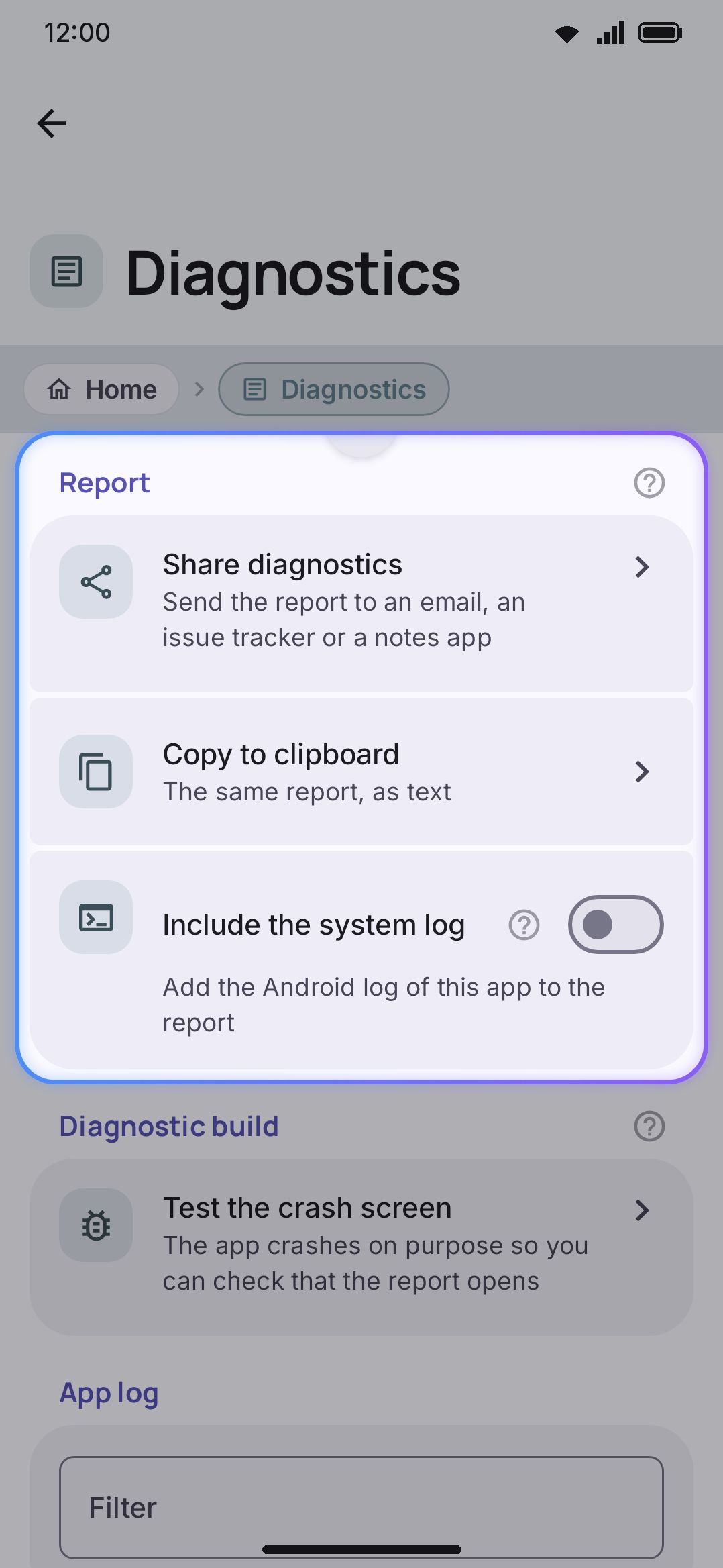
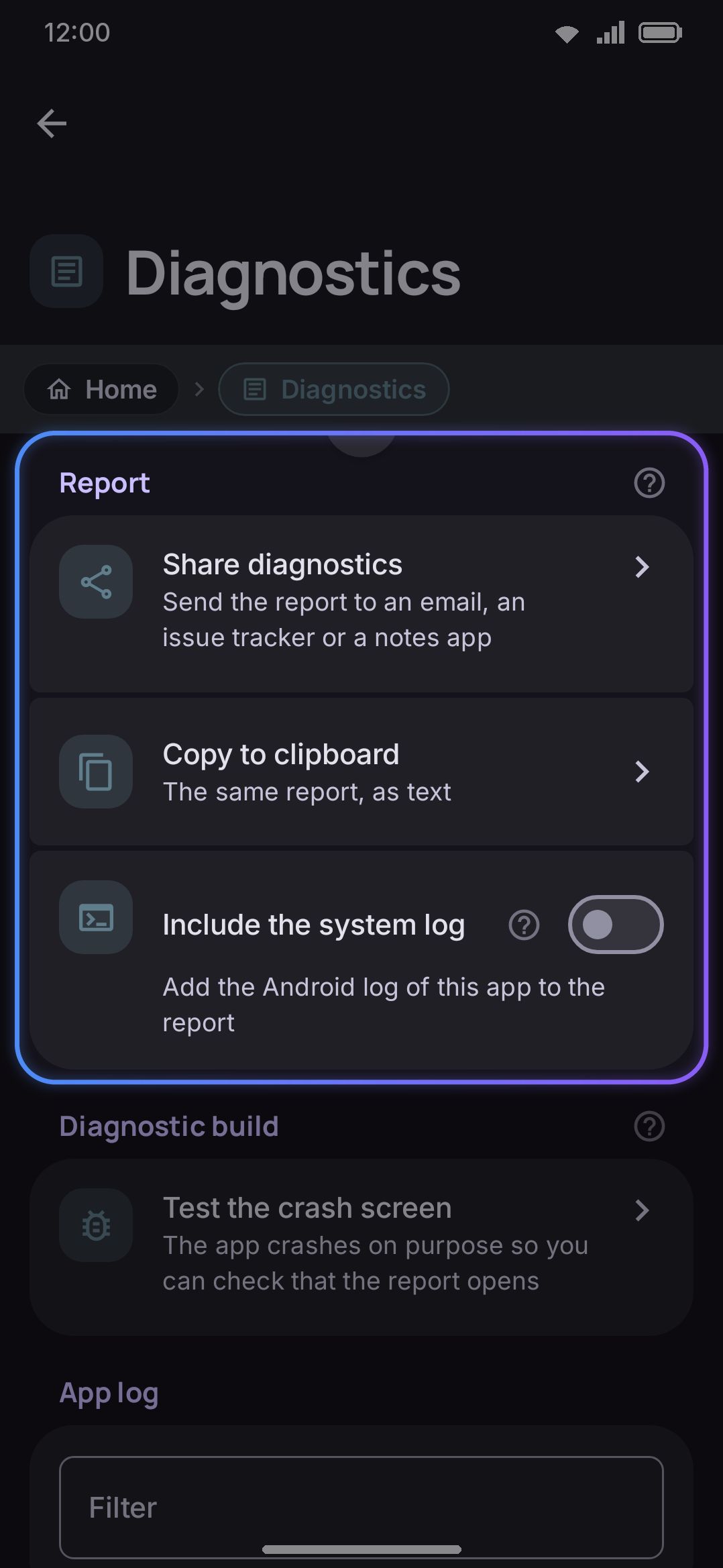
The screen has four parts:
- Report. Share diagnostics hands the full report to Android’s share sheet as a file rather than inline text. A report can run to tens of kilobytes, and many receiving apps silently drop a share intent that size. Copy to clipboard puts the same report on the clipboard as plain text instead. Include the system log (off by default) adds this process’s own Android log, meaning everything printed by every library in the app, not only what the keyboard itself chose to record. That’s the most useful attachment for a hard-to-reproduce bug, but read it before you send it anywhere, since the keyboard doesn’t control what a dependency logs.
- Crashes. Shown only when at least one exists. It keeps the last 10 crash records, each with its time, thread, build info, full stack trace, and the 40 log entries leading up to it. The records go to disk rather than memory, specifically so a crash survives the process that produced it. They’re readable even before you’ve unlocked the device once after a restart. This section has its own Delete crashes button.
- App log. A filter text field (it matches message or tag) plus a filter chip per severity level (Debug, Info, Warn, Error) that acts as a minimum floor. It defaults to Debug, so nothing is hidden until you narrow it. A Refresh button re-reads the log on demand. Entries show newest first, color-coded by severity.
- System log. Appears only while “Include the system log” is on. It’s the same content that gets attached to a shared or copied report, shown here so you can read it first.
A Delete the app log button at the bottom empties the in-memory log (separate from Delete crashes, which only touches the crash file). The ring holds the last 500 entries and drops the oldest as new ones land.
The report itself always opens with the build version, edition, Android release and API level, and device manufacturer and model, so if you share or copy diagnostics, you don’t need to separately look up or type any of that for a bug report.
Filing a useful bug report
Section titled “Filing a useful bug report”The Feedback group on the About screen has both routes: Report a bug opens the GitHub issue tracker, and Email the developer opens a pre-filled draft to arianmollik323@gmail.com for anything you’d rather not post publicly. Export a report from Diagnostics first and take it along. See the FAQ for the short version.
A couple of things worth knowing beyond that quick answer:
- The report already includes version, edition, Android, and device info in its header. You don’t need to hand-type any of that alongside it.
- If a model wrote something wrong or offensive, don’t file that as a bug. Use the Report button on the AI panel instead, described in Reporting a result. It quotes the generation itself, which an issue about the keyboard wouldn’t.
- Whether to turn on Include the system log before sharing is your call. It’s the most useful thing you can attach for a bug that’s hard to reproduce, but it’s also the one part of the report whose contents the keyboard doesn’t control. Skim it first.
- If the keyboard crashed, the Crashes section of Diagnostics is usually more useful on its own than a description of what happened: it already has the stack trace and the log leading up to it.
Details & edge cases
Section titled “Details & edge cases”- There’s no whole-app “reset everything” action anywhere in settings: every reset button (icons, pinned tools, layouts, symbol sets, custom colors, and so on) is scoped to one feature. The closest thing to a full reset is Android’s own Settings → Apps → WM Keyboard → Storage → Clear storage, which is standard OS behavior, not something WM Keyboard controls.
- Diagnostics behaves identically on Full and Lite editions: nothing about the report builder, crash list, or logs is edition-gated.
- The app log and crash file are two different stores for a reason: the in-memory log is cheap enough to always be on (no switch to remember to flip before reproducing a bug), while the crash file is the one thing written to disk, because the in-memory log dies along with the process that crashed.
Related pages
Section titled “Related pages”- Enable the keyboard: the full walkthrough for getting WM Keyboard selected as your active input method.
- Downloadable dictionaries and Suggestions & prediction: what controls whether a language shows completions at all.
- The toolbar: pinning, panels, and everything else about how tools behave.
- Camera, Voice typing, Calendar, and Media controls: the individual permission flows referenced above.
- Contact-aware typing: the two contact-suggestion toggles and how their permission request differs from a tool panel’s.
- FAQ: quick answers, including how to report a bug.