
Fancy text
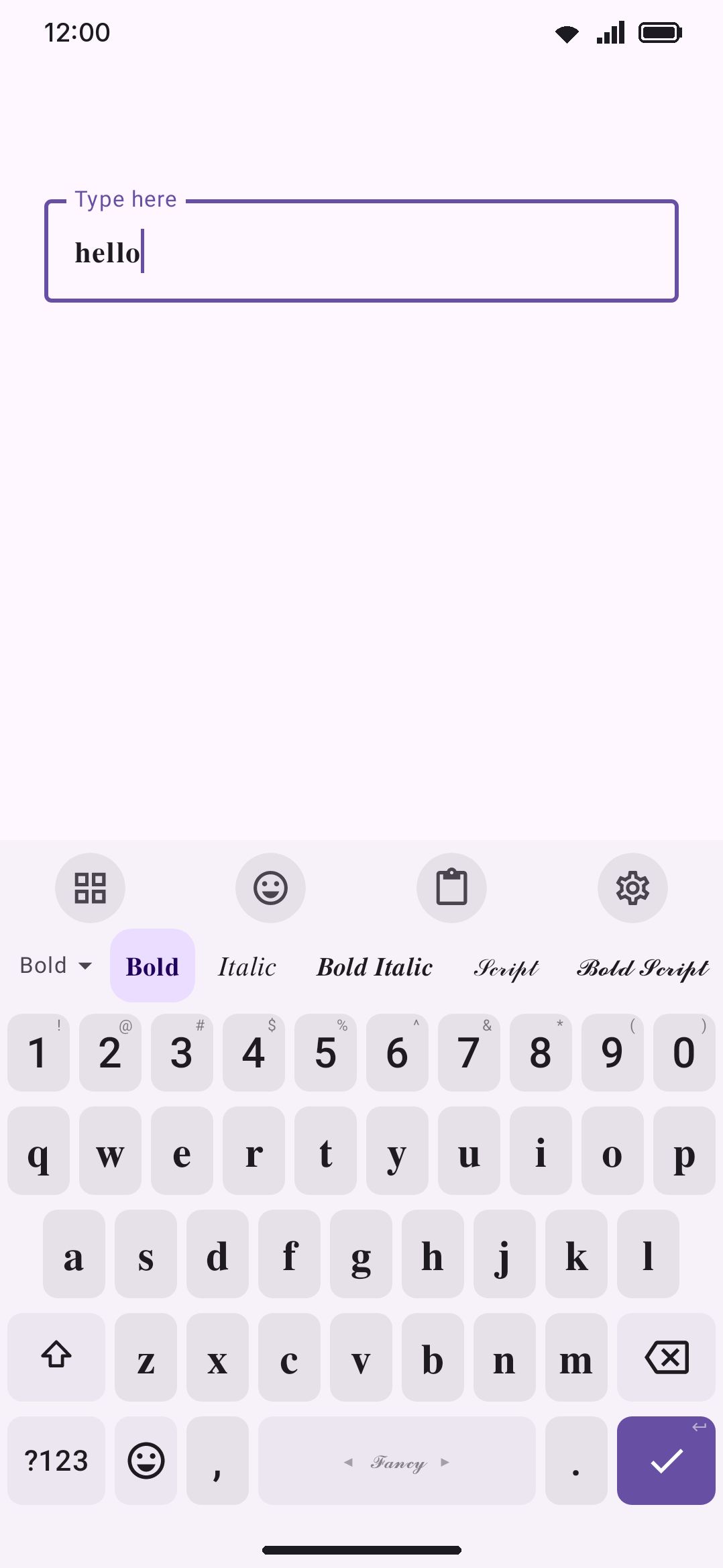
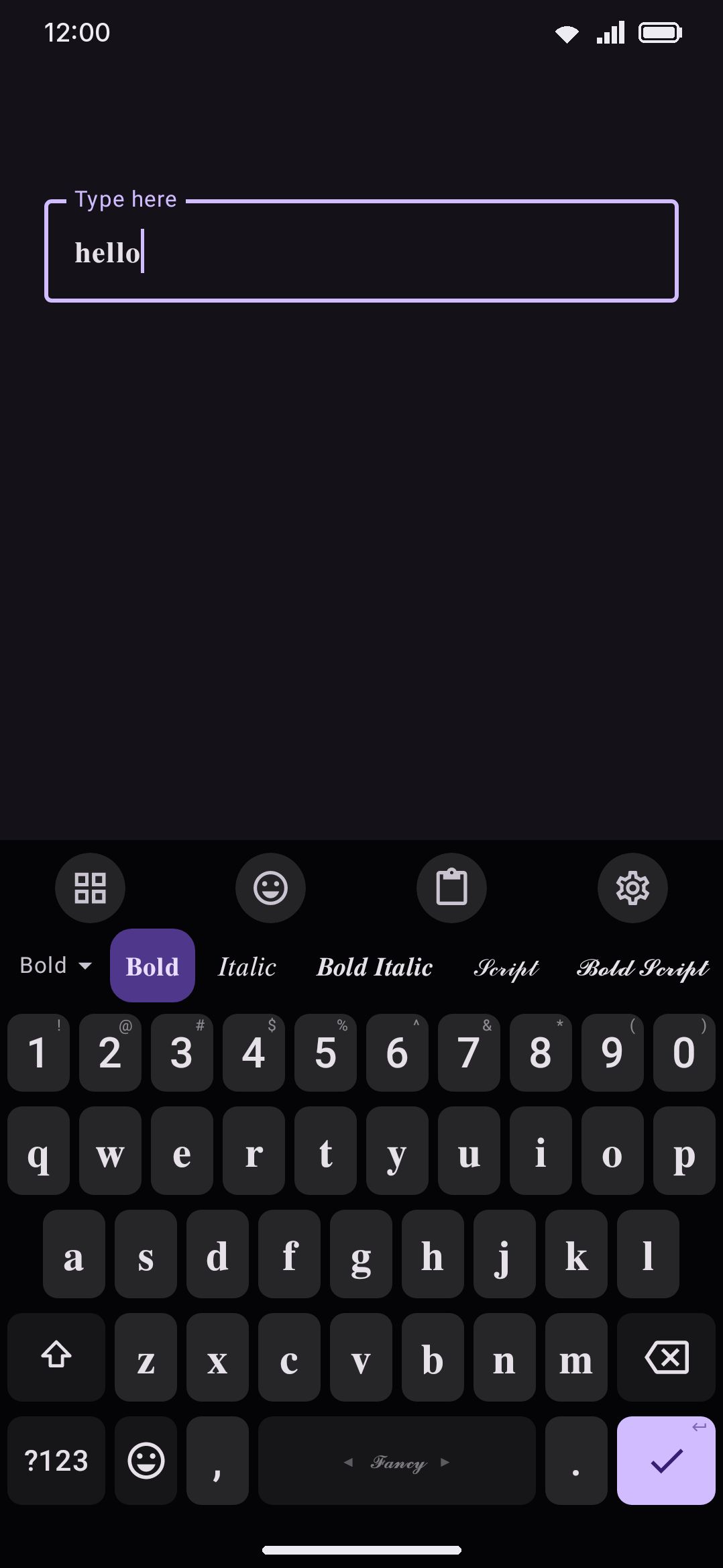
𝔉𝔞𝔫𝔠𝔶 Unicode styles on one keyboard: pick a style from the strip, and what you see on the keys is what you type.
Fancy Text isn’t a language. It’s 31 Unicode “font” styles on a single keyboard, plus a Normal style that types plain letters. Add it once, pick a style from the strip above the keys, and every letter key immediately shows the styled glyph. What you type is already 𝓯𝓪𝓷𝓬𝔂: there’s no separate conversion step afterward.
Turning it on
Section titled “Turning it on”Fancy Text lives in the same language catalogue as everything else, and Languages overview covers how that catalogue works in general. Search for “fancy” (or scroll to ”𝓕𝓪𝓷𝓬𝔂 · Fancy Text”) and tap the row. That’s the whole setup: one entry in your language list, one layout, one stop on the 🌐 cycle and the OS keyboard switcher.
The Fancy text tool
Section titled “The Fancy text tool”If you only want fancy letters now and then, the Fancy text toolbar tool does the same thing in one press, from the keyboard, without a trip to Settings. Pin it from WM KeyboardTools (it’s in the Quick actions group) or find it in the toolbox. Press it and the fancy keyboard appears, adding Fancy Text to your language list if it wasn’t there already. Press it again and you’re back on the layout you came from, with Fancy Text taken out of the 🌐 cycle again so it isn’t in the way of the languages you actually read. The tool’s icon stays lit for as long as the fancy keyboard is the one typing, however you got there.
Its own screen, at WM KeyboardToolsFancy text, has three settings:
- Style to start with. Pin one style and the tool always turns on in it. Left on “Last used”, it starts from whatever style you picked last. Either way the strip over the keys still switches styles for the rest of the session, and a pinned style is never overwritten by it.
- Keep the language after you turn it off. On, Fancy Text stays in your language list once the tool has added it, so a spacebar swipe reaches it too. Off (the default) takes it back out again.
- Turn off when the keyboard closes. On by default. For one nickname or one message: leave the field and the keyboard comes back typing plainly. It only undoes what the tool itself turned on, so a Fancy Text language you added in Settings stays put.
On a hardware keyboard the tool answers to the leader key followed by F; see Hardware keyboards.
The same switch also lives in Settings as the Fancy text toggle on WM KeyboardRows & bars, next to the row order, where the style strip can be dragged above or below the other rows.
Picking a style
Section titled “Picking a style”While the fancy keyboard is active, a strip appears above the keys with every style written in itself: Normal, 𝐁𝐨𝐥𝐝, 𝘐𝘵𝘢𝘭𝘪𝘤, 𝔉𝔯𝔞𝔨𝔱𝔲𝔯, 🅒🅘🅡🅒🅛🅔🅓 and so on. Tap a chip and the keys restyle instantly. Normal, first in the strip, puts the plain letters back without leaving the fancy keyboard. The strip sits nearest the keys by default; WM KeyboardRows & barsRow order moves it above the other rows. The pick is remembered until you change it. The dropdown on the strip’s left edge names the current style. Open it and every style appears written in itself, exactly like the chips above; a screen reader still gets the plain name for each one.
The same choice also lives in Settings, on the Fancy Text language screen, as a Style row.
The full set, with the name each one shows:
| Style | Style | Style |
|---|---|---|
| Bold | Sans-serif | Circled |
| Italic | Sans Bold | Circled (Filled) |
| Bold Italic | Sans Italic | Squared |
| Script | Sans Bold Italic | Squared (Filled) |
| Bold Script | Monospace | Small Caps |
| Fraktur | Fullwidth | Superscript |
| Bold Fraktur | Double-struck | Strikethrough |
| Underline | Regional Indicator | Parenthesized |
| Double Underline | Overline | Slashthrough |
| Wavy Underline | Dotted | Upside Down |
| Bypass |
The keyboard itself
Section titled “The keyboard itself”The fancy layout is a plain QWERTY grid: three letter rows plus a bottom row for ?123, comma, 🌐, space, period, and Enter. Comma, period, and space always commit as plain ASCII, because only the letters get the styled substitution. There are no long-press popups on the letter keys. Digits and symbols come from the shared ?123 panel, in plain ASCII.
Hover or tap a key with a corner hint to see all its long-press characters.
How it works
Section titled “How it works”The layout stores plain letters, and the selected style substitutes each one at the last moment, both on the key labels and in what a tap commits. Shift works exactly like any other layout: it uppercases the plain letter, and the style supplies its capital form where one exists. Two different Unicode techniques produce the styling, depending on the style:
- Precomposed characters, mostly from the Mathematical Alphanumeric Symbols block, for Bold, Italic, Script, Fraktur, Double-struck, Sans, and Monospace (and their combinations). These sit outside the Basic Multilingual Plane, so they need a font with supplementary-plane coverage to render. See the gaps below.
- Combining marks stacked on plain ASCII letters, for Strikethrough (a stroke mark after each letter) and Underline (a low-line mark after each letter). These stay inside the BMP, so they render reliably almost everywhere, at the cost of being two codepoints per letter instead of one.
Circled, Squared, Fullwidth, Small Caps, and Superscript draw from a few other existing Unicode blocks. Circled (non-filled) is Enclosed Alphanumerics, Fullwidth is the Fullwidth Forms, and Small Caps and Superscript come from the phonetic and modifier-letter ranges, all of which are inside the BMP. Squared, Squared (Filled), and Circled (Filled) are the exception in that group: they sit in the Enclosed Alphanumeric Supplement, which is outside the BMP like the mathematical styles. No font ships with the app for any of this: rendering depends entirely on whatever font the app or system you’re typing into already has installed, which is where the gaps below come from.
Not every style has full alphabet coverage. Italic, Script, non-bold Fraktur, and Double-struck hit codepoints the Mathematical Alphanumeric block deliberately leaves empty, so those specific letters fall back to older, BMP-only symbols instead. Superscript goes further: Unicode has no capital superscript letters at all, and no superscript “q” in any case, so shift changes nothing there and “q” types a plain lowercase q.
Details & edge cases
Section titled “Details & edge cases”Case coverage varies by style. Superscript and Small Caps have no capitals, so shift leaves them as they are. Unicode doesn’t define capital forms for them. Squared, Squared (Filled), and Circled (Filled) are single-case too, since Unicode only assigned capital-shaped symbols for those blocks. Circled (non-filled), Fullwidth, Double-struck, and every Fraktur/Script variant do have real upper/lower distinction.
A handful of letters fall back to an older block. Double-struck is missing astral capitals for C, H, N, P, Q, R, and Z, and non-bold Fraktur for C, H, I, R, and Z, so both fall back to the Letterlike Symbols block for those. Non-bold Script is missing letters in both cases: e, g, o in lowercase and B, E, F, H, I, L, M, R in capitals. Italic has exactly one gap, the lowercase h. Bold Fraktur, Bold Italic, and Bold Script have no such gaps, since their Unicode blocks are complete. Small Caps has a gap of its own kind: Unicode never encoded a small-capital X, so “x” types a plain lowercase x.
No suggestions, no autocorrect, no swipe typing. Fancy Text ships no bundled dictionary and has no downloadable wordlist, so the language screen’s Dictionaries section has no word list row, only Custom dictionaries. The styled letters never enter the composing buffer either, in any style, so nothing you type here is learned or corrected. Glide typing is off here for the same reason: the keyboard only turns a swipe into a word when the active language has a word list that covers the letters on the grid, and Fancy Text has none.
The keyboard’s own search boxes get plain letters. Typing into the emoji search, GIF search, or any other panel search while the fancy keyboard is active types unstyled letters, so those searches actually match. Only text committed to the app’s field is styled.
Search and screen readers in the receiving app are governed by that app, not by WM Keyboard. Styled Unicode letters aren’t the same codepoints as their plain equivalents, so a search box or screen reader that only matches literal ASCII text won’t recognize 𝕥𝕙𝕚𝕤 as “this.” That’s general behavior of the receiving app, not something this keyboard controls either way.
The base grid is just a layout, so you can open it in the visual layout editor to remap a key or add long-press entries. See Custom layouts & the layout editor. The styles themselves aren’t separate layouts anymore, so they can’t be edited individually: your remapped keys apply to every style.