
Network policy
Every feature that can touch the network, what it sends, and how to keep it off.
The core typing engine has no network code anywhere in it. Prediction, autocorrect, gesture typing and layouts all behave the same with the radio off. A set of optional tools do reach the internet, each one only while you’re actively using it. Automatic backup runs on a timer too, if you set one up. This page is the complete list of what goes where, and Network activity shows every one of those requests as it happens, on your own device.
In the F-Droid edition every address on this page is a setting. WM KeyboardAdvancedServers lists each service and each download repository, and the same fields sit on each tool’s own page. Point one at a mirror or at a server you run and the keyboard calls that instead; leave a field empty and it calls the service’s own server. See Servers.
What each tool sends, and when
Section titled “What each tool sends, and when”Every network-touching tool makes a plain HttpURLConnection request. No
analytics SDK, no ad network and no background sync sits underneath any of
it.
| Tool | Endpoint | Sends | Fires when |
|---|---|---|---|
| Translate | translate.googleapis.com (no key) or translation.googleapis.com (with a key) | the text you typed into the panel, up to 2,500 characters, plus the target language | as you type, about 400ms after you stop, only while the panel is open |
| Translate and DeepL Write, with your DeepL key | api-free.deepl.com (Free keys), api.deepl.com (other keys), or the DeepL server you entered | Translate: the same as above. DeepL Write: the text in the field or the selection, up to 2,500 characters. Both send your key in a header | only after you add a DeepL key under Tools / Translate. Translate as you type in its panel; DeepL Write only when you tap it |
| Translate, on-device models | dl.google.com (through Android’s download manager), full edition only | nothing you typed: the request names the language model | when you press Download for a language, in the panel or under Tools / Translate |
| GIF search | api.klipy.com, api.giphy.com | your search text, or nothing for the trending feed | immediately when you open the panel (trending), then live as you type |
| Sticker search | same clients as GIF search | same | same |
| Reporting a GIF or sticker result | none of the app’s own | nothing: it builds a mail draft naming the provider, your search term, and the result’s id and URL | only when you tap Report in the long-press menu, and only your mail app sends it |
| Web search | api.search.brave.com | your search query | only when you submit a search, never as you type |
| Image search | api.search.brave.com | your search query | same (submit only) |
| Camera, search by photo | lens.google.com, www.bing.com, yandex.com or tineye.com, whichever Tools / Camera / Search site names, or your own server for Custom | the photo, scaled to at most 1280 px | only when you press Search on a photo with Search with set to Web. The default, Google Lens, and the share sheet hand the photo to another app and send nothing from the keyboard |
| Dictionary | kaikki.org, en.wiktionary.org, api.dictionaryapi.dev, in the order set under Tools / Dictionary / Dictionary sources | one English word: your selection, or the word at the cursor | on panel open, if “Look up the word at the cursor” is on (the default); also on manual search. A source is asked only when the ones before it had no entry or could not be reached. Installed vocabulary packs are read on the device first, and send nothing |
| Synonyms | api.datamuse.com, kaikki.org, api.dictionaryapi.dev, in the order set under Typing / Suggestions / Synonym sources | one English word: the word you held on the suggestion strip | only when you tap Synonyms in the word menu, and a source is asked only when the ones before it had nothing. Installed vocabulary packs are read on the phone first, and send nothing |
| Wikipedia | wikipedia.org | your search text or an article title | only when you search or open an article, never on panel open |
| KDE Connect | no server at all: computers on your local network, over UDP 1716 and TLS on TCP 1716 to 1764 | a name, a random device id and the list of features, to find computers; then, to a computer you paired, whatever you use the tool for: pointer moves, what you type there, the clipboard, files, media commands, battery level | never until you press Turn on. After that only while the link is allowed to exist (keyboard showing, by default), and to unpaired computers only while a device list is open. Album art for a player on the computer may be fetched from the web address that player names |
| Currency converter | open.er-api.com, falling back to api.frankfurter.dev. The F-Droid edition starts from cdn.jsdelivr.net (currency-api, which uses latest.currency-api.pages.dev when jsDelivr fails) and falls back to api.frankfurter.dev. The source is yours to pick from those and api.coinbase.com | nothing identifying: it fetches the whole rate table, converted locally | on panel open, or the first time a smart chip sees an amount. In the F-Droid edition that chip waits for your tap unless Fetch rates as you type is on. Cached for hours, not fetched per conversion |
| Cryptocurrency prices | api.coinbase.com, falling back to cdn.jsdelivr.net; the F-Droid edition uses cdn.jsdelivr.net alone. api.coingecko.com is the other choice | nothing identifying: it fetches prices for the coins you have turned on, converted locally | only when you type a coin amount or select a coin on the panel, never on a plain panel open. In the F-Droid edition a typed amount waits for a tap on its chip. Cached for a few minutes |
| Weather | api.open-meteo.com, geocoding-api.open-meteo.com | the location you typed or searched, or nothing beyond a saved lat/long | on panel open, cached for a while, or when a weather chip needs a forecast (in the F-Droid edition that chip waits for your tap unless Fetch the forecast as you type is on); geocoding only fires while you’re editing the location |
| AI (cloud provider) | the provider you picked, on its own API: Anthropic, OpenAI, Gemini, Grok (xAI) or DeepSeek | the text you ran the action on, plus a system prompt | only when you tap an action, never in the background |
| AI (any other OpenAI-compatible service) | whatever address you type in, for instance OpenRouter, Groq, Together or Mistral | same | same |
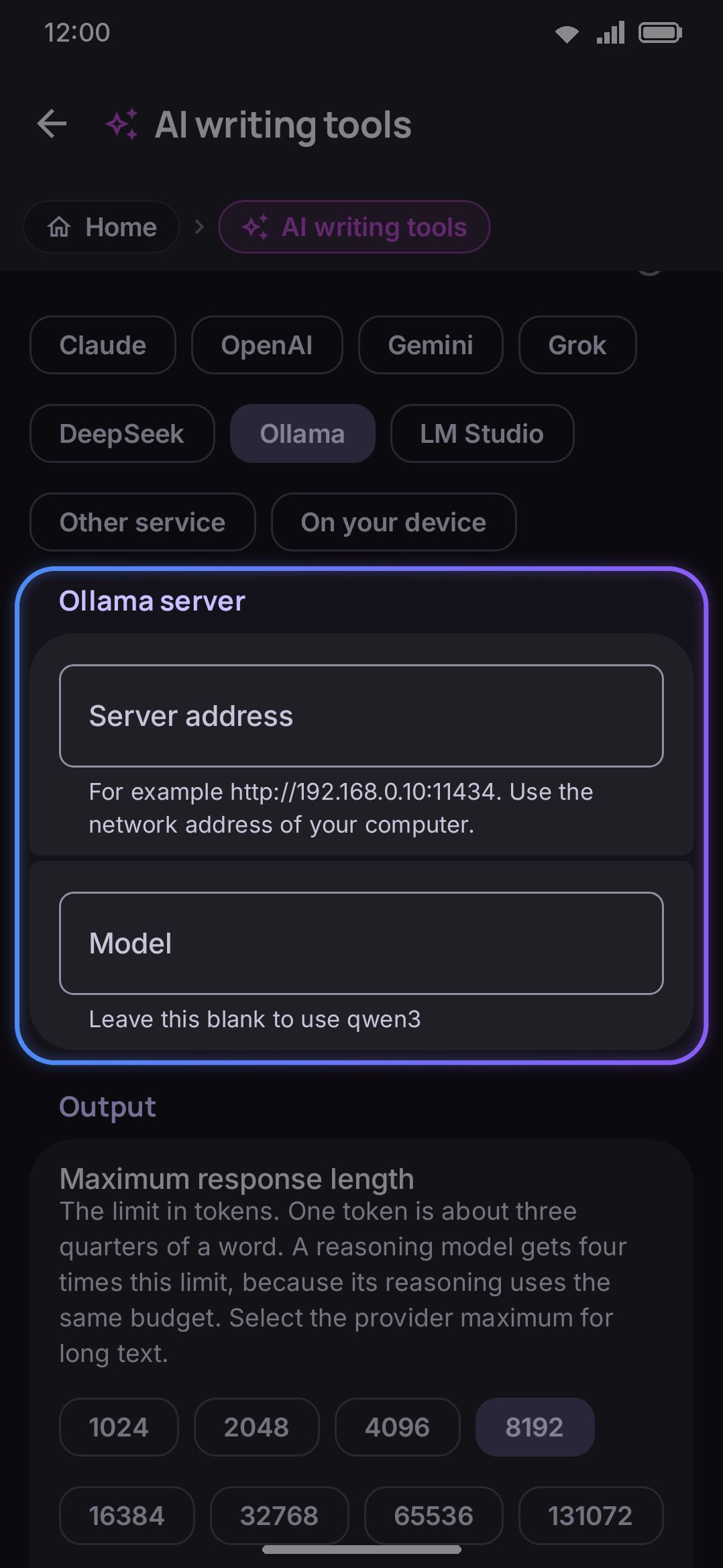
| AI (self-hosted Ollama or LM Studio) | a server address you enter on your own network | same | same, over plain HTTP |
| AI (on-device) Full edition only | none | nothing leaves the phone | never: this provider has no network path at all |
| Reporting an AI result | none of the app’s own | nothing: it builds a mail draft and hands it to your mail app | only when you tap Report, and only your mail app sends it |
| Clipboard link previews | whatever URL you copied | a GET request to that page | off by default; when on, right after you copy a new link |
| QR scan link previews Full edition only | whatever URL a scanned code contains | a GET request to that page | off by default; when on, right after a QR code decodes to a URL |
| Voice typing (system recognizer) | Android’s platform speech service (not WM Keyboard’s own code) | your speech audio | whenever the on-device model for that language isn’t installed: always, below Android 12 |
| Voice typing (Whisper) Full edition only | none | nothing leaves the phone during dictation | never: fully offline once the model is downloaded |
| Voice typing (transcription server) | a server address you enter, on your own network or a service such as Groq or OpenAI | the recording of each phrase (16 kHz WAV, up to 30 seconds), the model name you set, the layout’s language unless you turn that off, and up to 150 of your own words plus your prompt text when words to listen for are on | once per phrase, after you stop speaking, only while you dictate with this engine |
The AI panel’s Report button is the one row that quotes your own text without any network of its own. It opens a draft in your mail app holding the generation and the text it ran on, and you read and send it, or don’t. See Reporting a result.
A few of these are worth calling out. GIF and sticker search fetch a
trending feed the instant you open the panel, before you’ve typed anything.
See GIFs for that behavior in full. Currency and weather are
the two tools that touch the network without you typing a query first.
Neither sends anything you typed. Currency pulls a public rate table and
converts locally, and weather sends only the location you already saved or
searched. Voice typing’s network path isn’t literally WM Keyboard’s own HTTP
code, since it’s Android’s SpeechRecognizer used as a silent fallback, but
audio still leaves the device that way. See Voice typing
for the full breakdown, or Offline voice (Whisper) for
the fully on-device alternative.
Photo backgrounds are not a toolbox tool, but they do reach the network, so they belong in this list. Open the picker, type a word, and that word goes to Unsplash and Pexels along with the subject, color and orientation filters. Nothing else about you goes with it. Thumbnails load from each service’s own servers rather than being copied through anything of ours, which is how a photographer is credited with the view. Choosing a photo downloads that one file at keyboard size, and tells Unsplash once that it was taken, which is how its download counts stay honest. A rotating background is the one part that fetches without you watching. It tops up a small set of photos as the keyboard closes, never while you type, and skips that entirely while the device is locked, under power saving, on mobile data unless you allow it, and when High contrast keys is on. See Online photos and rotation.
Everything else in the toolbox is offline by design: OCR (apart from the one-time download of a language’s Tesseract data, below), QR/barcode scanning, document scanning, the calculator, unit converter, symbols picker, password generator, QR code generation, grammar and spell-check, the camera tool (apart from searching with a photo on the Web setting, above), and every calendar/alt-calendar/qibla/moon-phase/solar-time feature. See Scanner and Utility tools for their own confirmations of that.
The services behind them
Section titled “The services behind them”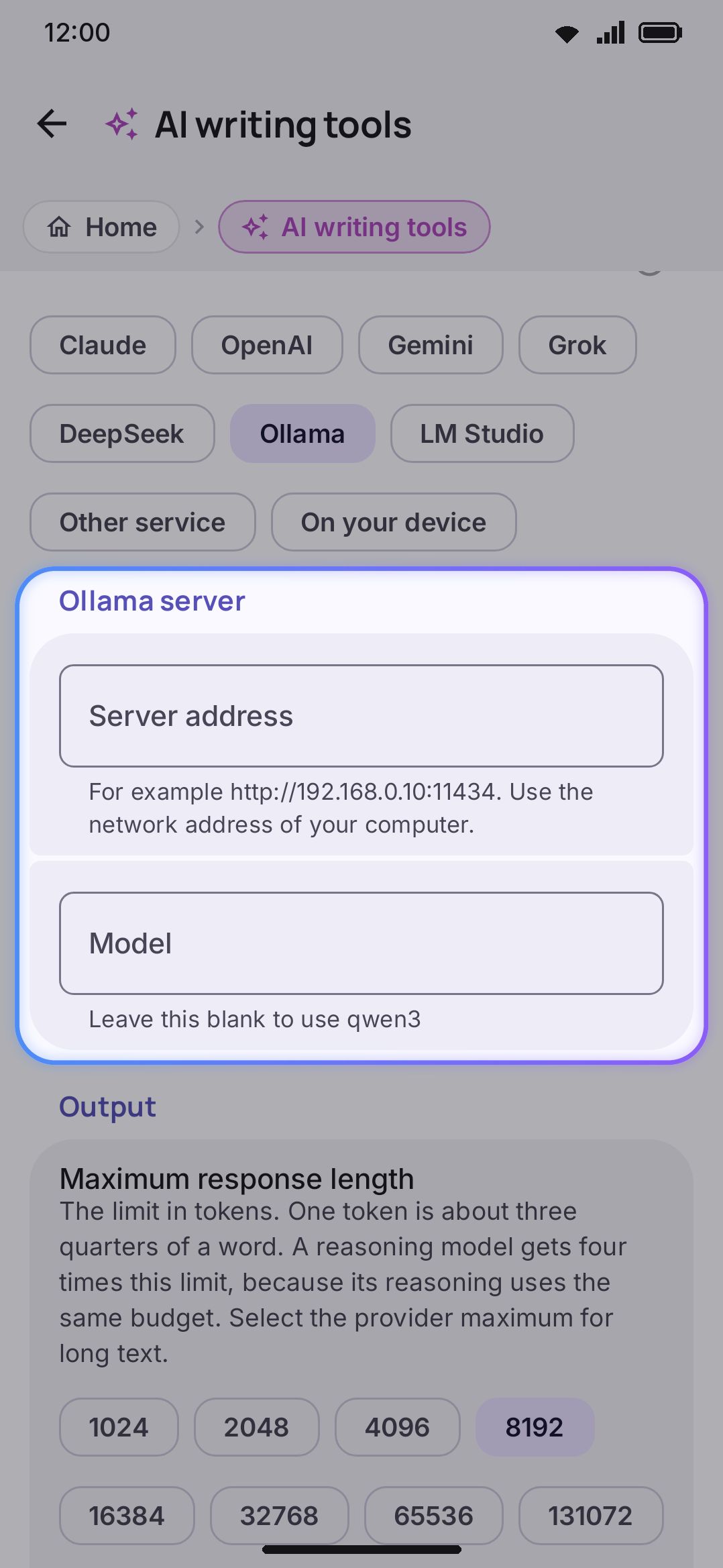
“Google Translate” is really two different endpoints, and it’s worth being
precise about which one you’re using. With no key, WM Keyboard calls
translate.googleapis.com, the same unofficial public endpoint browser
translate extensions use. That’s fine for personal volumes, but it’s
rate-limited and carries no uptime guarantee. Add a Cloud Translation API
key and it switches to translation.googleapis.com, the official, billed
Google Cloud API. See Translate for that switch
in detail.
The full set of third-party hosts a WM Keyboard install can reach, beyond what’s already in the table above:
api.github.com, on a build downloaded from the project’s GitHub releases, is where the update check asks what the newest release is. It runs at most once every six hours, and only while you have the settings app open. The request carries nothing but a version string identifying the app, and it is a conditional request, so an unchanged list of releases sends no data back and costs nothing against the limit GitHub applies to everyone sharing your IP address. Press Download and the APK comes fromgithub.com(which redirects toobjects.githubusercontent.com), andraw.githubusercontent.comserves the release notes when you press What’s new, reading one markdown file out of the tag you are being offered and nothing else. That request is made only when you press the button. Play Store and F-Droid builds never make any of these requests. See Updating the app.f-droid.org, on an F-Droid build and no other, is asked what version F-Droid has, on the same six-hour schedule. That build downloads nothing: it can only point you back at the F-Droid client.api.keyman.comanddownloads.keyman.comare asked for a Keyman layout’s typing rules, only when you press its Typing rules row or accept the offer to fetch them as you switch the layout on. The request names the keyboard and nothing else: the first asks for its current version, the second serves the package.raw.githubusercontent.com/wasi-master/wmkeyboard-datais the project’s own data repository, source for downloadable dictionaries, word-pair (n-gram) packs, emoji keyword packs, CJK conversion tables, the 5 MB background remover the sticker editor fetches on a phone that has no Google Play services to supply one, and a copy of Keyman keyboards’ typing rules that is read only when keyman.com can’t serve them. See Downloads below.raw.githubusercontent.com/wasi-master/wmkeyboard-addon-repositoryis the sample addon repository, and also where the one-tap Noto Color Emoji font on the Emoji screen is fetched from (about 10 MB, plus a few hundred bytes of version manifest beside it). That one tap doesn’t require adding a repository first.raw.githubusercontent.com/wasi-master/wmkeyboard-monkeytype-soundsis the second pre-added addon repository, a set of key-sound packs. Like the one above it is removable, and removing it is permanent.raw.githubusercontent.com/tesseract-ocr/tessdata_fastFull edition only is the Tesseract project’s own language data, pinned to its 4.1.0 release. The text scanner fetches one file per language, 0.4 MB to 12 MB, only when you press Download for it. The request names the language and nothing else.huggingface.cois the source for offline Whisper speech models and on-device AI models. Most are public. A couple of gated on-device models need your own Hugging Face account token.fonts.gstatic.comserves Google’s Noto animated emoji. Long-press an emoji that has an animated version and the keyboard fetches a small WebP to loop in the popup, then fetches the full GIF when you tap Send. Nothing about you goes with either request. It only happens when Animated emoji is on and you’re in a field that accepts images. See Animated emoji.- Google’s downloadable-font provider (
com.google.android.gms.fonts) supplies the Noto face the keyboard draws every non-Latin script in, and the Noto Color Emoji font choice arrives the same way. Play services makes that request, not the app, and nothing about you travels with it: a font is asked for by family name only. It happens the first time a script needs a face the device hasn’t already cached, without you choosing anything. A device with no Play services falls back to the system font per glyph instead. - Your backup locations, if you add any. That’s Google Drive
(
www.googleapis.com), Dropbox (www.dropbox.comto sign in, thenapi.dropbox.com,api.dropboxapi.comandcontent.dropboxapi.com), OneDrive (login.microsoftonline.comto sign in, thengraph.microsoft.com), or the S3, WebDAV, SFTP, SMB, FTP, Git or IMAP server whose address you typed in yourself. A Nextcloud WebDAV location can also sign in through your own server’s login page. Nothing is contacted until you add a location, so none of these are contacted on a fresh install. What travels is your backup file, and your sync file if you turn on sync between devices, and nothing else. See Backup & restore. - Whatever addon repository you add. Two are pre-added the first time you open the Addons screen, the two named above, but adding a reference doesn’t fetch anything by itself. See Installing addons for when a repo actually gets contacted.
- Ollama and LM Studio are whatever address you point them at, with no fixed host. Traffic to a self-hosted server is plain HTTP, and the app allows cleartext traffic app-wide to support it, so keep that server on a network you trust. See AI tools for the full setup.
None of these services receive anything from WM Keyboard beyond the single request described for that tool, and there’s no shared analytics identifier tying them together. Automatic backup is the one thing here that fires without you, and only to the destination you chose yourself.
Keeping API keys safe
Section titled “Keeping API keys safe”Each tool that needs a key has its own field, all blank by default: Translate’s Cloud Translation and DeepL keys, GIF search’s Klipy and GIPHY keys, Web and Image search’s Brave key, photo backgrounds’ Unsplash and Pexels keys, and the AI tool’s per-provider keys (Anthropic, OpenAI, Gemini, Grok, DeepSeek, and whatever key the OpenAI-compatible service you pointed it at wants) plus its Hugging Face token for gated on-device models, and Voice typing’s transcription server key. Leave any of them blank and that tool either falls back to a free endpoint (Translate) or shows a “needs an API key” state (GIF, search, AI). See each tool’s own page under Tools for exactly where its field lives.
Every key you enter lives in the same place as the rest of your settings: a plain, unencrypted Android DataStore preferences file, protected by Android’s normal app-sandboxed storage rather than by any extra encryption WM Keyboard adds on top.
Keys are excluded from a manual backup export unless you turn on Include API keys, and from Android’s own device backup path they’re excluded unconditionally. See Secrets stay out by default for the full export mechanics, including the exact warning text the app shows you.
Downloads: dictionaries, models, and addons
Section titled “Downloads: dictionaries, models, and addons”Every downloadable asset comes over HTTPS, but the integrity check behind it isn’t uniform. Don’t assume every download is checksummed just because some are.
| Download | Source | Integrity check | Confirms before using mobile data? |
|---|---|---|---|
| Dictionaries and wordlists | the project’s GitHub data repository | none beyond the gzip stream’s own format check | Only from the “download everything for this language” button, which asks while Data saver is on and its Downloads row is set to Ask each time (the default) |
| Emoji keyword packs | same data repository | none beyond decode success | Same button, same setting |
| CJK conversion tables (pinyin, kana, stroke, cangjie, jyutping) | same data repository | SHA-256 verified before the file is used | No |
| Keyman typing rules | downloads.keyman.com, or the same data repository’s copy when keyman.com can’t serve them | the file must parse as a keyboard before it’s kept, and the data repository’s copy is also SHA-256 verified against the checksum listed beside it | No |
| Offline Whisper speech models | Hugging Face | no checksum, a file-size floor only | Yes, around 150 MB. See Offline voice (Whisper) |
| Text scanner languages (Tesseract) Full edition only | the Tesseract project’s tessdata_fast 4.1.0 on GitHub | none beyond the file arriving at the length the server announced; a file Tesseract can’t load is not read | Yes, from the scanner’s button and from the settings page. See Scanner |
| On-device AI models | Hugging Face, per model | no checksum, a file-size floor only | Yes, at 500 MB. See AI tools |
| Addons (themes, icon packs, plugins, sounds, layouts, sticker packs) | whichever repository you added | SHA-256 verified when the manifest supplies one, and mandatory for plugins specifically, since they run code | No |
| Signal sticker packs | Signal’s sticker storage, cdn-ca.signal.org. No Signal account is involved, and the request names the pack and nothing about you. The signalstickers.org gallery that the same screen links to opens in your browser, and the keyboard itself never contacts it | every file is checked against the key in the pack link (HMAC-SHA256) before it is opened, so a file that was changed on the way is refused | Yes. The pack preview asks before its first request while Data saver is on and its Downloads row is set to Ask each time (the default) |
| Rboard themes | the Rboard repository on GitHub, raw.githubusercontent.com/GboardThemes/PackRepoBeta. The list is fetched when you open Browse Rboard, and a pack when you press it. The Google Play build has no Browse Rboard and never makes this request | each pack is SHA-256 verified against the checksum in the list before it is opened; the list itself is capped at 2 MB | Yes. The screen asks before its first request while Data saver is on and its Downloads row is set to Ask each time (the default) |
| Addon repository manifests themselves | the repository URL you added | none: it’s the trust root, so there’s nothing to check it against. Capped at a fixed size instead | No |
| App updates (GitHub builds only) | this project’s GitHub releases | SHA-256 verified against the checksum published in the release, and then the APK’s signing key is compared against the key your install is signed with. A release with no checksum is refused rather than installed on trust | Yes, and it names the size before it starts |
Only CJK packs, app updates, the data repository’s copy of Keyman rules, Rboard theme packs, and addons with a declared hash get cryptographic verification. Wordlists, emoji packs, Whisper models, and on-device AI models rely on HTTPS transport integrity plus a basic size check rather than a checksum, and Keyman rules from keyman.com on HTTPS plus the check that they parse. That’s worth knowing if you’re deciding how much to trust a third-party addon repository versus the project’s own data feed. See Installing addons for how that mandatory plugin checksum is enforced.
Google components, and what they report
Section titled “Google components, and what they report”Everything above is WM Keyboard’s own code making its own request. Three Google libraries the app is built on top of talk to Google on their own schedule, and this is the honest list of them. None of them can see what you type. None of them can be switched off from inside the app either, so the choice is whether to use the feature.
| Component | In which build | Reaches Google when | What it sends |
|---|---|---|---|
| ML Kit (handwriting, OCR, QR/barcode scanning, document scanning, sticker background removal, on-device translation) | full edition only | when you use one of those features | Per Google’s own disclosure: device make, model, OS build and available ML accelerators; the app’s package name and version; a per-install identifier; latency figures, the API settings and input/output sizes; the SDK version, the kind of event (init, model download, detection) and any error codes. Google describes this as diagnostics and usage analytics, says it’s encrypted in transit and not passed to third parties, and provides no switch to disable it. |
| Downloadable fonts | every build with Play services present | the first time a script’s default keyboard font is needed, and whenever you pick a Google font in the theme editor | the font family name and this app’s package name, asked of the Play services font provider. Play services makes the actual request, not this app. |
| Play Store libraries (in-app updates, and the on-demand downloads of the on-device AI runtime, the on-device translation engine, the interpreter behind offline voice typing and the sticker editor’s own background remover, and the handwriting recogniser) | Play Store builds only | on the update check, when you first use an on-device AI model, when you first pick on-device translation, when you first use offline voice typing or a background removal without Play services, and when you first download a handwriting model | the app’s package and version, handled by the Play Store app that installed it |
On a Play Store build the update check is the only thing that library is asked, and it is asked only when the app can see that the Play Store installed this copy. Sideload a Play-flagged APK and the app doesn’t ask at all, because the answer can only ever be a refusal.
Google Drive as a backup destination adds a fourth, but only if you connect it: signing in is a Google sign-in, and after that the app talks to Drive directly over ordinary HTTPS. Nothing is connected by default.
The lite edition ships no ML Kit at all, so the first row doesn’t exist there, and the F-Droid build carries no Play Store libraries either. The font row is the one that survives everywhere. It’s an AndroidX API talking to whatever font provider the device has, so a phone with Play services (or microG) on it has that path no matter which build you installed. A phone without one falls back to the bundled Noto faces and never asks anybody anything.
Options
Section titled “Options”- Per-tool Enabled switch (default on for every tool, including the networked ones). Turning a tool off here, or from the “Enabled” toggle at the top of that tool’s own settings screen, removes it from the toolbar, the toolbox, and its hardware leader-key letter all at once. A disabled tool can’t be opened, so it can’t reach the network.
- Background network is on by default whenever Power Saving itself is active, and Power Saving is off by default. It stops the fetches that happen without you asking for them: clipboard link previews, QR scan link previews, and the dictionary’s look-up-on-selection. Every tool you open by hand keeps working normally, translate, search and AI included. See Power saving for the complete list of what else it drops.
- Data saver is the network-shaped version of the same idea, and the one to reach for if what you’re protecting is a data allowance rather than a battery. Each feature that fetches gets its own answer: allow it, ask first, or turn it off while the connection is metered. The fetches that happen on their own default to off, and the ones you start yourself default to asking, so a GIF grid on mobile data explains itself and offers a Use mobile data button rather than coming up empty. See Data saver for the full table.
There’s no single “airplane mode for the keyboard” switch beyond those. The closest equivalent is turning off every networked tool individually, or turning every Data saver row off and leaving the manual switch on. The typing engine itself needs no switch at all, because prediction, autocorrect, gesture typing and layouts have no network code to disable in the first place.
Details & edge cases
Section titled “Details & edge cases”- You can build a keyboard with no internet permission at all. Build it
with
-Pwmkb.noInternet=trueand the permission is left out of the APK. Everything on the device keeps working, and every tool on this page fails the way it does offline. See Building. - The in-app Privacy screen lists the tools, not the fetches. Its note names translate, weather, web search, image search, GIFs, stickers, dictionary lookup and the AI tools, and says the network is used only at the moment you press one. That covers the deliberate half. It leaves out the things that fetch on their own (currency chips, language data, link previews) and the download screens, which is what this page adds. See Data collection for the same note read from the storage side.
- AI’s default provider needs a key before it does anything. Claude (Anthropic) is the pre-selected provider chip, but with a blank key, so the tool shows a “needs an API key” state out of the box rather than silently trying a provider that isn’t configured.
- Currency and weather cache their results rather than fetching on every open. Currency holds for a few hours, coin prices for a few minutes, and weather for about fifteen minutes, so most opens after the first don’t touch the network at all.
- Coin prices are fetched lazily. Cryptocurrency is on by default, but the coin source is only asked when you actually type a coin amount or pick a coin on the panel. If you never do, your keyboard never talks to it.
- Only one tool reads your field rather than its own search box. Translate, Wikipedia and both search tools send what you type into the panel, and nothing else: the translate panel is its own window and never looks at the field behind it. Dictionary is the exception, reading the selected or cursor word when auto-lookup is on.
- Addon repository manifests aren’t fetched proactively. Seeding the two pre-added references doesn’t contact them. A manifest only downloads when you actually open or refresh the Addons screen, which is also the visit that seeds them.
- Cleartext traffic is allowed app-wide, not scoped to Ollama and LM
Studio specifically, which is what makes plain-HTTP requests to a
self-hosted AI server possible at all. It doesn’t weaken HTTPS anywhere
the app picks the address: every tool in the table above is contacted over
HTTPS, and an addon repository URL on plain
httpis rejected rather than quietly upgraded. The places a plain address is your own choice are the self-hosted AI server, and an S3 backup endpoint or a Git backup server you type withhttp://.
See Data collection for what the keyboard learns from you locally, and Backup & restore for how API keys and the rest of your settings move between devices.