
The keyboard adapts to the field
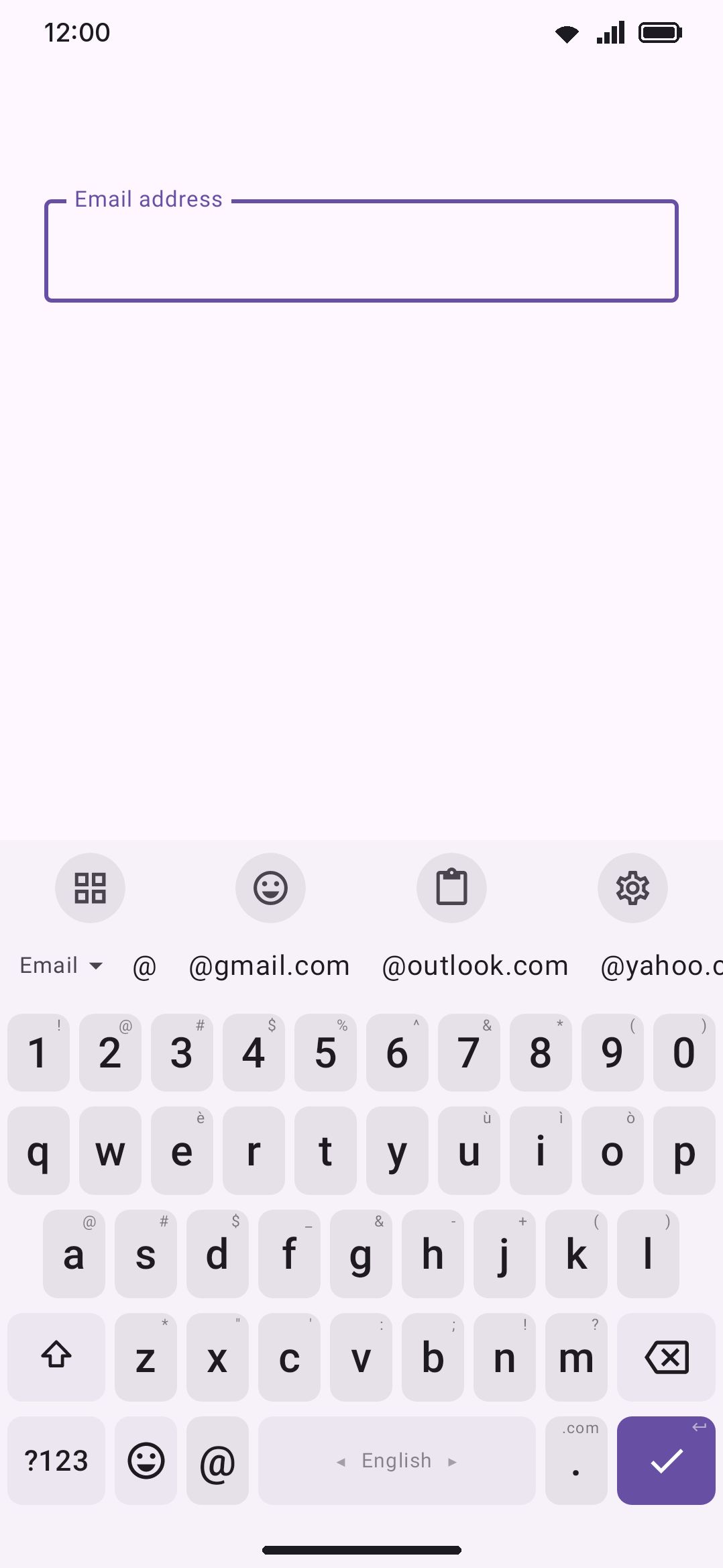
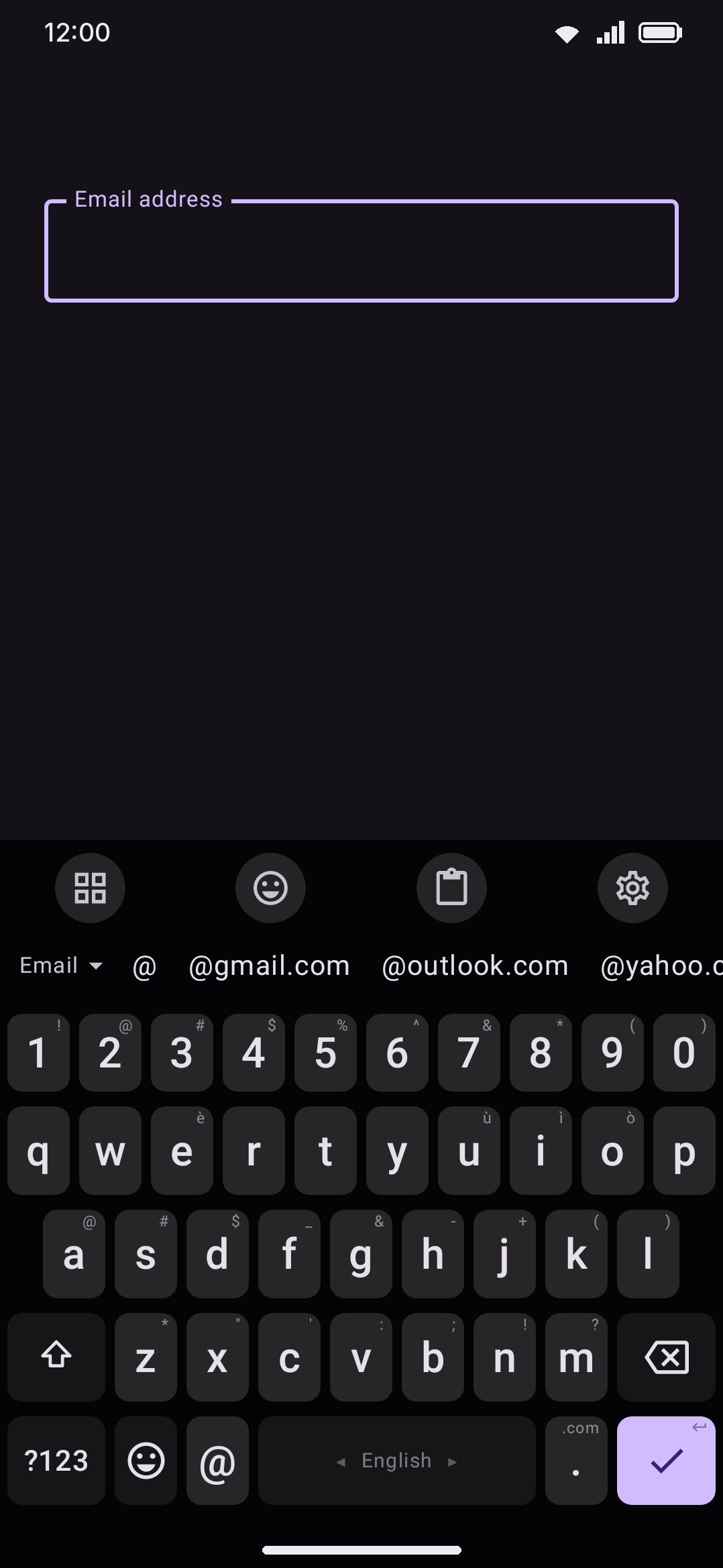
Email fields get @, URL fields get / on the comma's long press, and password fields get privacy automatically.
WM Keyboard reads what kind of field you’ve tapped into, email or phone number or password or five others, straight from the app’s own field description. Then it quietly changes the keys on offer to match. None of this needs a setting. It’s the same keyboard reacting to what’s under your thumb.
How the keyboard reads a field
Section titled “How the keyboard reads a field”Every field an app gives you carries an EditorInfo with a type, the same information Android’s own keyboards read. WM Keyboard turns that into one of eight FieldKind values: TEXT, EMAIL, URI, NUMBER, PHONE, DATE, TIME, DATETIME. Five of them (NUMBER, PHONE, DATE, TIME, DATETIME) are numeric-pad kinds and get a dedicated keypad instead of the letter layouts. The other three (TEXT, EMAIL, URI) keep the letters and adjust individual keys, covered below.
This detection is automatic and isn’t a setting you can turn off. It runs on every field focus, for every app, on both editions.
A password field is a separate signal entirely. It doesn’t get its own FieldKind: a masked text field reports FieldKind.TEXT identically to an ordinary prose box. That’s deliberate, because the privacy behavior a password needs (suggestions off, nothing learned, clipboard cleaned up) applies just as much to a numeric PIN field as to a text one. Instead there’s a second, independent flag, secureField, computed alongside FieldKind from the field’s password variation, or from its PIN variation on a numeric field. A 4-digit PIN box shows both firing together: it’s FieldKind.NUMBER, so it gets the numeric keypad, and secureField = true, so it gets every privacy rule below.
Typing in email and web address fields
Section titled “Typing in email and web address fields”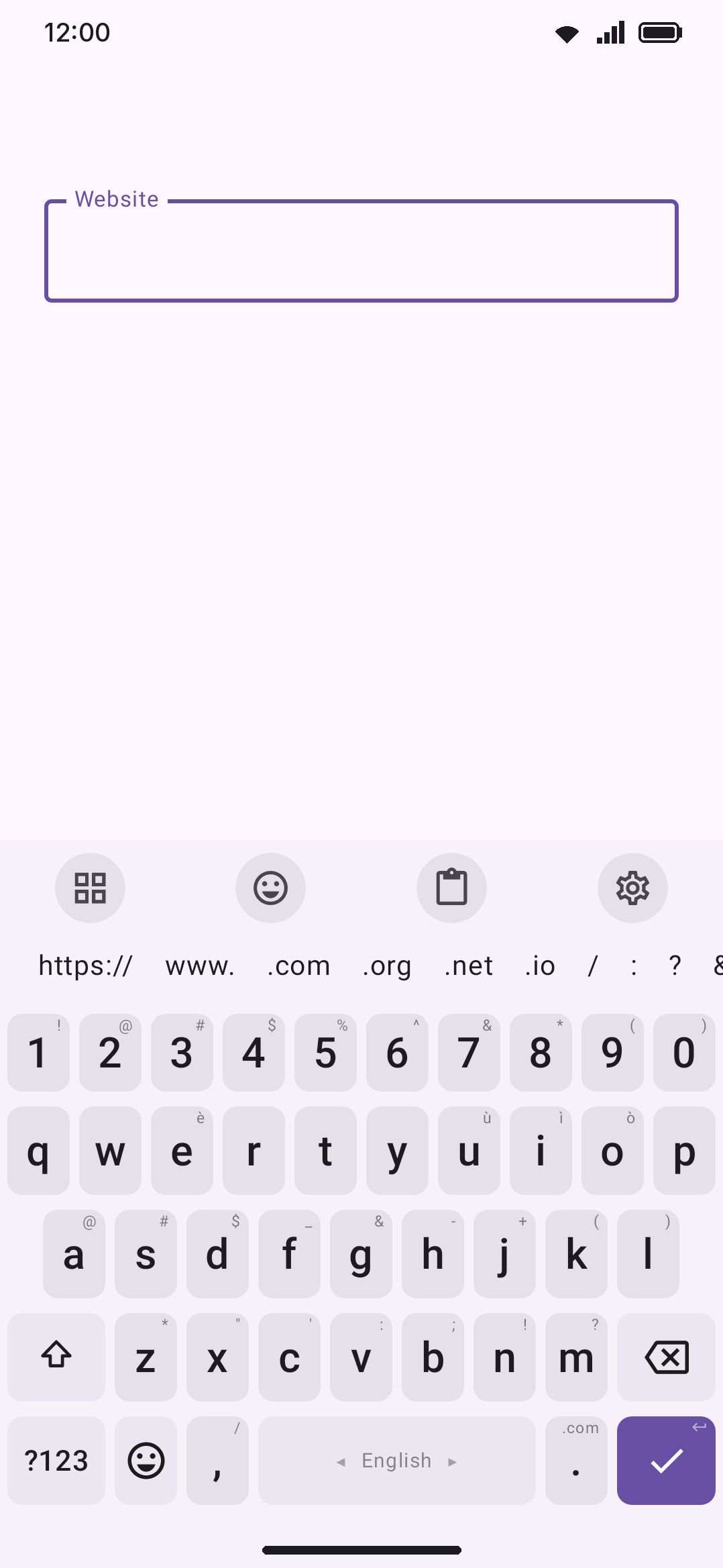
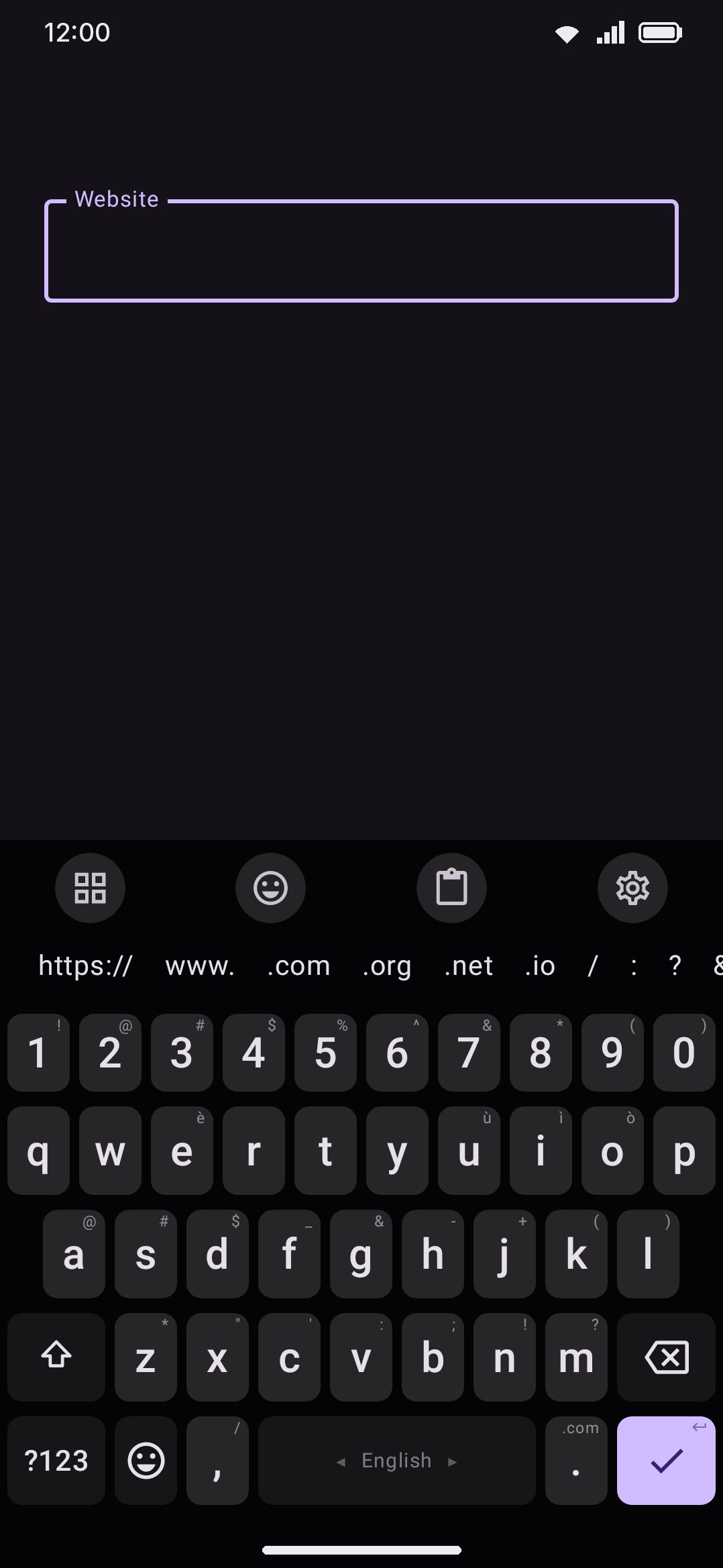
Email and URL fields keep the ordinary letter layout, since you’re typing words either way, but two keys on the bottom row only change to match:
- Email fields (
FieldKind.EMAIL): the comma key becomes @, and the period key’s long-press gains domain endings ahead of its usual alternates:.com,.net,.org,.edu,.co. - URL fields (
FieldKind.URI): the comma key stays a comma, since a browser’s address bar doubles as its search box, but its long-press becomes/,?,#,&,=, and the period key’s long-press gains.com,.org,.net,www.,https://,/.
The swap only touches the bottom row on purpose. A Dvorak layout has real . and , letter keys elsewhere on the board, and those stay untouched. It’s scoped to the letters layer as well, so switching to the symbols page shows the normal punctuation. Like field detection itself, this has no toggle in settings. It’s on whenever the field kind matches.
Typing in number, phone, date, and time fields
Section titled “Typing in number, phone, date, and time fields”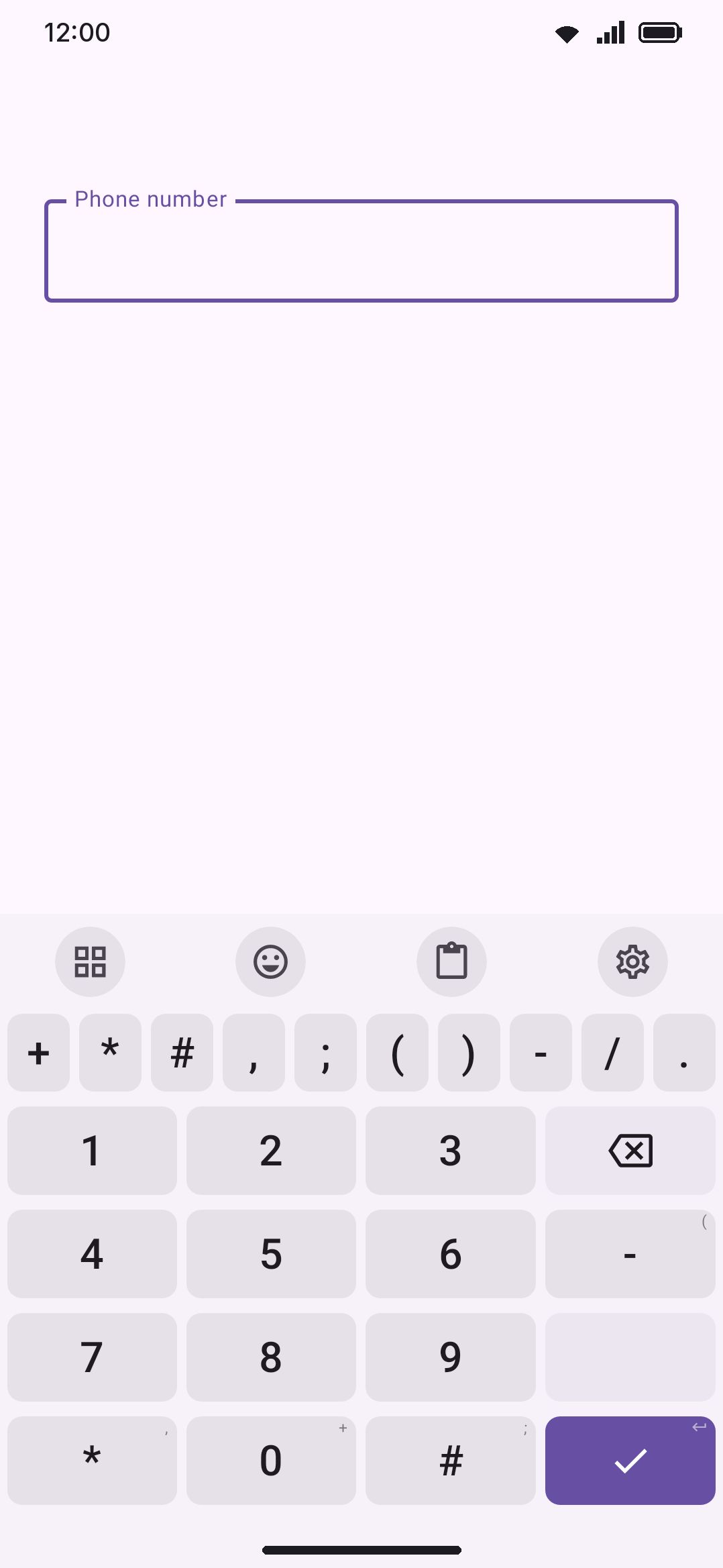
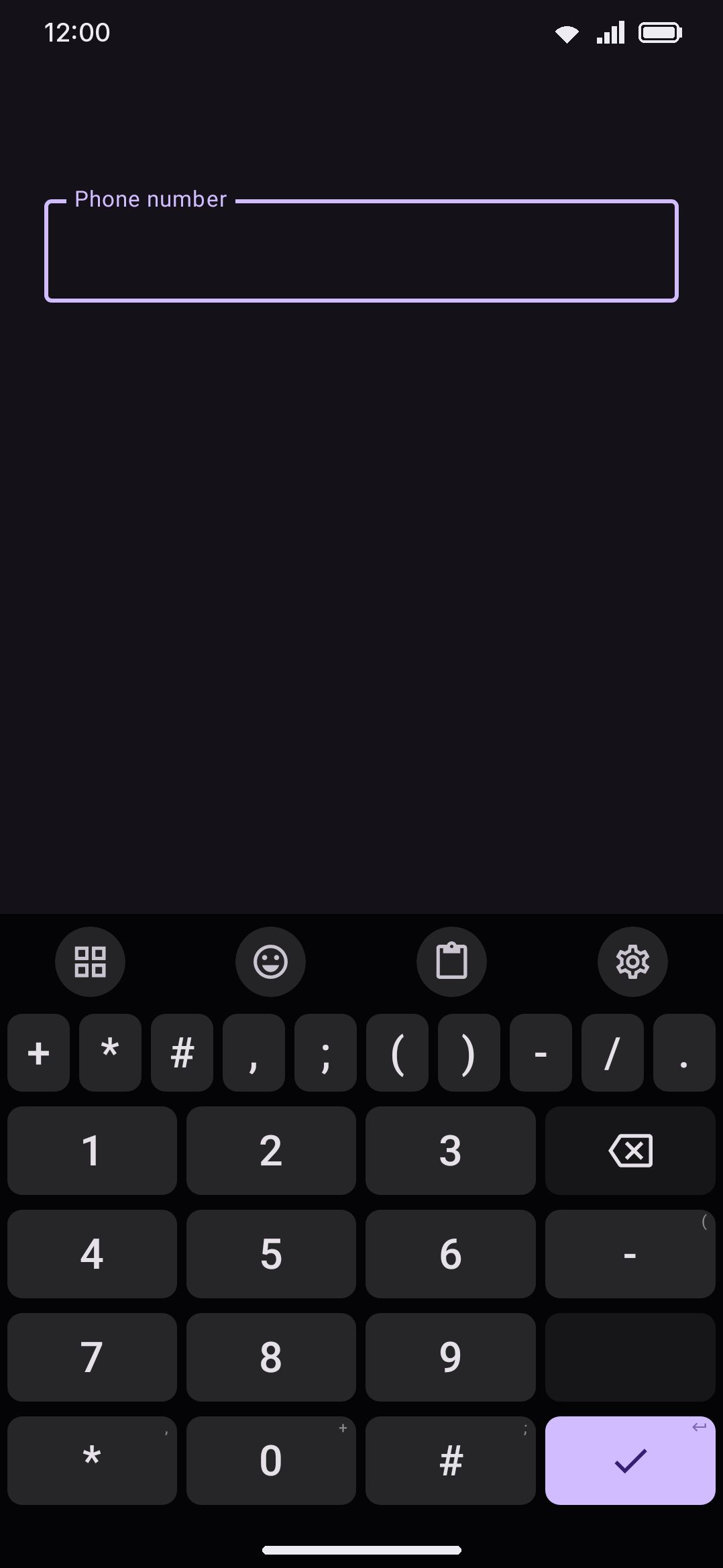
The five numeric-pad field kinds each get their own 4-column keypad. Digits are arranged phone-pad style, 1-2-3 on top rather than 7-8-9 like a calculator, with 0 sitting under the 8 and enter anchoring the bottom-right. Delete takes the top-right corner on four of the five. The Number pad swaps it down a row and puts space on top, since deleting is the frequent correction while typing a figure. The remaining keys are tailored to what that field type needs:
| Field kind | Right column | Bottom-left | Bottom-right | Notes |
|---|---|---|---|---|
| Number | - (long-press + % * /), space | . (long-press :) | , | Minus and decimal always shown, even if the field didn’t ask for them |
| Phone | - (long-press ( ) / .), space | * (long-press ,) | # (long-press ;) | Zero key’s long-press adds + |
| Date | / (long-press :), - | . | , | Covers 20/07/2026, 2026-07-20, 20.7.26 styles |
| Time | : (long-press .), space | . | - | Colon-led for 17:45 |
| Date & time | / (long-press .), : | - | space | Date and time separators together |
These five keypads are shared across every built-in layout. Only the default QWERTY layout defines them and every other language layout inherits the same set, but a custom .wmlayout.json can override any of the five with its own key rows.
The keypad shows up whenever the field kind calls for it, with one exception. If focus has been rerouted to something that needs letters, such as an in-panel search box (emoji, dictionary, clipboard, media), a plugin’s own text field, or the typing-test tool, the letter layout stays up instead. A digits-only pad would leave those impossible to type in.
WM KeyboardKey pressKey popupPopup on number padsThe floating character bubble that normally appears above a held key is off by default on these five keypads. Turn on Popup on number pads, shown only once Key popup itself is on, to bring it back. It’s off by default because, over a PIN, echoing each digit large enough to read is closer to a shoulder-surfing risk than a help.
Typing in a password field
Section titled “Typing in a password field”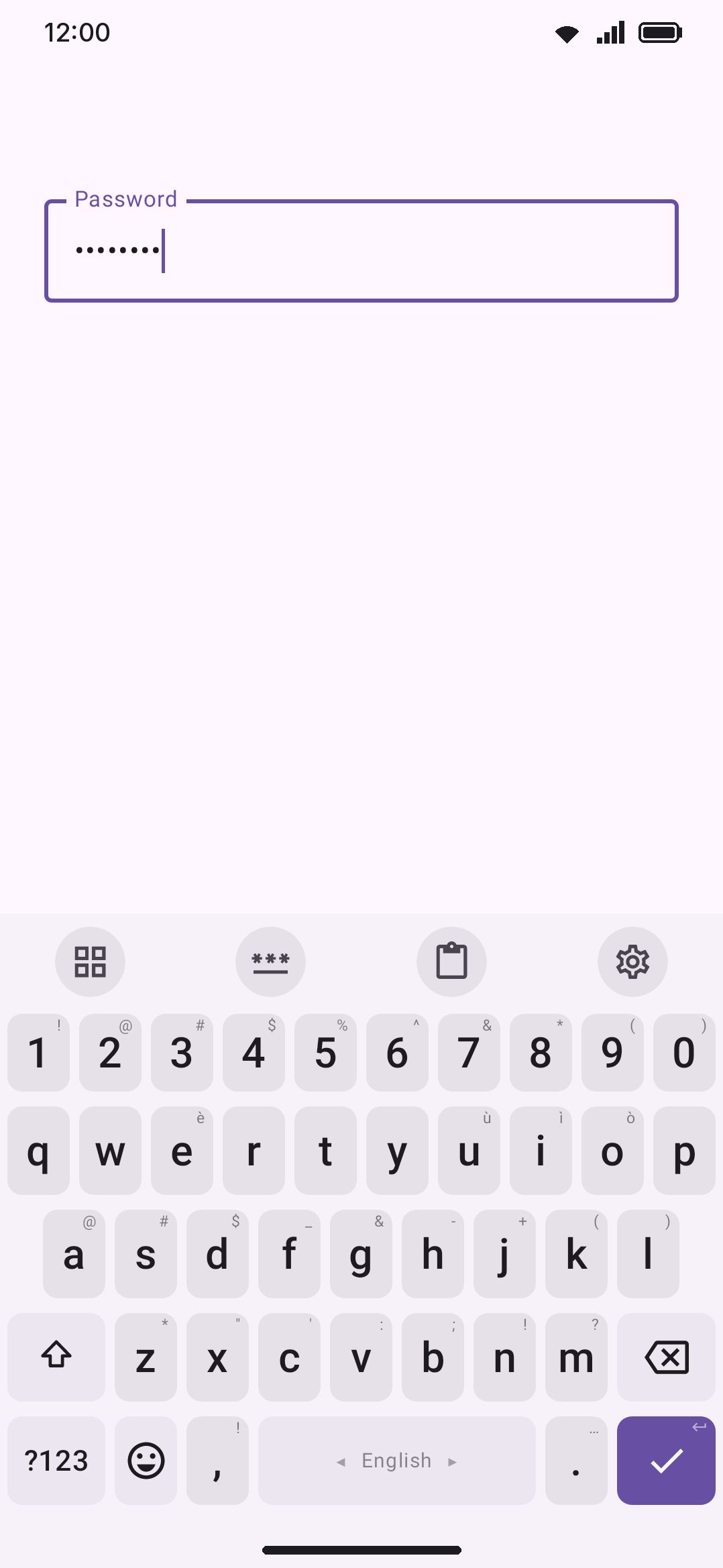
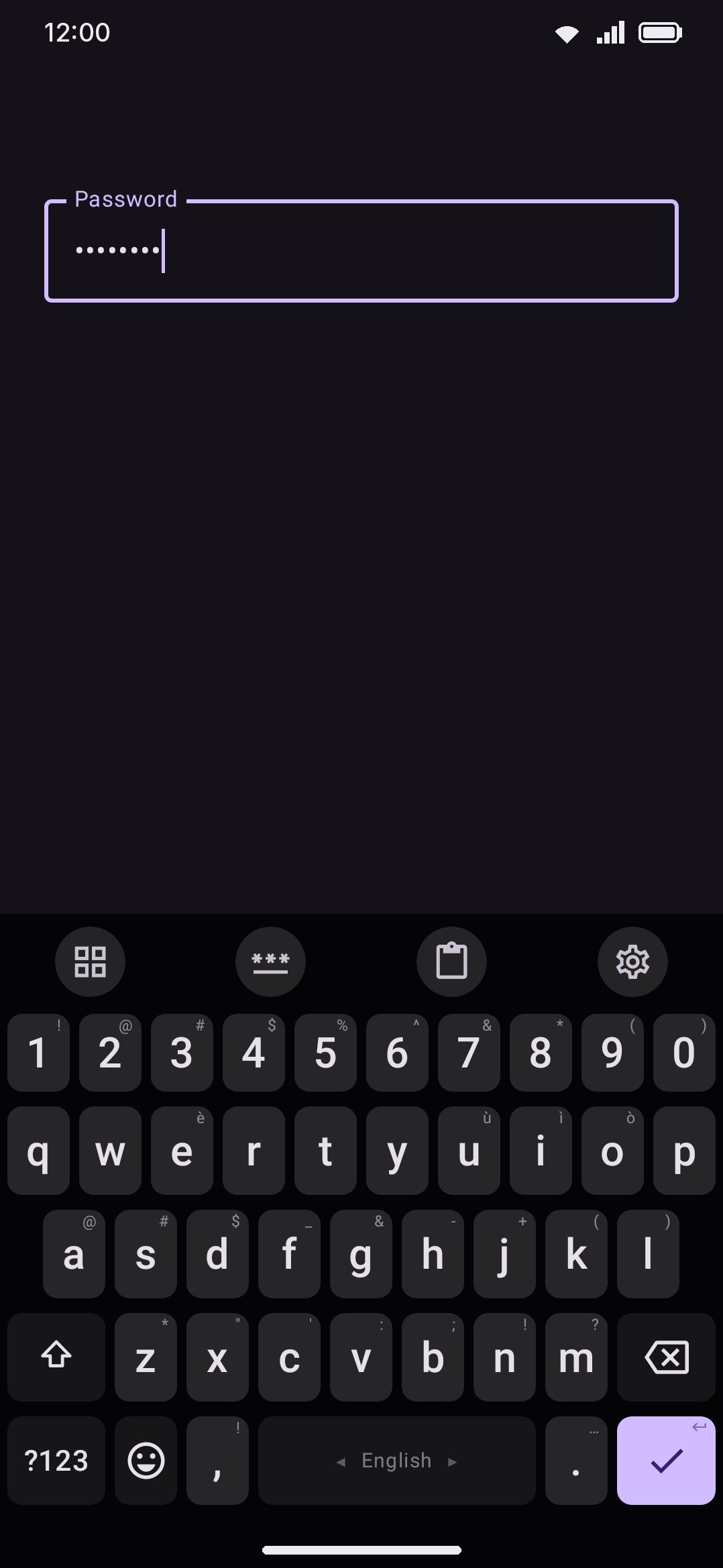
secureField drives a wider set of behavior than just hiding the suggestion strip:
- Suggestions never show. Password variations force the suggestion strip off unconditionally. WM KeyboardTypingSuggestionsSuggestions in every field can’t override it, since that setting exists specifically to make hidden strips show anyway on ordinary fields. Only one other thing is beyond that setting’s reach: a field whose class isn’t text at all, whose keypad has no words to offer.
- Autocorrect and gesture typing turn off too, and not only in password fields. These, along with on-device learning, are gated on a broader check than
secureFieldalone. It also excludes every structured field kind (EMAIL,URI,NUMBER,PHONE,DATE,TIME,DATETIME). A keypad has no words to autocorrect, and an email address shouldn’t be second-guessed either. Only a plainTEXTfield that also isn’t secure gets the full typing-intelligence treatment. - Phonetic (Avro) composing is the one exception: it keeps running everywhere, password fields included. Avro turns roman key presses into Bangla as you type, and that step isn’t gated on the same check at all. Turning it off in a secure or structured field would mean the roman keys commit untransliterated rather than no Bangla being produced. Only the suggestion-feeding side of composing, plain English composing, which exists purely to feed autocorrect and suggestions, is gated alongside autocorrect and gesture typing.
- Nothing is learned. The same gate feeds WM KeyboardPrivacyLearning on this deviceLearn from typing. Typing in a password field, or any structured field, never reaches the on-device learning dictionary.
- Voice typing refuses to start. Both the voice panel and the toolbar strip’s dictation toggle decline while a secure field is focused. The toolbar toggle shows a toast reading “You cannot use voice typing in a password field”, the panel shows its own inline notice (“Voice typing does not work in password fields.”), and the voice bar reads “Not available in password fields”.
- Clipboard history stops recording while a secure field has focus, so new copies (and screenshot-to-clipboard captures) are skipped for as long as it’s focused.
- Pasting into a password field can wipe the clip afterward. See Clipboard: passwords are handled deliberately for the full paste-time purge behavior and its setting.
Typing in a terminal
Section titled “Typing in a terminal”A terminal emulator like Termux isn’t an ordinary text box. It reports its field with no type at all, and its connection to the keyboard carries only finished text: whatever the keyboard is still working on stays invisible to the terminal until something finishes it.
That matters because plain English composing works by holding the word you’re typing as an unfinished draft, so autocorrect and the suggestion strip have something to read, and only finishing it at the end of the word. In a terminal that draft went nowhere visible. Typing echo showed an empty prompt until the space after it, which then dumped the whole word in at once.
So the keyboard doesn’t compose in a field like that. Every key you press is finished text immediately, and the terminal shows it as you type. Glide typing still works, since a swiped word arrives finished in one piece.
The rest of the prose rules stand down in a terminal for the same reason a password field doesn’t get them: autocorrect, on-device learning, the double-space period and the space typed after punctuation are all rules about writing sentences, and a shell prompt isn’t one. A space the keyboard adds after a comma is a different command.
Phonetic (Avro) composing is the exception here as it is everywhere else, and it keeps the old behavior: Bangla typed at a terminal prompt still only appears once the word ends.
Deleting works the other way round: a terminal never tells the keyboard what’s on the command line, it only replies that the line is empty. Holding backspace used to stop on that reply after a single character, so a long command had to be erased one tap at a time. Backspace and forward delete now keep repeating in a terminal for as long as you hold them, and the terminal decides when there’s nothing left. Two things that need to read the text can’t work there, so they fall back rather than doing nothing: holding delete clears one character a tick instead of a whole word, and a sideways swipe on delete erases as it goes instead of selecting what it’s about to take.
The same field description, a field with no type, is also what a window with no text box at all reports, which is where a keyboard you’ve kept open spends most of its time. It’s treated identically.
When an app gets its own field wrong
Section titled “When an app gets its own field wrong”There’s no manual override for field detection. No setting forces a field to be treated as a password or an email box. Detection reads only the field’s real inputType, every time it’s focused, and there’s nothing else to configure.
Two related things exist, but neither is a correction for a misreporting app:
FORCE_ASCII: if a field sets this flag and your current layout isn’t Latin-script, the keyboard switches to your first enabled Latin layout for that field. That’s the app declaring a hard constraint, not a workaround for bad detection.hintLocales: an app can hint which language a field expects. It’s honored only if you already have that language enabled, and it’s advisory. It never overrides field-kind detection.
Keyboard modes look like an override at first glance, since you can manually pin the built-in Passwords mode over any field. But a mode only replaces settings: the theme, the toolbar tools, the symbol row, the emoji row, the layout, and the autocorrect, automatic-capitals and suggestions switches. It does not touch secureField, so it can’t turn on learning-off or clipboard purging for a field an app has genuinely mislabeled. The shipped Passwords mode doesn’t set the three typing switches either, so pinning it changes nothing about what the keyboard does to your text. If a login field is reported as plain text, pinning Passwords dresses the keyboard for it without restoring the actual privacy protections. Those come only from the field’s real, correctly-reported type.
Options
Section titled “Options”| Setting | Default | Path |
|---|---|---|
| Suggestions in every field | On | WM KeyboardTypingSuggestionsSuggestions in every field |
| Contact emails in email fields too | On | WM KeyboardTypingSuggestionsContact emails in email fields too |
| Password manager suggestions | On (Android 11+) | WM KeyboardTypingSuggestionsPassword manager suggestions |
| Popup on number pads | Off | WM KeyboardKey pressKey popupPopup on number pads |
| Forget after you paste a password | Off | WM KeyboardClipboardPasswords and codesForget after you paste a password |
| Learn from typing | On | WM KeyboardPrivacyLearning on this deviceLearn from typing |
| Add words to the system dictionary | Off | WM KeyboardPrivacyLearning on this deviceAdd words to the system dictionary |
Contact emails in email fields too only shows up once Suggest contact emails itself is on. When it is, a contact-email completion still appears in an email field even if the app asked for a hidden strip there, while other suggestions in that field stay hidden.
Details and edge cases
Section titled “Details and edge cases”- A password field’s
FieldKindisTEXT, not a dedicated kind. If you’re reading behavior off the field kind alone, remember that password status is the separatesecureFieldflag layered on top. A numeric PIN field carries bothFieldKind.NUMBERandsecureField = trueat once. - The typing-intelligence cutoff is broader than “passwords only.” Autocorrect and learning turn off for every field kind except plain, non-secure
TEXT, which takes in email and URL fields as well as passwords and numeric pads. Two things reach one step further, into URL fields: glide typing, and word completion on the strip while Suggestions in every field is on. Neither autocorrects or learns there. Phonetic (Avro) composing is the one true exception. It keeps running in every field, secure or structured, since it exists to transliterate roman keys into Bangla rather than to feed suggestions. - A field with no type at all is a third cutoff, alongside secure fields and structured kinds. A terminal emulator and a window with no text box both report one, and neither can show an unfinished word, so nothing composes there and none of the prose rules run. See Typing in a terminal.
- The suggestion strip is force-emptied a second time, independent of the strip-hiding check above, as a backstop specifically for secure fields.
- The email/URL key swap has no toggle. It’s derived purely from field kind and layout mode (letters layer only), so there’s nothing to turn off short of the field itself not being an email or URL field.
- A custom layout can override any of the five numeric keypads by defining its own
NUMBER/PHONE/DATE/TIME/DATETIMElayer. Anything it doesn’t define falls back to the shared ones described above. - No edition split. Field-kind detection, the key swaps, the five keypads and every secure-field behavior on this page work identically on the full and lite builds.
For symbol-page cycling and how a keyboard mode can bind itself to a field kind, see Modes & the symbol row. For the paste-time clipboard purge in full, see Clipboard manager.