
Keyboard font
Google Fonts, imported font files, and addon fonts for the key labels.
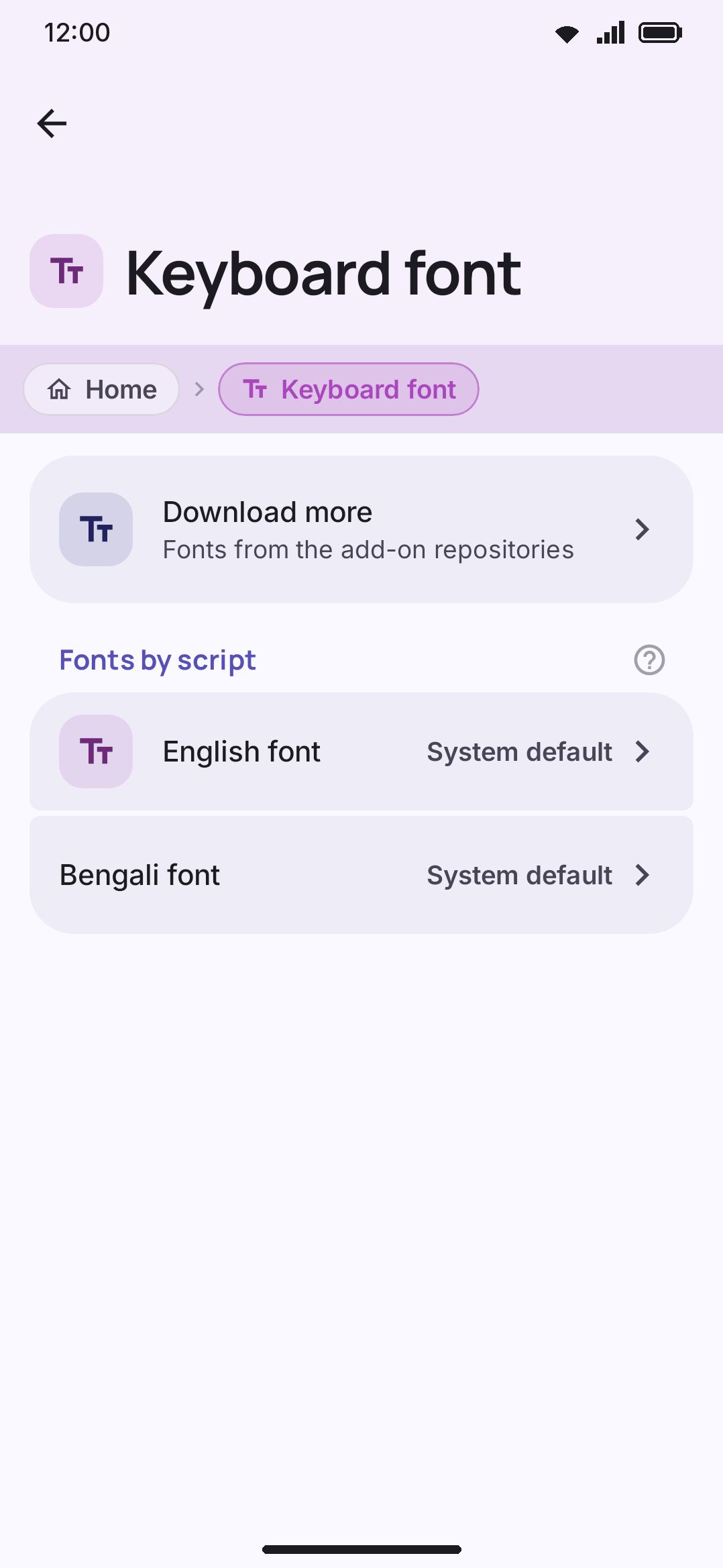
The keyboard font screen picks the typeface for key labels, the suggestion strip, and the keyboard’s own panels. You pick one per script: English, Bengali, and every other script your enabled languages write in.
Options
Section titled “Options”| Setting | Choices | Default |
|---|---|---|
| Download more | Opens the addon catalogue, filtered to fonts | n/a |
| English font | Opens its own page: System default, or one of 20 Google Fonts, or an imported/installed file. Also governs Cyrillic and Greek keys, which have no picker of their own. | System default ("default") |
| One row per enabled script | Opens that script’s own page: the script’s Automatic (Noto) face, or one of a short curated list (1 alternative for Armenian or Georgian, 8 for Bengali, and 9 for Thai, Korean, Japanese or Chinese). 22 scripts get a section: Bengali, Arabic, Hebrew, Armenian, Georgian, Devanagari, Gurmukhi, Gujarati, Odia, Tamil, Telugu, Kannada, Malayalam, Sinhala, Thai, Lao, Khmer, Myanmar, Ethiopic, Korean, Japanese, and Chinese. | Automatic (Noto) |
| Installed fonts | The shared font library: fonts you imported or installed from an addon. Every section lists it, filtered to the fonts that declare that section’s script or declare no coverage at all. | n/a |
Each row shows the font that script draws with and opens the list for it. Selecting a font applies it immediately. There’s no separate download or apply step. The English row is always shown. Every script row appears only while a language using that script is enabled, so you never see a picker for a script you don’t type in.
Download more is the first row on the screen, above the font rows. It opens the addon catalogue already filtered to fonts, so you can go looking for a face without knowing the addon store exists first. Anything you install from there lands in the same Installed fonts library the import button fills, and shows up under whichever sections its script matches. See Installing addons.
Every script’s page carries an Import a font file (.ttf or .otf) button and its own Installed <script> fonts list. Importing writes into one shared library that every script selects from, so a Devanagari or Thai font shows up in that script’s own picker whether you imported it by hand or installed it from an addon repository. English and Bengali keep one extra thing from older builds: a legacy single-file slot, stored on its own. An existing Bengali font choice carries over by itself, imported files included.
A related shortcut lives on WM KeyboardAccessibilityKeyboard font: it opens this same screen. WM KeyboardAccessibilityReadable font is a one-tap toggle that sets the English font to Atkinson Hyperlegible, not a setting of its own.
For the full explanation of how Google Fonts are fetched and how imports and addon fonts share one library, see Keyboard fonts.
Details & edge cases
Section titled “Details & edge cases”- The Installed-fonts library caps out at 50 fonts total and 32 MB per file. Hitting either limit shows a plain-language dialog:
"A font must be smaller than 32 MB."for an oversized file,"You have 50 fonts already. Delete one first."for the count. Installing from an addon at the count cap words it differently:"The font library is full. Delete a font and try again." - Deleting a font from its row on this screen first drops any selection pointing at it, English, Bengali and every per-script override alike, so the keyboard never points at a file that’s about to disappear. Uninstalling the same font from the Addons screen clears the selection too, for the same reason: the uninstaller drops the file and then drops every setting pointing at it, so no picker is left naming a font that isn’t there.
- On a device with no Google Play Services, the Google Fonts rows aren’t listed at all. Every one of them would resolve to the system face there, so the screen leaves them out rather than offering rows that change nothing. A short line under the intro text says why. System default, your imported file and the Installed fonts library are the app’s own, and they stay exactly where they are.
- Being offline is a different case. The provider is there, so the rows are too. A font that hasn’t been fetched yet draws in the system face for now, then swaps itself in once the download lands. Each one is fetched once and kept on the device.
- The Addons screen’s Use button for a font addon deep-links here with the anchor
Installed fonts, scrolled to the English section. See Installing addons. - Emoji have their own font setting, entirely separate from this screen. See Emoji customization.