
App launcher
Open any app, or a specific screen inside one, straight from the keyboard. Full screen, in a floating window, in split screen, or two at once as a pair.
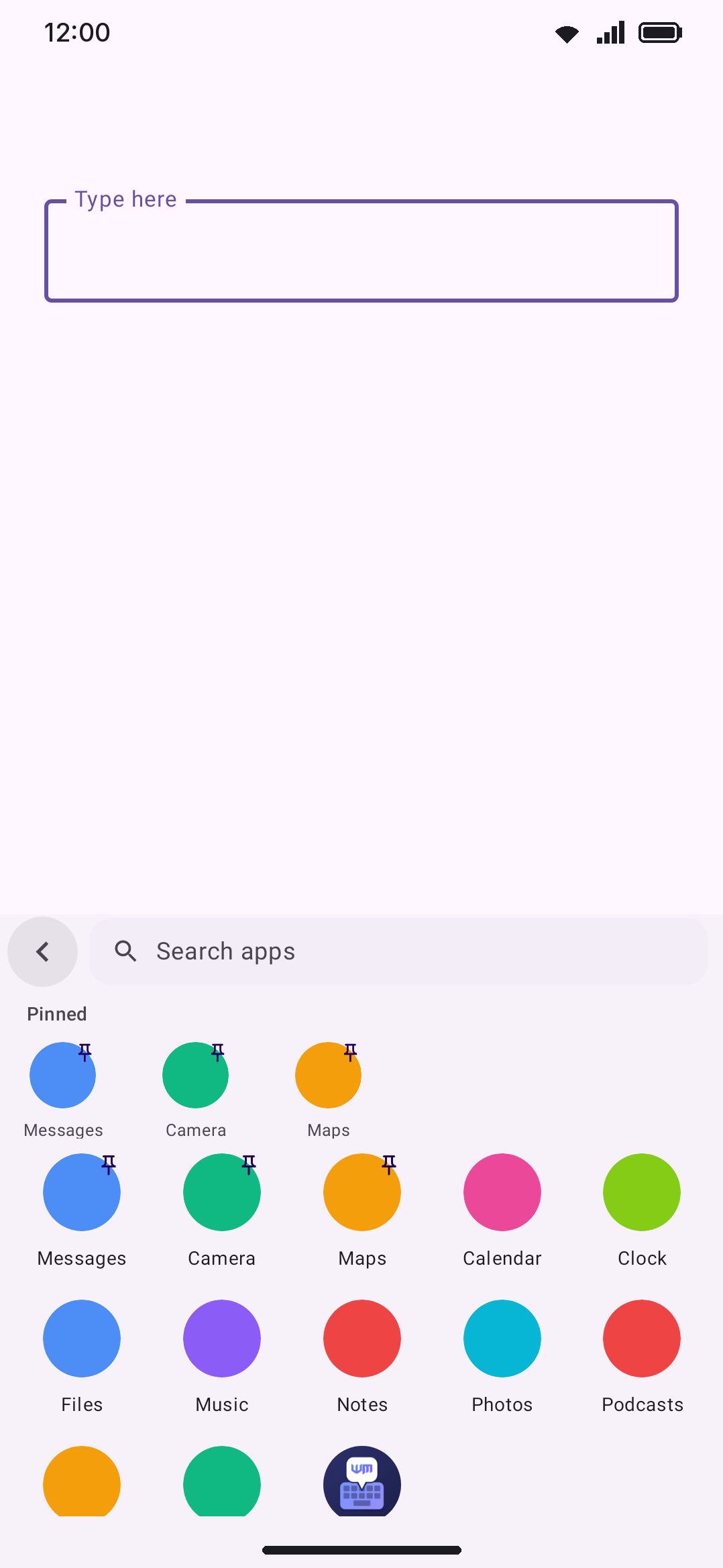
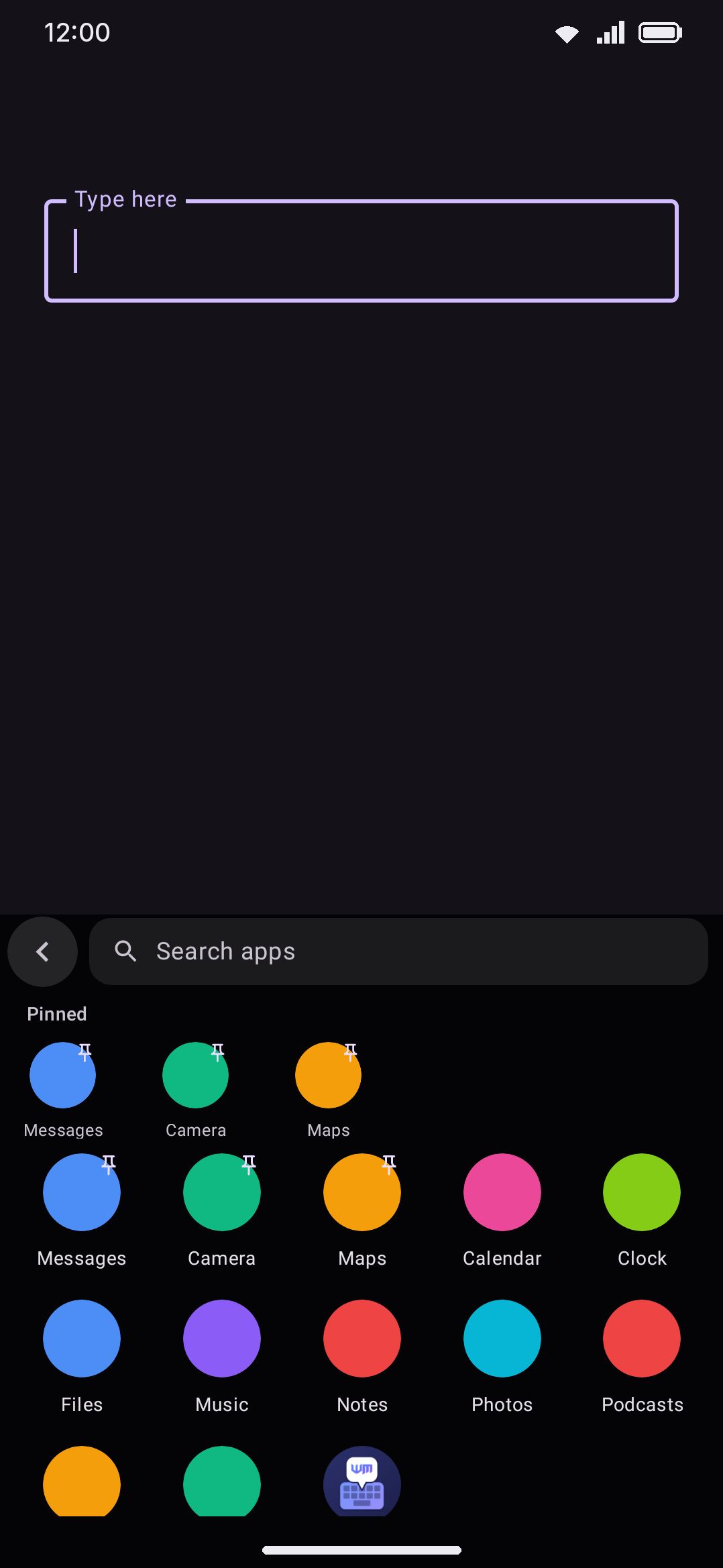
The app launcher puts your app drawer inside the keyboard: a searchable grid of every launchable app, with the ones you pinned and the ones you opened recently in a row on top. Tap an app to jump to it. Hold one for a menu that opens it in a floating window or in split screen instead, pairs it with a second app, or takes you inside it to open a specific screen, like a settings page or a compose view, without going through the app’s own navigation first.
It’s handy mid-conversation: someone asks for a booking reference, you hop to the airline app, copy it, and the keyboard is still where you left it when you come back.
Opening the panel
Section titled “Opening the panel”Open Apps from the toolbar, or the toolbox if you haven’t pinned it. Typing apps or launch offers the tool on the suggestion strip too. On a hardware keyboard, use the leader key: double-tap Ctrl, then press J.
The grid
Section titled “The grid”- Search sits in the header. Tap it and the keys come back under a shortened panel, filtering live over app names and package names as you type.
- Split screen pairs, if you saved any, get their own row on top. See split screen pairs below.
- Pinned and recent apps lead the grid in their own row. Pin and unpin from the menu a hold opens, from the grid or from the shortcut row alike. Recents track the last apps you opened from this tool, ten by default and adjustable from 4 to 20, and they never leave your device.
- Tap launches the app, the way Open apps in the options says: normally by default. The panel closes itself, since you are about to leave the app you were typing in anyway.
- Hold opens the app’s menu, described next.
- Hidden apps stay out of the grid and the shortcut row. Hold an app, open its page from the menu, and tap the eye to hide it. Search still finds hidden apps, shown dimmed, so you can open one or show it again from its page.
The hold menu
Section titled “The hold menu”Hold any app, in the grid or in the shortcut row, and a small menu opens over the panel. Tap outside it to close it.
- Open: a normal, full-screen launch.
- Open in a floating window: asks Android for a window about 70% of the screen, centred (on ColorOS, its own floating window). See floating windows for when you actually get one.
- Open in split screen: puts the app beside the one you are typing in.
- Pair in split screen with…: starts a pair. A banner asks for the second app, and your next tap picks it. Tap Cancel, or the first app again, to back out.
- Pin app or Unpin app.
- Screens, hide and App info…: the app’s page, below. With Open screens inside apps off it reads Hide and App info….
The two split screen items only show on Android 12L (API 32) or later.
An app’s page
Section titled “An app’s page”The last item of the hold menu opens the app’s page: the app’s icon, name and package, a pin toggle, a hide toggle, an App info shortcut to the system settings page, and — with Open screens inside apps on — every screen (activity) the app declares.
Screens the app allows others to open are listed first. Tap one to open it directly. Android blocks the rest for anyone but the app itself, and those stay hidden unless you turn on Show private screens. Then they show dimmed with a lock, so you can explore what an app contains without wondering why a tap did nothing.
This works without any special permission. The keyboard sees the same launcher list the home screen does, and for those apps it can read the full screen table.
Floating windows and split screen
Section titled “Floating windows and split screen”Split screen needs Android 12L (API 32) or later. From that version the system’s split screen accepts a “launch next to” request from a keyboard: the app you picked lands in one half and the app you were typing in moves to the other. On older versions a keyboard can’t start split screen, so the option is left out of the menu and the settings. If you’re already in split screen, the app replaces the other half. Opening the app you’re typing in opens a second copy of it beside the first, if the app allows more than one window.
Floating windows depend on the device more than on the Android version. Android only honours a window size from another app when the screen is already in a desktop or freeform window mode: many tablets and foldables with desktop windowing, Chromebooks, and external desktop displays. On an ordinary phone screen the app just opens full screen. The exception is ColorOS (OPPO, OnePlus and realme phones): there the app opens in ColorOS’s own floating window, the same one the Smart Sidebar opens, sized and placed by ColorOS. The menu says so under the item when the device has neither. The keyboard doesn’t use hidden Android APIs to force a floating window.
Some phone makers change how both work. If an option does nothing useful on your phone, set Open apps back to Normally.
Split screen pairs
Section titled “Split screen pairs”A pair is two apps you often use side by side, like a video and your notes, or a chat and a translator. Tap the pair’s chip and the first app opens full screen, then the second opens beside it about two thirds of a second later. The first app ends up on top (or on the left), the second below (or on the right).
To make one, hold the first app, pick Pair in split screen with…, then tap the second app. The chip shows both icons, overlapped, and both names until you give it one. Hold a chip to open it or remove it.
WM KeyboardToolsApp launcherSplit screen pairs lists every pair. Tap one to name it, and use its buttons to swap its sides, move it up or down the row, or delete it. A pair whose app you uninstalled leaves the row but stays in the list, so it comes back if you reinstall the app.
Pairs need split screen, so they only show on Android 12L or later.
Options
Section titled “Options”The screen opens with the two rows every tool has, plus the keyword group that only the tools you can summon by typing carry. The app launcher is one of them:
- Enabled: which way this starts depends on how you answered the setup wizard. The app launcher is only in the “show me everything” starter set, so the two simpler answers leave it off until you turn it on here.
- Icon colour: only shown while colorful tool icons is on globally (it is by default). It overrides this tool’s icon colour, a deep purple out of the box.
- Trigger words: “apps, launch” to begin with, under a Keyword shortcut heading. A Match capitals toggle sits below it, off by default, and a Reset to defaults row turns up once you’ve edited the words.
Then the launcher’s own group:
- Open apps: what a tap on an app does. Normally by default, Floating, or Split screen (Android 12L and later only). The hold menu offers all of them whatever you pick.
- Split screen pairs: says how many pairs you have and opens their list. Android 12L and later only.
- Sort order: A to Z by default, or Recent first to lead with the apps you opened most recently.
- App names: on by default. Off leaves bare icons with no label underneath.
- Apps per row: Auto by default, which fits as many apps as the keyboard width holds. Pick a number from 3 to 8 to fix it. Icons that don’t fit their cell shrink to fit.
- Icon size: 42 dp by default, anywhere from 30 to 60. On Auto, bigger icons also mean fewer apps per row. The pinned and recent row keeps its own size.
- Icon shape: Circle by default, Rounded square, or As on the phone to keep the shape your home screen gives each icon.
- Recent apps: on by default. Turning it off stops the tracking and deletes the stored list.
- How many recent apps: 10 by default, anywhere from 4 to 20. Lowering it drops the extra entries straight away rather than hiding them. Pick a multiple of your grid width and the row fills cleanly with no gap at the end.
- Open screens inside apps: on by default. Off leaves the app’s page as its pin, hide and App info actions, without the screen list. The hold menu still reaches the page either way, since hiding an app has no other door.
- Show private screens: off by default, and only shown while Open screens inside apps above is on. There’s no screen list to add it to with that switch off. Lists the screens other apps may not open, dimmed. They’re debugging fare, and a tap on one does nothing.
- Hidden apps: says how many apps you hid. Tap it to bring all of them back to the grid at once. One at a time goes through the app’s own page, which a search reaches even while the app is hidden.
Privacy notes
Section titled “Privacy notes”- The app list is read from the system on your device and never leaves it.
- Recents, pins and split screen pairs are stored as plain package names in the keyboard’s own settings, nowhere else.
- The tool is unavailable before the first unlock after a reboot, like every tool that starts other apps.