
Music, braille & Morse
Four notation systems that live in the language catalogue but aren't languages: musical notation, chorded braille, Morse code, and IPA.
Four entries in the language catalogue are notation systems rather than spoken languages: musical notation, chorded braille, Morse code, and the International Phonetic Alphabet. Each behaves exactly like a language (its own layout, its own switch-ring slot, its own settings screen), but what you’re typing is notation, not prose. Fancy text is the one other entry that isn’t a language, and it gets its own page.
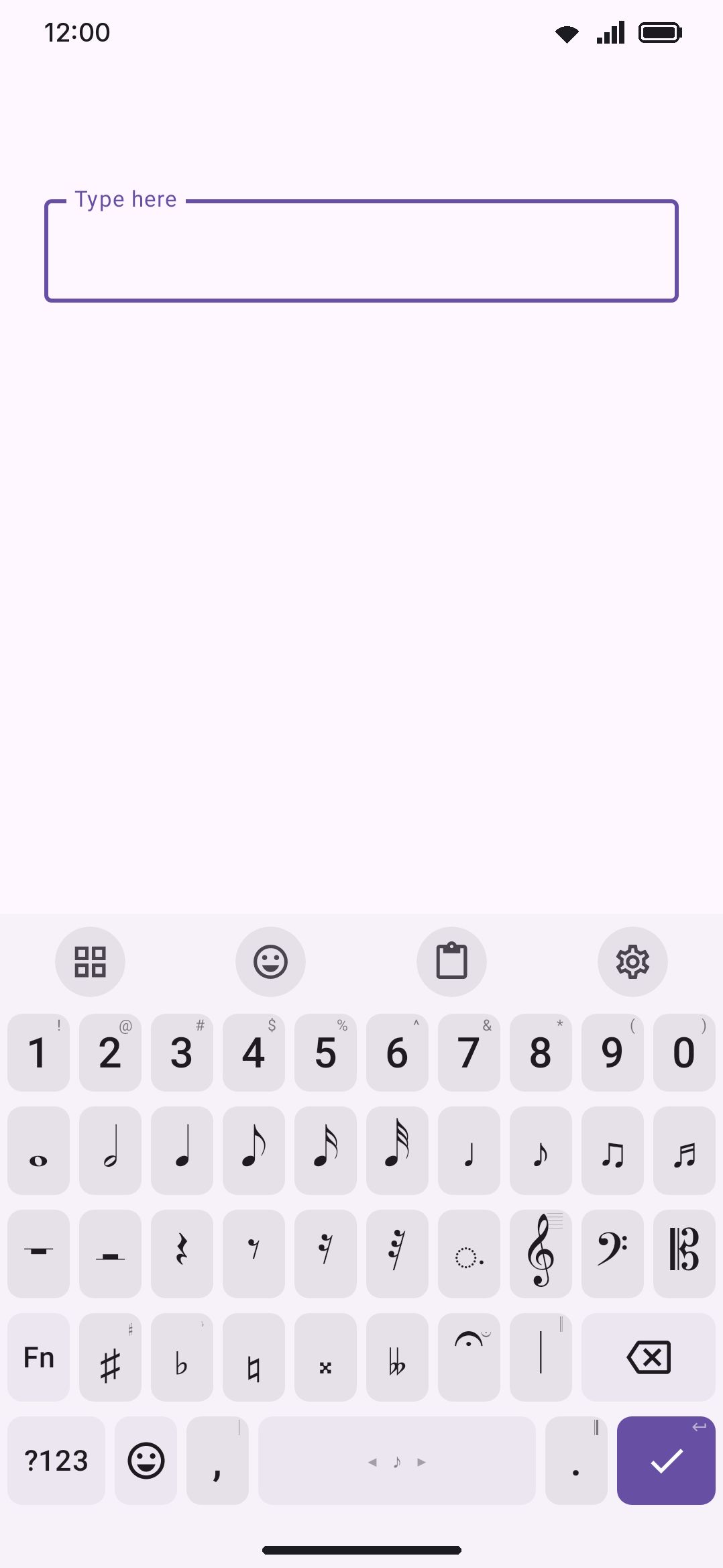
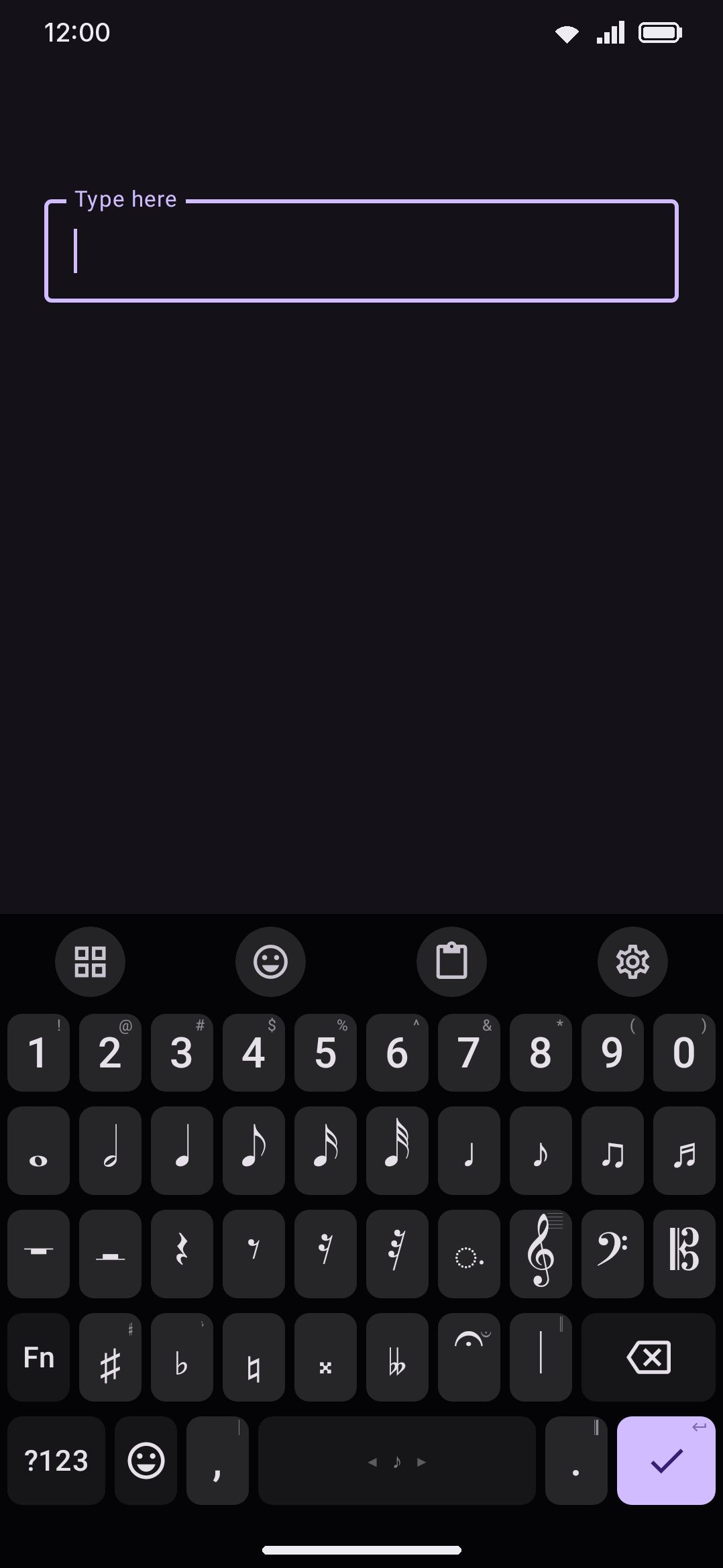
Musical notation
Section titled “Musical notation”Turn on ♪ · Music notation and the keys commit symbols from Unicode’s Musical Symbols block plus the everyday BMP note characters (♩♪♫♬): durations, rests, an augmentation dot, the three clefs, sharps, flats and naturals (single and double), a barline, and a fermata on the main layer:
Hover or tap a key with a corner hint to see all its long-press characters.
A second layer, reached with the Fn key, holds the dynamics and hairpins (𝆏 through 𝆓), ornaments (grace notes, the trill, the turns), navigation marks (segno, coda, dal segno, da capo), breath and caesura, pedal marks, repeat signs, the double and final barlines, and the quarter-tone accidentals. A ♪ key on that layer returns you to the main letters layer:
Hover or tap a key with a corner hint to see all its long-press characters.
Most of these glyphs sit in the Supplementary Multilingual Plane, which very few device fonts carry: that’s the whole reason Music notation is its own script rather than riding an existing one. WM Keyboard pins it to Google’s Noto Music face automatically, so the symbols render correctly even on a phone whose system font would otherwise show blank boxes. The choice is automatic and you can’t pick another. Unlike a language that rides the Latin script, Music notation gets no font row under Accessibility fonts. A glyph the pinned font doesn’t cover falls back to the system font on a per-character basis rather than going blank everywhere.
Music notation is uncased, so there’s no shift key, and it doesn’t compose. Every key commits its symbol directly.
Chorded braille
Section titled “Chorded braille”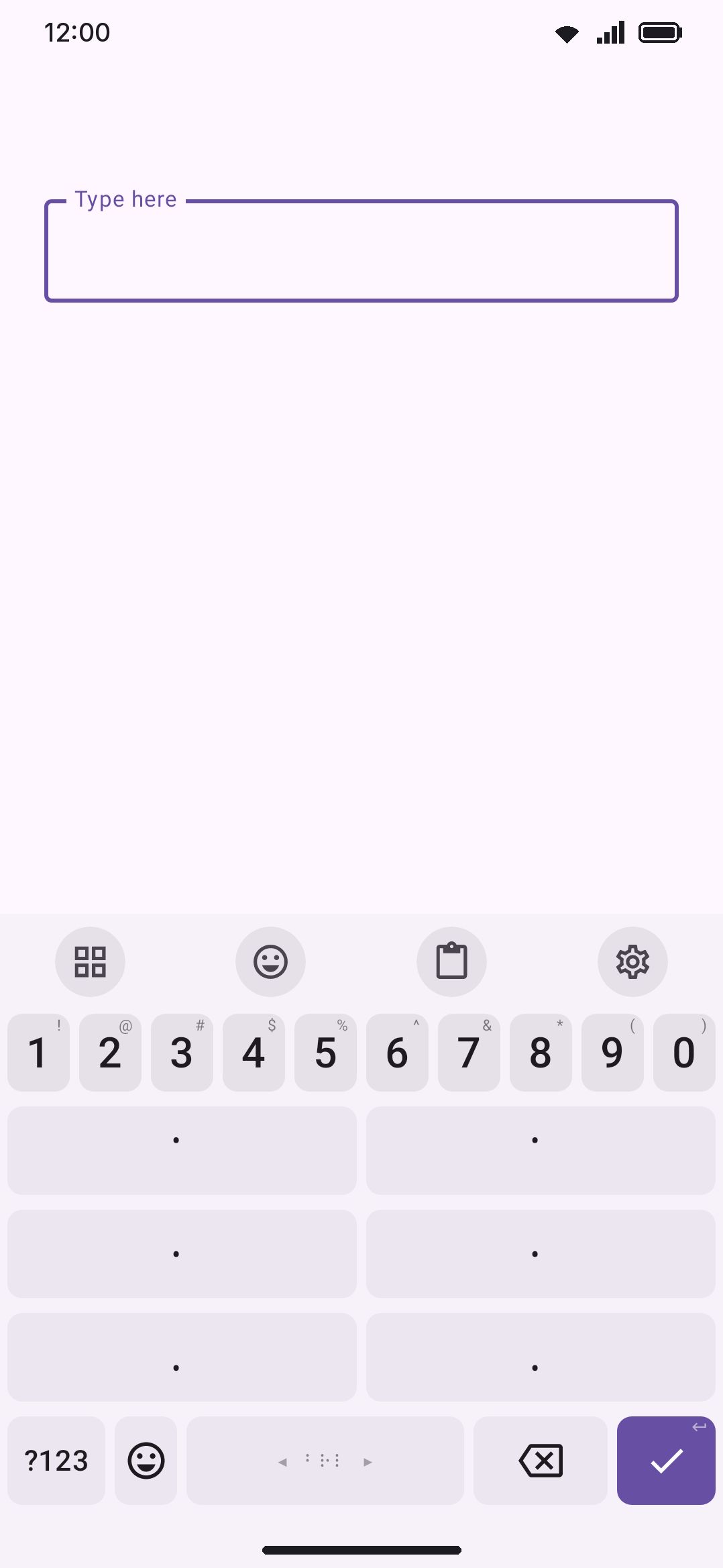
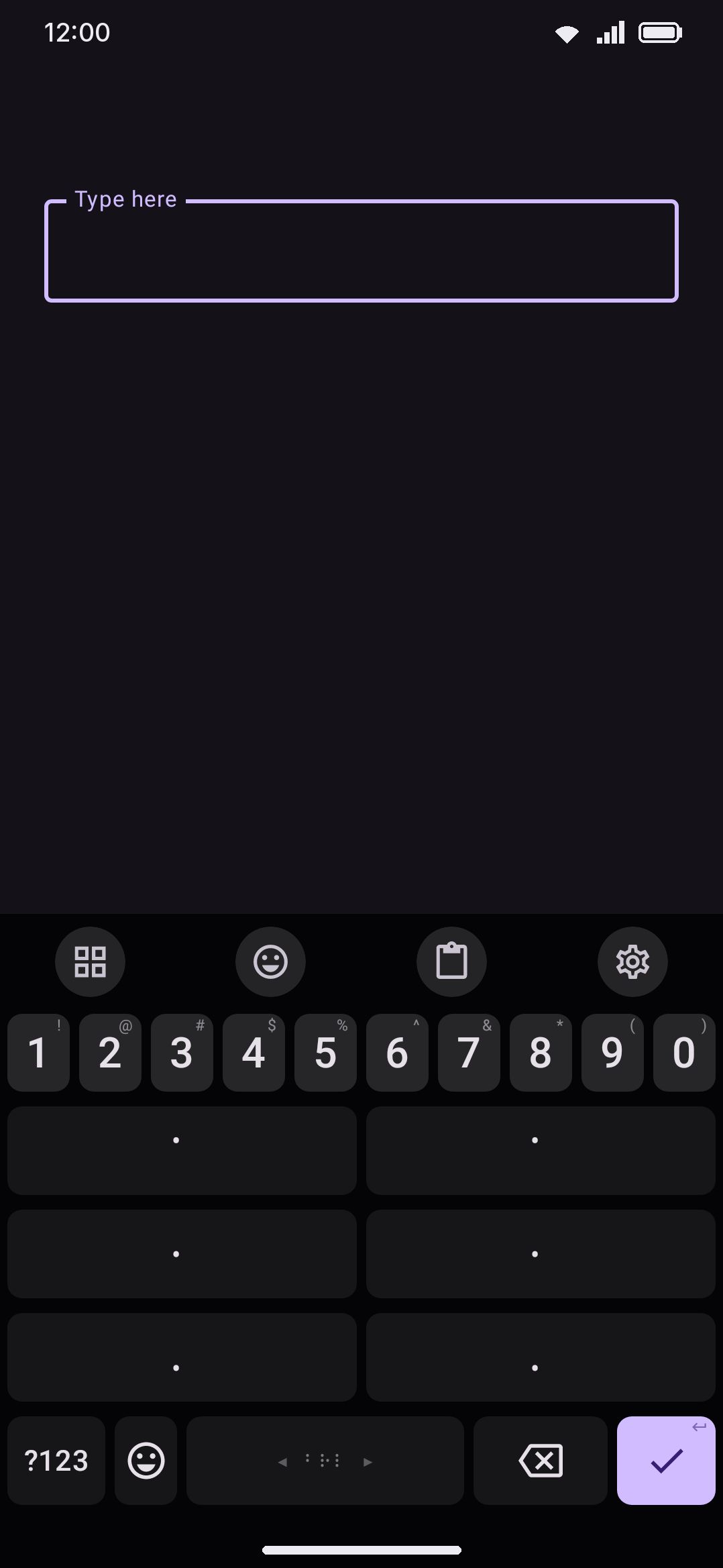
⠃⠗⠇ · Braille works nothing like the other three: instead of one key per character, it’s a six-key chord, the same layout a Perkins brailler uses. Two columns of three keys represent the six dots of a braille cell, and you press some combination of them together and lift together to spell one character:
Hover or tap a key with a corner hint to see all its long-press characters.
Press a dot key and it fires immediately. Braille dots have no long-press timer, unlike every other key in the app: the press itself is gathered into the chord, with no wait to see whether it turns into a hold. As you hold more dots down, they accumulate into a pending cell. The cell commits the instant your last finger lifts, however many dots you pressed and in whatever order.
Decoding follows uncontracted Grade-1 English braille: the standard a–z cells, a punctuation set (comma, semicolon, colon, period, exclamation and question marks, apostrophe, hyphen), dot 6 alone as a capitalize-next-letter indicator, and dots 3-4-5-6 together as a number-mode indicator that turns the following cells into digits until a non-digit cell ends it. A cell that doesn’t match any of those falls back to committing the raw Unicode braille pattern itself, so no chord you type is ever silently dropped. It’s also a way to enter Braille Patterns block characters that Grade-1 doesn’t otherwise cover.
Like Music notation, braille gets an automatic pinned font (Noto Sans Symbols 2, chosen because it covers the full Braille Patterns block) with no font picker of its own. Braille is uncased and doesn’t compose.
If you switch fields, switch layouts, or open a panel mid-chord, the half-finished chord is dropped rather than left stranded. A dot whose pointer gets stolen out from under it by the app’s glide-typing gesture handler is different. That finger still counts as lifted, so the chord isn’t dropped. It completes and commits exactly as if you’d lifted the finger yourself, which keeps the chord engine from waiting on a finger that already left.
Morse code
Section titled “Morse code”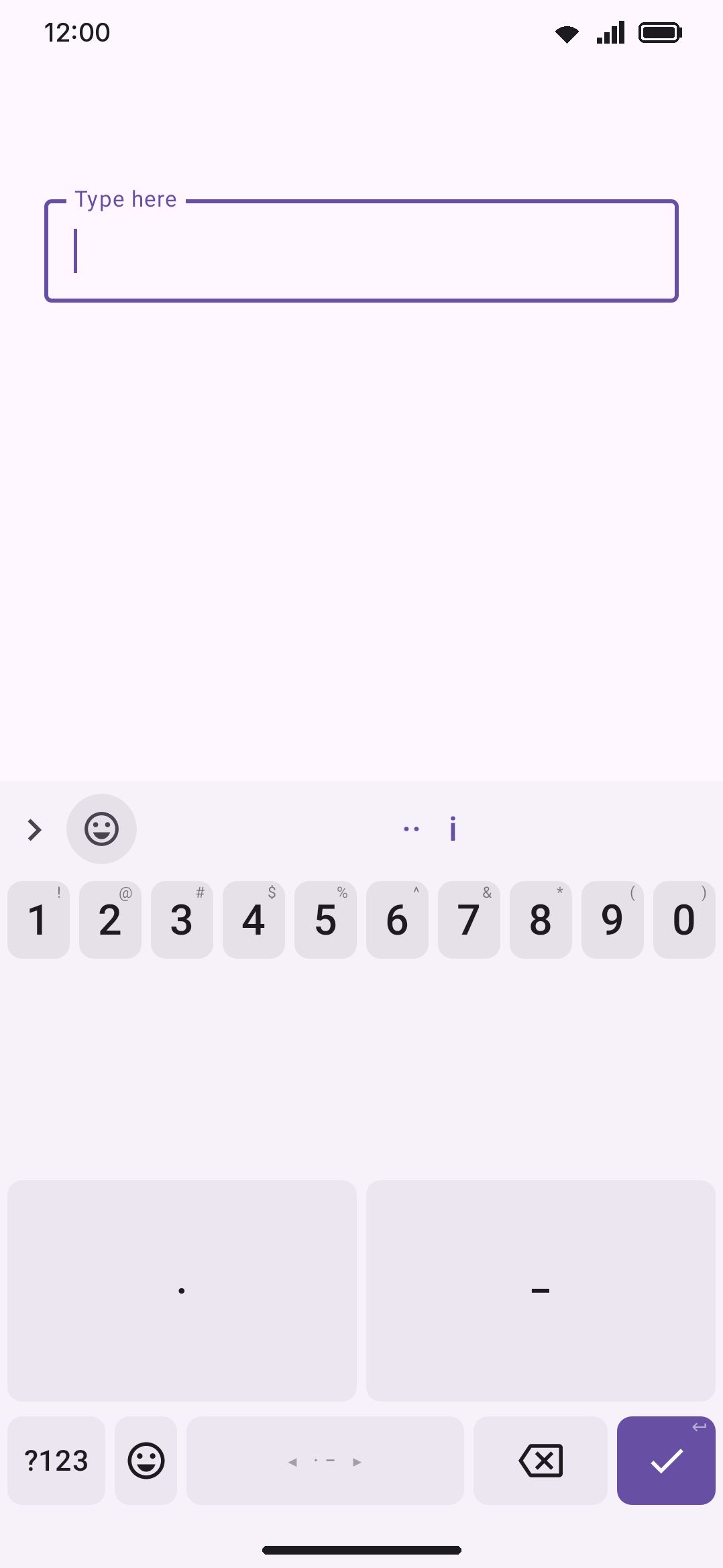
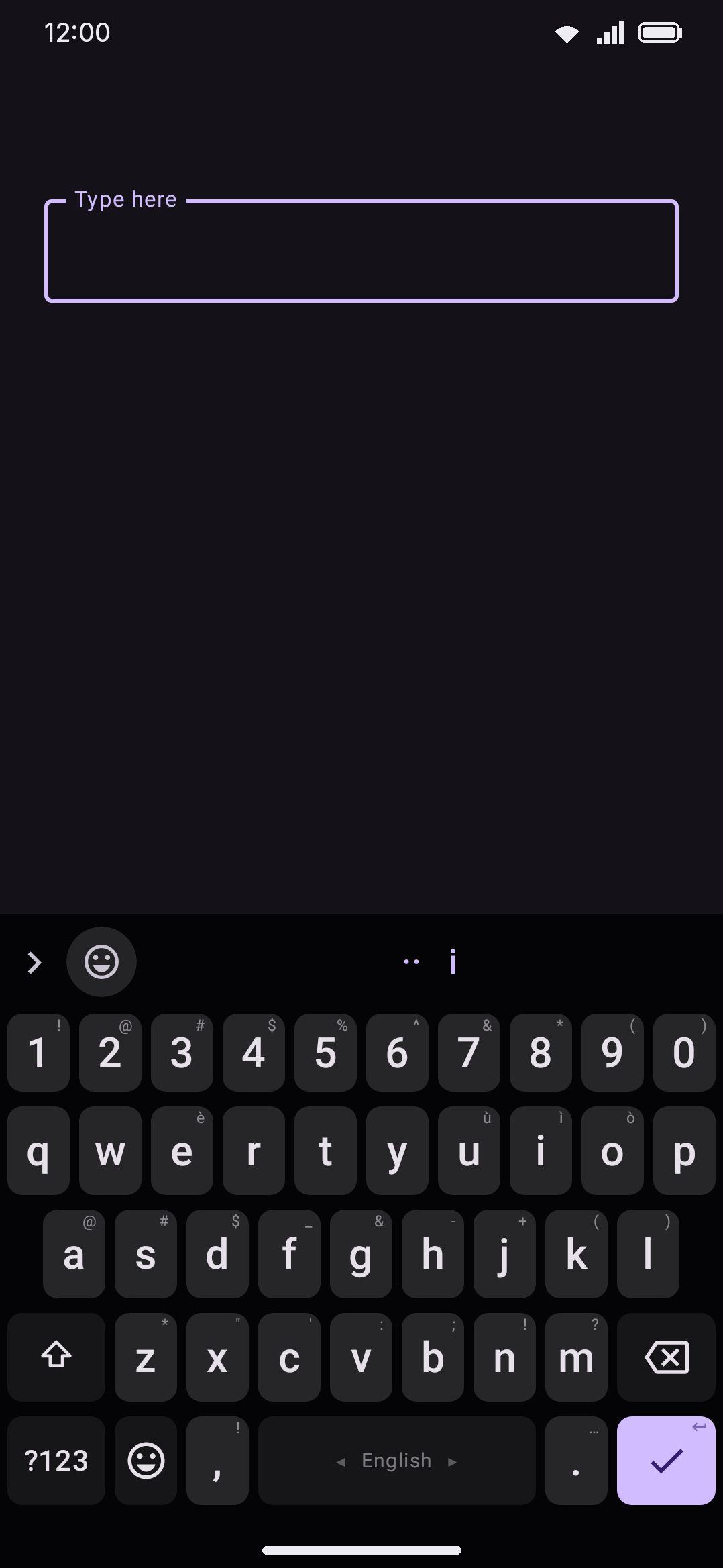
· − · Morse code reduces the keyboard to two enormous keys (dot and dash) plus the usual bottom row:
Hover or tap a key with a corner hint to see all its long-press characters.
Tap dots and dashes to build up a sequence. Stop for a moment and it decodes and commits on its own. Tables cover the letters, digits, and common punctuation from the ITU-R M.1677-1 international Morse standard.
While a sequence is pending, it takes over the suggestion strip: a centered readout of the sequence in ·/− glyphs, with the letter it currently decodes to spelled out alongside it whenever the sequence so far is itself a valid code (for example ·· i, one dot short of s). It’s the same idea as the accent hint that appears above a dead-key in progress on other layouts, just for Morse. Pressing any key other than dot, dash, backspace, or shift flushes whatever’s pending first, so the timer never races your next keystroke.
Backspace while a sequence is pending edits the sequence itself, dropping its last signal rather than deleting already-committed text. Only once the sequence is empty does backspace fall back to a normal delete.
Morse code doesn’t have a script of its own: it rides the Latin script, so autocapitalize and your shift state still apply to the letters it decodes, even though there’s no shift key on the Morse layout itself.
IPA · Phonetic puts the International Phonetic Alphabet on a dedicated four-layer layout, noticeably more complete than a token “phonetic symbols” afterthought:
Hover or tap a key with a corner hint to see all its long-press characters.
The main layer holds pulmonic consonants, several with long-press alternates for aspirated or released variants (for example p long-presses to pʰ, ⁱp, and p̚). From there, a dedicated key jumps to a vowel layer, which itself jumps to a second consonant layer covering clicks, implosives, and ejectives:
Hover or tap a key with a corner hint to see all its long-press characters.
Hover or tap a key with a corner hint to see all its long-press characters.
A fourth layer, reached from the main consonant layer or the vowel layer (not from the second consonant layer), holds superscript and combining diacritics (aspiration, nasalization, voicing, dentalization, and more) plus suprasegmentals like primary and secondary stress and vowel length marks:
Hover or tap a key with a corner hint to see all its long-press characters.
An IPA key on every non-main layer returns you to the consonant layer. IPA is uncased and composes 1:1, including its combining diacritics: there’s no dead-key step.
Unlike Music notation and Braille, IPA doesn’t get a pinned font: it rides the Latin script’s font, because Latin faces already carry the IPA Extensions block along with the spacing and combining modifier letters IPA needs. That means IPA text renders in whatever key font you’ve picked under Accessibility fonts, same as any Latin-script language.
Options
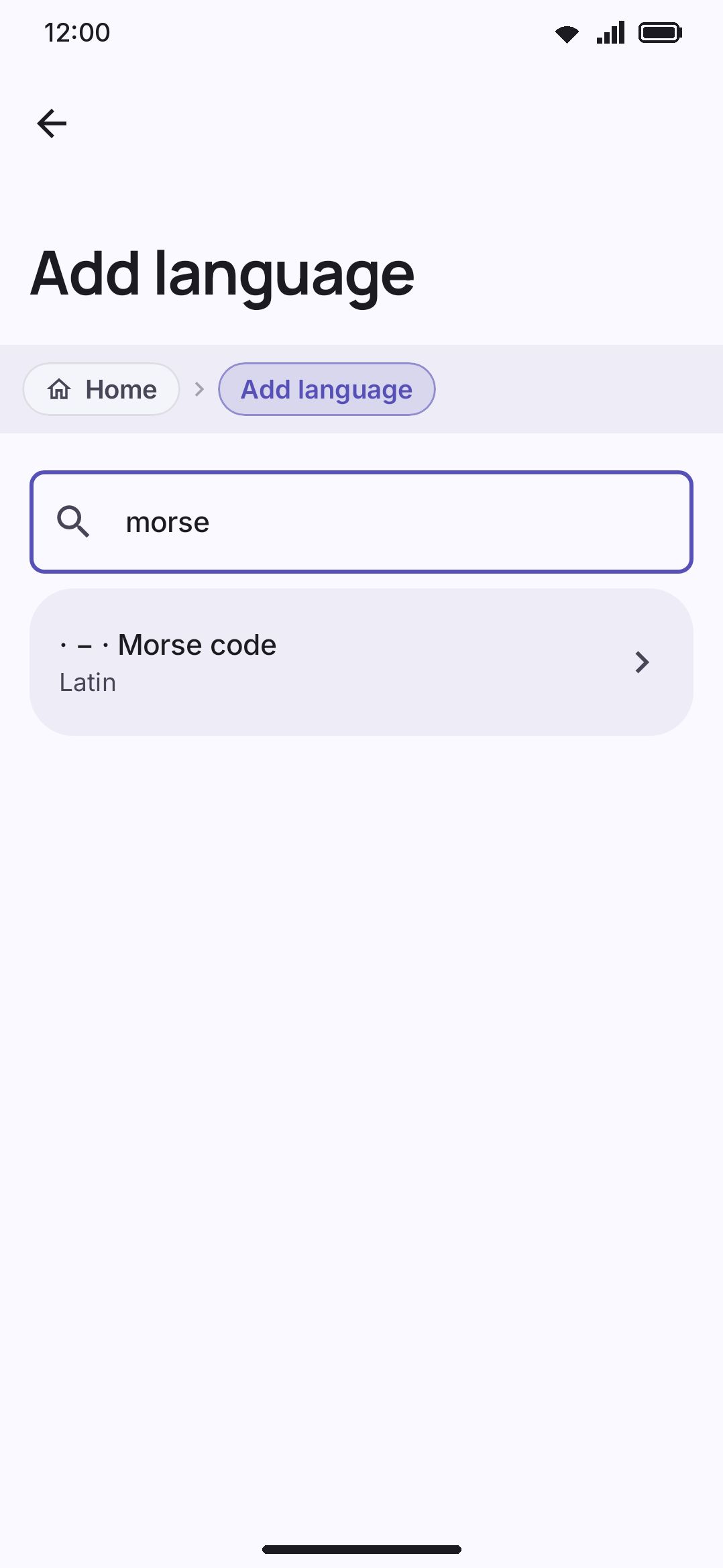
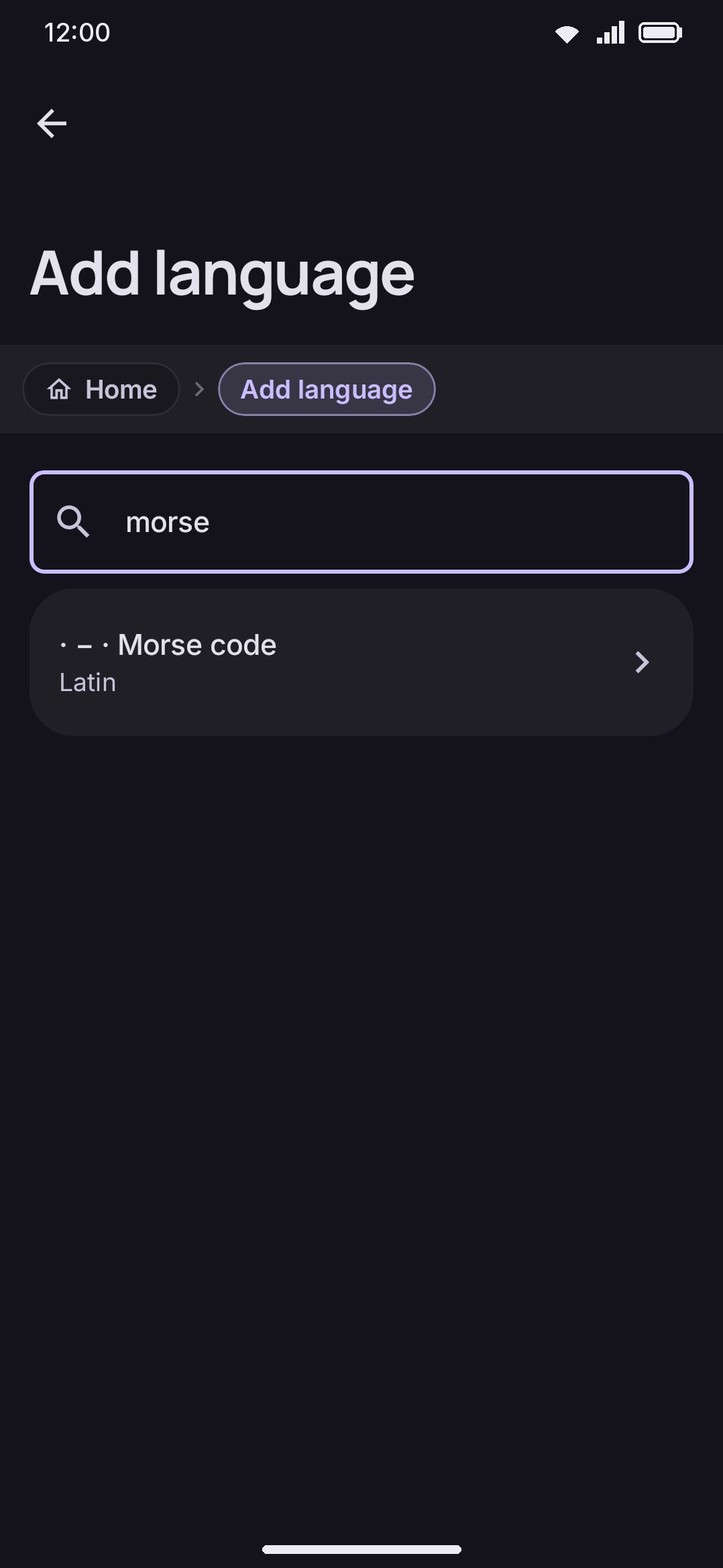
Section titled “Options”None of the four are enabled on a fresh install. What you start with is read off your phone’s own language list (see What ships), and no phone language maps to a notation. To add one, open Languages. Tap Add language. Search for it by name: “music”, “braille”, “morse”, or “ipa” each find their entry directly. You can also scroll to their native-glyph names (♪, ⠃⠗⠇, · − ·, IPA). Tap an unadded entry and its one layout is enabled immediately, then its own language screen opens. That’s the same generic screen every language gets, with a Layouts toggle (just the one here) and an Also suggest from picker for blending in another enabled language’s suggestions.
None of the four gets a Numerals group. That group only appears for a language whose own digits aren’t 0-9, and all four use plain Latin digits, so there is nothing to choose and the group isn’t drawn.
Once enabled, a notation layout takes a slot in the normal switch ring exactly like any language: cycle to it with the 🌐 key or a spacebar swipe. See Switching languages for how the cycle itself works. Nothing about it changes for a notation layout. For the language catalogue in general (search, numerals, “also suggest from,” and everything else every language screen shares), see Languages overview.
There’s no edition restriction on any of the four: all ship as ordinary bundled layout assets available in both Full and Lite.
Details & edge cases
Section titled “Details & edge cases”None of the four bundle a dictionary, a downloadable wordlist, or an emoji-keyword pack. Their language screen’s Dictionaries section holds only the Custom dictionaries row, and there’s no suggestion strip beyond Morse’s own live-decode readout: you’re typing symbols directly, not composing words for a language model to correct or predict.
They aren’t grouped together anywhere in the app. Music, braille, Morse, and IPA are four ordinary entries in the same flat, searchable language list as every spoken language. Settings has no dedicated “notation” category. This page groups them because they share a “notation, not prose” character, not because the app does.
Font pinning is the real distinguishing feature of Music and Braille. Both exist as their own script chiefly so the keyboard can force a specific Google font (Noto Music, Noto Sans Symbols 2) that reliably covers their Unicode blocks. Most device fonts don’t. IPA and Morse need no such pin because they draw from ranges the Latin font faces already cover.
Braille’s chord has no tap-vs-long-press ambiguity on its dot keys: pressing fires the dot on the down-stroke, not after the usual long-press timer. Holding a dot key does nothing extra, so digits come from the dots-3-4-5-6 number indicator or from the ?123 layer. Every other key on the braille layout (the bottom row) behaves normally.
A half-typed braille chord or pending Morse sequence never survives a context change. Switching fields, switching layouts, or opening any panel drops it, so you never come back to a stray dot or signal you don’t remember starting.