
Permissions
Every row on the Permissions screen: what each one unlocks, what Granted, Not granted and Automatic mean, and where tapping a row sends you.
The Permissions screen is an inventory, not a setup wizard. Every feature that needs a permission still asks for it where the feature lives, so nothing funnels you through here. What this screen answers is “what can this keyboard reach, and what does it hold right now?”, without you having to read a manifest. It’s also the one place you can grant something ahead of the feature that wants it.
This page is the field reference. For what each permission is actually used for, and what refusing costs you, see Permissions.
Options
Section titled “Options”The top row of the Privacy screen opens it. Settings search finds it too, under “permissions”.
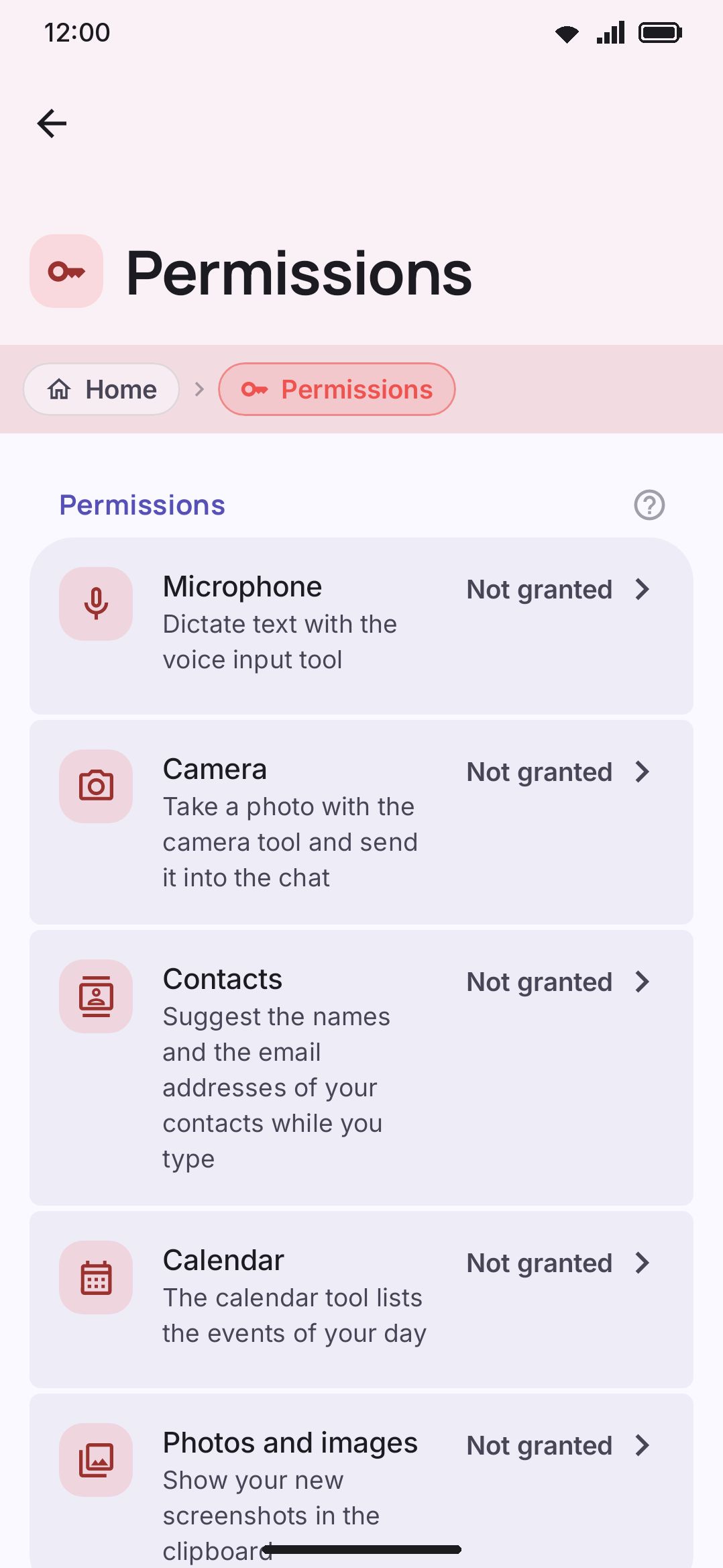
The screen opens on a caption. The keyboard works without all of these, and each one unlocks a single optional feature. Press a row to give the permission. Press a granted row to open the system settings, where you can take it back. Then come three groups, none of which holds a toggle. Every row is either a link out or a plain label.
Permissions
Section titled “Permissions”The ones Android shows a prompt for. Each row reads Granted or Not granted on the right.
| Row | Subtitle | Shown when |
|---|---|---|
| Microphone | Dictate text with the voice input tool | always |
| Camera | Take a photo with the camera tool and send it into the chat | always |
| Contacts | Suggest the names and the email addresses of your contacts while you type | always |
| Calendar | The calendar tool lists the events of your day | always |
| Photos and images | Show your new screenshots in the clipboard | always |
| Storage | Save images from the keyboard to your gallery | Android 9 and older only |
Tap a row that isn’t granted and you get that permission’s own explanation, then Android’s prompt. It’s exactly the flow the feature itself would run. Tap a row that is granted and the app’s page opens in Android’s Settings instead, since that’s the only place a grant can be handed back.
Storage is the one row that isn’t always there. From Android 10 the app writes to your gallery with no permission at all, so the row would be a control wired to nothing. It isn’t drawn.
Special access
Section titled “Special access”The grants Android won’t prompt for. Each one is a switch on a system screen, so all the app can do is explain itself and then take you there. The Granted and Not granted labels work the same way here.
| Row | Subtitle | Where it sends you |
|---|---|---|
| Notification access | Media controls on the keyboard, and one-time codes from your notifications | Android’s full notification-listener list, where you find WM Keyboard yourself |
| Usage access | Show which app a clipboard entry was copied from | Android’s usage-access list |
| Accessibility service | Keep the keyboard gestures while TalkBack is on | Android’s accessibility list |
| Install updates | Install a new version of this app that you downloaded from its release page | Android’s “install unknown apps” page for WM Keyboard |
They all go through the explanation every time, granted or not, because the system screen you land on is also where you turn them off.
Install updates is the one row that depends on where your copy came from. It’s drawn only on a build downloaded from the project’s GitHub releases, which is the only build that installs its own updates, and only on Android 8 and later, where the switch is per app rather than one global setting. A Play Store build hands updates to the Play Store and an F-Droid build hands them to F-Droid, so neither one asks for this and neither one declares the permission behind it. What the app does with it is narrow: it installs one app, itself, from one place, after checking the file against the release checksum and against your install’s own signing key. See Updating the app.
Notification access is the one place a row from this screen lands somewhere broader than the equivalent row inside the keyboard. Asked for from here, it opens the whole listener list. Asked for by the media tool on the keyboard itself, it opens WM Keyboard’s own row on the per-app listener page where Android has one (API 30 and up).
Included with the app
Section titled “Included with the app”Four permissions the app holds from the moment you install it. They can’t be asked for and they can’t be given back, so these rows do nothing when tapped. They read Automatic on the right rather than a grant state.
| Row | Subtitle |
|---|---|
| Internet | Only the network tools use it: translate, weather, search, GIFs, stickers, dictionary and the AI tools |
| Network state | The model downloads first check that the connection is not metered |
| Vibration | Haptic feedback when you press a key |
| Fingerprint | Ask the system to check a fingerprint for the lock in Privacy. The app never sees the fingerprint itself |
The screen closes on a caption saying as much. Android gives that last group out at install, and an app can’t ask for them or give them back. Every other permission on the screen can be taken back at any time. The feature using it then stops, and the rest of the keyboard carries on.
Details & edge cases
Section titled “Details & edge cases”- The Fingerprint row is not a reader of your fingerprint.
USE_BIOMETRICasks Android to run its own prompt and report a yes or a no. The fingerprint never reaches the app. Nothing requests the prompt unless you turn the Fingerprint lock on. - The “Included with the app” group lists four rows, not every install-time permission in the APK. These are the four the app declares for itself. A full build carries three more that never show up here and never produce a prompt:
WAKE_LOCK,RECEIVE_BOOT_COMPLETEDandFOREGROUND_SERVICE. They arrive in the merged manifest from androidx.work, which ML Kit pulls in, and the app schedules no WorkManager job of its own. Lite builds don’t declare them at all. - The labels re-read themselves every time the screen comes back. Both directions of a change happen on a system screen this one sends you to, so a row would otherwise be stale the moment you pressed Back. Grant something in Android’s Settings, return to the keyboard, and the row already says Granted.
- Nothing on this screen is a setting, so no row grows the usual restore button. What a row reflects is a grant held by Android, not a value stored by the app; see Putting one setting back for where that button does apply.
- Contacts is one permission behind two features. Contact-name suggestions and contact-email suggestions both read the same grant. This screen asks for it once, with the name-suggestions wording. The two settings on the Typing screen each have their own.
- The notification row’s explanation covers both of its features. It says the listener reads nothing at all for media controls. The optional one-time-code chip is the only thing that ever reads notification text, on the device, looking for a code. Turning that chip on is a separate decision on the Typing screen. See One-time codes.
- A permission Android has stopped prompting for still works from here. Refuse the same one twice and Android quietly stops showing the dialog. The disclosure notices, and turns the button into Open settings rather than firing a request that would do nothing visible. See If Android stops asking.
- No edition differences. The same rows appear on both the full and lite builds, even though a few of the features behind them are Full edition only only.
Related pages
Section titled “Related pages”- Permissions: the guide. What each permission is for, what refusing does, and the three grants that aren’t permissions.
- Privacy: the screen this one hangs off, and the rest of its rows.
- Privacy at a glance: why a fresh install asks for nothing.