
System spell checker
WM Keyboard as your Android spell-check service, in every app.
WM Keyboard can also stand in as Android’s own spell-check service, the one that draws the red underline in any app’s text field, no matter which on-screen keyboard is active at the time. Full edition only It’s built on Harper, the same offline grammar engine behind the in-keyboard Grammar check tool. Turn it on and the same fixes reach every app, not only WM Keyboard’s own suggestion strip.
Turning it on
Section titled “Turning it on”Installing WM Keyboard doesn’t make it your spell checker. That’s a separate, OS-level choice, the same way you’d pick a default browser. The quickest route starts inside the app:
-
Open the Grammar check tool’s settings.
-
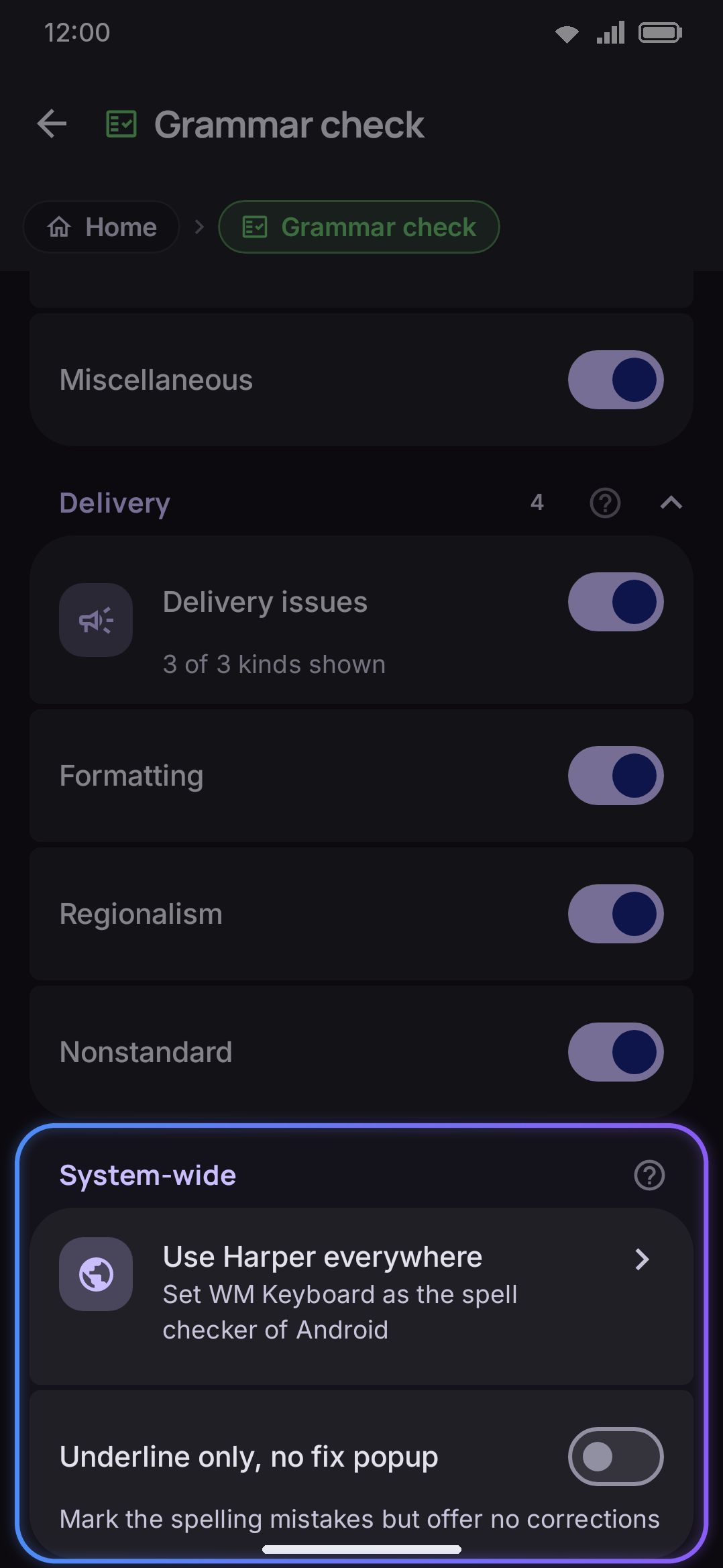
Tap Use Harper everywhere, under the System-wide group. Android’s own Spell checker screen opens. On OEM builds that hide that screen, the input-method settings screen opens instead.
-
Select WM Keyboard (Harper).
WM Keyboard offers one subtype here, English, whatever other languages you type in day to day. Harper itself only checks English. Dialect (American, British, Canadian, Australian) isn’t a separate subtype on that screen. It follows the same English dialect setting the in-keyboard Grammar tool uses, so the underlines you see in other apps match what the panel would have flagged.
The whole feature is full-edition only: the settings entry, the service, and the picker listing. Lite builds ship neither Harper’s native library nor the manifest entry that advertises the service, so there’s nothing to turn on.
How it differs from typing suggestions
Section titled “How it differs from typing suggestions”The system spell checker and WM Keyboard’s own suggestion strip are separate mechanisms that happen to share the same Harper engine underneath. They don’t always agree, and one can be available when the other isn’t:
- Where it runs. The spell checker is a service of its own inside the WM Keyboard app, wired to Android’s text-service framework rather than to the keyboard. It works in any app, with any input method, and keeps working when WM Keyboard isn’t your current keyboard at all. In-keyboard autocorrect and suggestions only run while WM Keyboard itself is the active keyboard.
- Language coverage. The spell checker is English-only, because Harper is English-only. Typing suggestions and autocorrect work in every language you’ve enabled, each with its own dictionary.
- Editions. The spell checker is full-edition only. Typing suggestions and autocorrect ship in both full and lite. Dropping Harper on lite doesn’t touch ordinary typing prediction.
- Reactive vs. proactive. The spell checker only answers when the host app’s text-service framework asks it to, underlining and offering fixes on request. Autocorrect works the other way round. It fixes typos the moment you press space and offers next-word predictions as you type, gated by its own confidence threshold.
- What triggers an underline. Harper’s lints carry a span, an offset and a length, and the spell checker only reports one whose span actually covers text. A pure insertion, like a missing comma, has zero length and gets silently dropped here, even though the same lint would show up as a fixable chip in the in-keyboard Grammar tool.
Contacts get priority
Section titled “Contacts get priority”Turn on Suggest contact names under Typing settings and the spell checker loads the same contact index the in-keyboard suggestion strip uses. It then treats that index specially in two ways:
- A word that matches a contact’s name or a contact’s email address is never flagged as a typo. No underline appears under a name it recognizes, in any app.
- A mistyped word close to a contact’s name (a one-letter typo, or a prefix of one) is offered first in the correction menu, ahead of Harper’s own grammar-based suggestions. Addresses are only used to suppress the underline. A mistyped address is never corrected toward the right one.
One toggle covers both: Suggest contact names loads names and email addresses for the spell checker. The separate Suggest contact emails toggle, also under Typing, only affects the in-keyboard suggestion strip. It has no effect here, which is easy to miss when the two settings sound like they’d overlap. See Contact-aware typing for both toggles in full, including what gets read and how.
Options
Section titled “Options”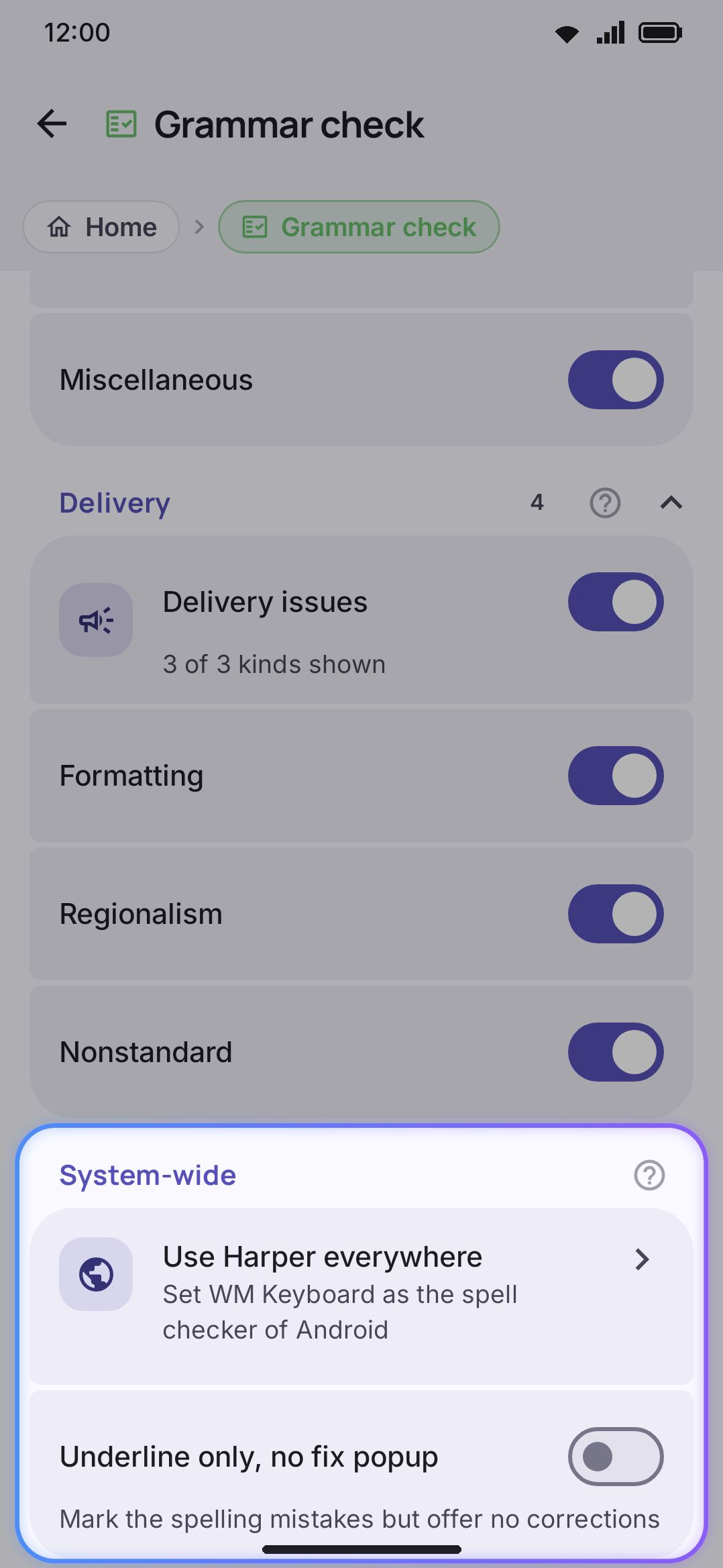
| Setting | Default | Notes |
|---|---|---|
| Use Harper everywhere | Action row | Opens Android’s Spell checker picker; only shown on full builds |
| English dialect | American | Shared with the in-keyboard Grammar tool; changing it here changes both |
| Underline only, no fix popup | Off | Android 12 (API 31) and up only |
Underline only, no fix popup keeps the red underline but tells Android’s text framework to skip the correction popup. Use it when you want a heads-up that something looks off without a list of replacements getting in the way. The row itself is hidden below Android 12 rather than shown-but-inert, since the underlying flag doesn’t exist on older versions.
Details & edge cases
Section titled “Details & edge cases”- Re-check delay doesn’t apply here. The Grammar check screen also has a Re-check delay slider (100–1500 ms, default 350 ms). That only paces how often the in-panel Grammar tool re-lints while you’re actively writing. The system spell checker has no debounce. It answers synchronously whenever the host app’s framework calls in.
- Runs even when WM Keyboard isn’t your keyboard. The checker loads Harper (and, if enabled, your contacts) itself, on its own schedule, rather than borrowing anything the IME set up, so it keeps working with any other keyboard app in front. It only needs to be selected as the system spell checker. Which on-screen keyboard you’re using doesn’t matter.
- Runs locally, like everything else. Harper is a native library loaded on-device, and there’s no network client anywhere in the spell-checker code path. Contacts are read into memory the moment the toggle is on and dropped again the moment it’s off, never written to disk. See Privacy at a glance for what does and doesn’t touch the network elsewhere in the app.
- The Grammar check rows are in Settings search. “English dialect,” “Re-check delay,” “Use Harper everywhere,” “Underline only, no fix popup,” and the four issue-type switches (“Correctness issues” and its three siblings) each turn up there, and each search result lands on the Grammar check screen.
- Lite has none of this. The manifest entry, the service, and the picker listing are all absent on lite builds, genuinely not shipped rather than hidden, because lite doesn’t include Harper’s native library at all.