
Tools
The master tool list: how to enable, disable, recolour, and open each of the 75 tools' own settings, plus what each tool's in-panel manager does.
The Tools screen is the enable switch and the settings entry point for all 75 of WM Keyboard’s tools. Turn a tool on or off, tint its icon, or tap through to its own options. This page is the field reference for that one screen. For how the toolbar and toolbox actually work, including pinning, dragging, groups and direct boot, see The toolbar instead.
The tool list
Section titled “The tool list”Reach it from Home → Tools, or by searching “Tools” in settings search. A deep link also works: wmkeyboard://settings/tools.
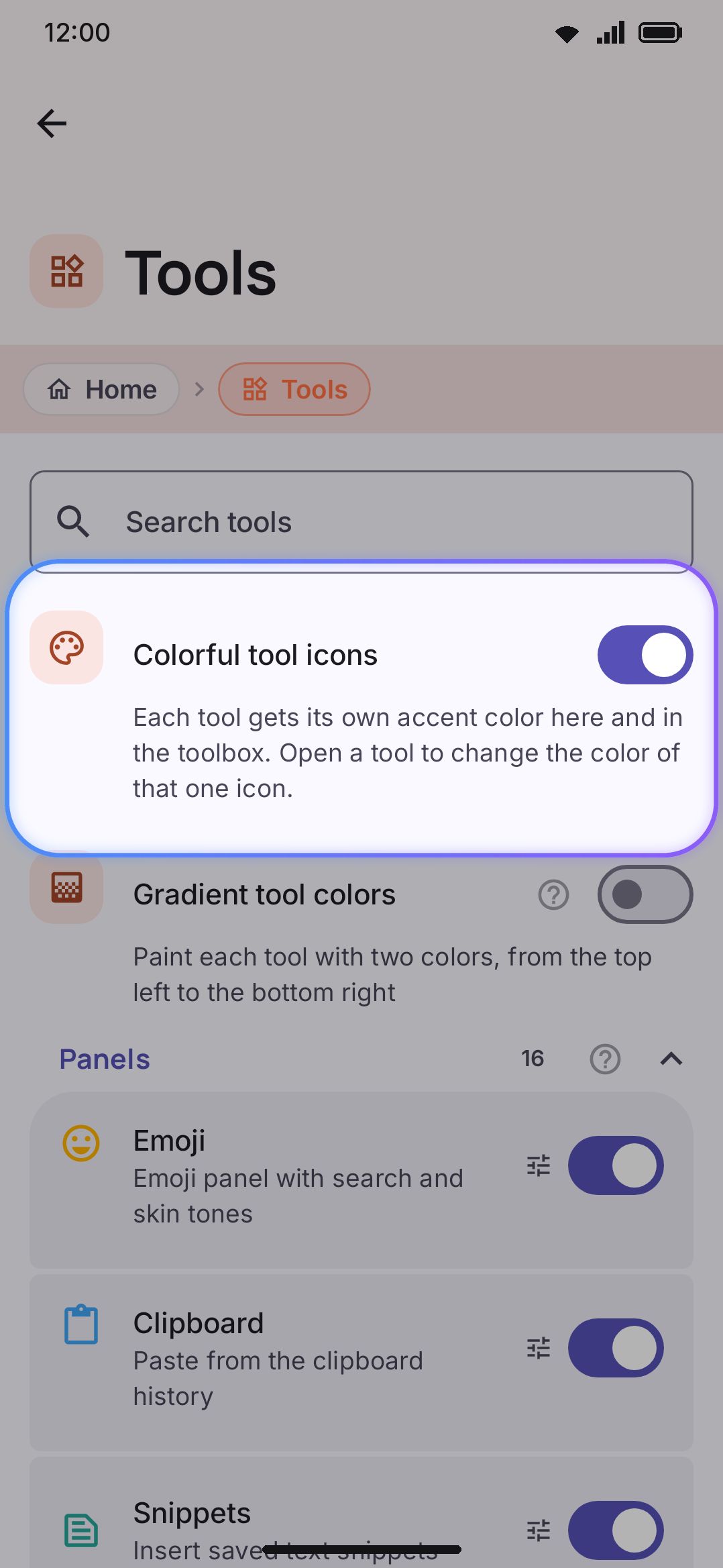
A search field sits above everything else on the screen. Type into it and the colour toggles and groups give way to a flat Results list. It matches each tool’s name and description, folded so a Bangla install matches text typed in Bangla. Clear the field to bring the groups back.
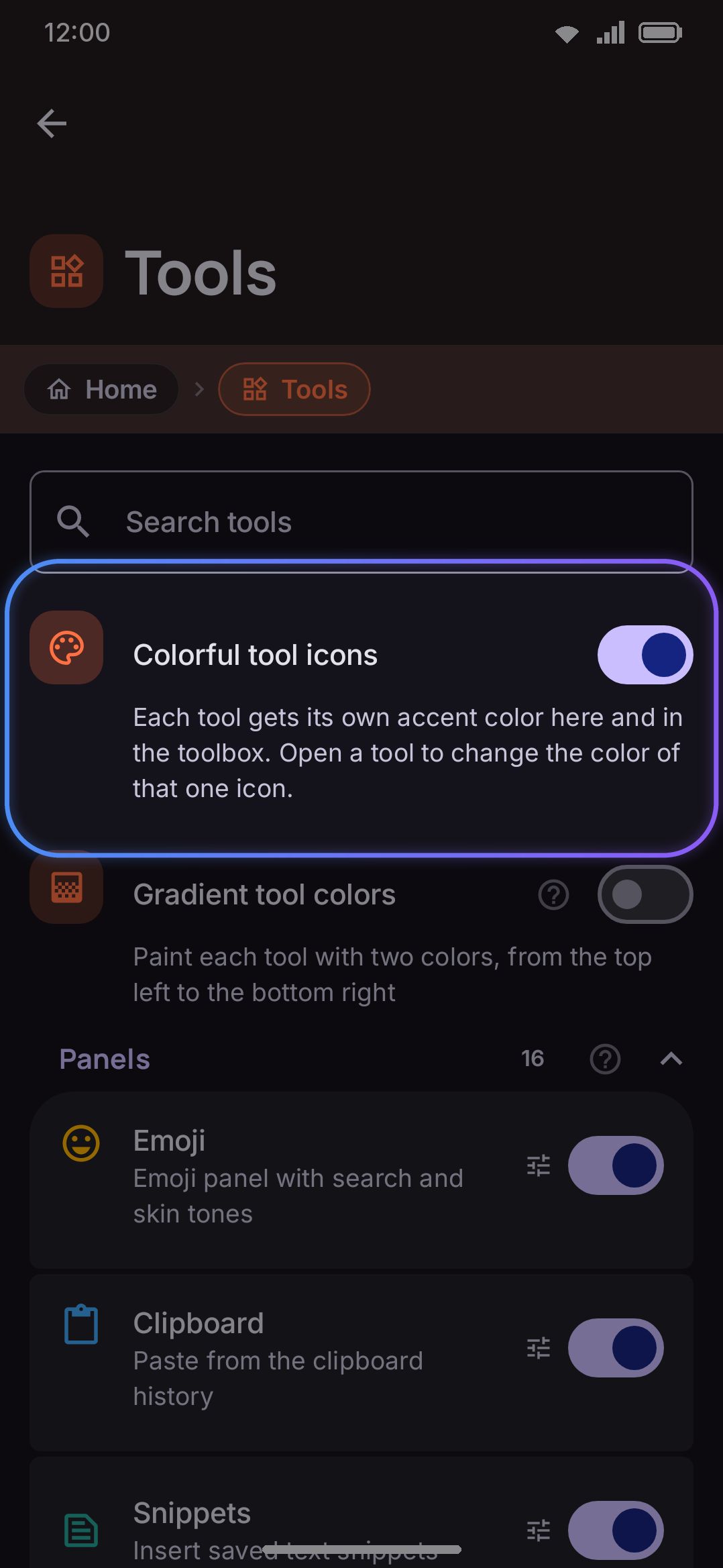
A Colorful tool icons toggle sits above the list, on by default. It tints each tool’s icon with its own accent colour, here and in the toolbox alike. Turn it off and every icon falls back to the theme’s plain foreground colour.
Turning it on reveals Gradient tool colors underneath, off by default. On, each icon is painted with a two-colour gradient instead of one flat colour, running from its own colour at the top left to a second colour at the bottom right. The second colour is worked out from the first, so you get a gradient without picking anything. To choose both ends by hand, open the tool and set them there. The row is nested under the switch above rather than greyed out, because with the colours off there’d be nothing for a gradient to be made of.
Once you’ve recoloured at least one tool (either end of a gradient counts), a Reset custom colors button appears above the list and clears every per-tool override in one tap. It rides on the same switch: turn Colorful tool icons off and the button goes with the colours, overrides and all, until you turn them back on.
Below that, every tool gets one row: icon, name, a one-line description, an optional tune icon, and a switch. Tap the switch to enable or disable the tool. Tap anywhere else on the row to open that tool’s own settings screen.
Groups
Section titled “Groups”Tools are grouped by what they do, in this order. Each group starts folded shut, and its closed heading names a few of its tools so you can tell what’s inside without opening it. Press the heading to open a group, and the screen remembers which ones you’ve opened next time you visit.
| Group | Tools |
|---|---|
| Panels | Emoji, Clipboard, Snippets, Text editing, Trackpad, Numpad, Handwriting, Voice typing, Camera, Dictionary, Vocabulary, Learn from text, Grammar check, App launcher, Media controls, KDE Connect |
| Scanners | Text scan (OCR), QR & barcode scanner, Document scanner |
| Online tools | Translate, GIFs, Stickers, Web search, Image search, Wikipedia, Currency converter, AI writing tools |
| Create and convert | Special symbols, Calculator, Unit converter, QR code generator, Password generator, Typing speed test |
| Keyboard modes | Keyboard modes, One-handed mode, Split keyboard, Floating keyboard, Keep on screen, Resize |
| Cursor | The twelve one-tap cursor moves, Selection mode, plus Hide keyboard |
| Quick actions | Undo, Redo, Copy, Cut, Paste, Autocorrect, Selection actions, English words, Fancy text, Secondary layout, Incognito, Sound & haptics, Themes, Power saving, Settings shortcut |
| Utilities | Flashlight, Compass, Bubble level, Calendar, Weather, Moon phase, Plugins |
A tool that a future group forgets to claim still shows. It would fall into a trailing Other catch-all, so nothing ever goes missing from the list. Every tool has a named home today, though, so that catch-all currently has nothing in it and doesn’t appear.
A tune icon marks the tools with settings beyond the switch. Five are toggle-only here, because their real options live somewhere else: Settings (shortcut), Themes, Sound & haptics, One-handed mode, and Resize, whose values are all sliders under WM KeyboardLayout & size anyway.
Lite edition only hides the Scanners group entirely. Text scan, QR scan, and Document scanner are all unavailable, so the group has nothing left to show and doesn’t render. Panels shrinks by two rows when Handwriting and Grammar check drop out, but it keeps its name and the rest of its tools. See Lite edition below for the complete gating rule.
Opening a tool’s own screen
Section titled “Opening a tool’s own screen”Every tool’s detail screen, reached by tapping its row above, starts with the same few things, then adds whatever that specific tool needs:
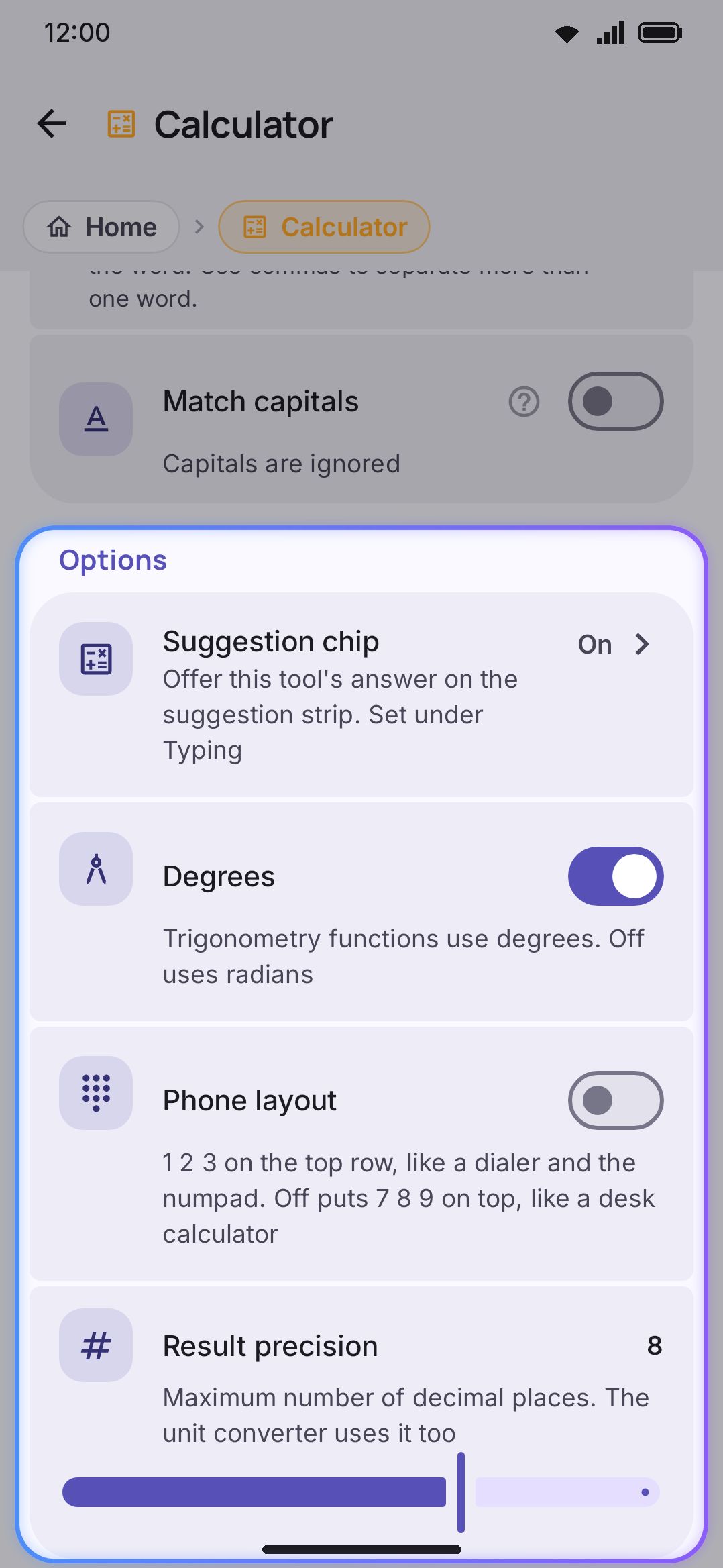
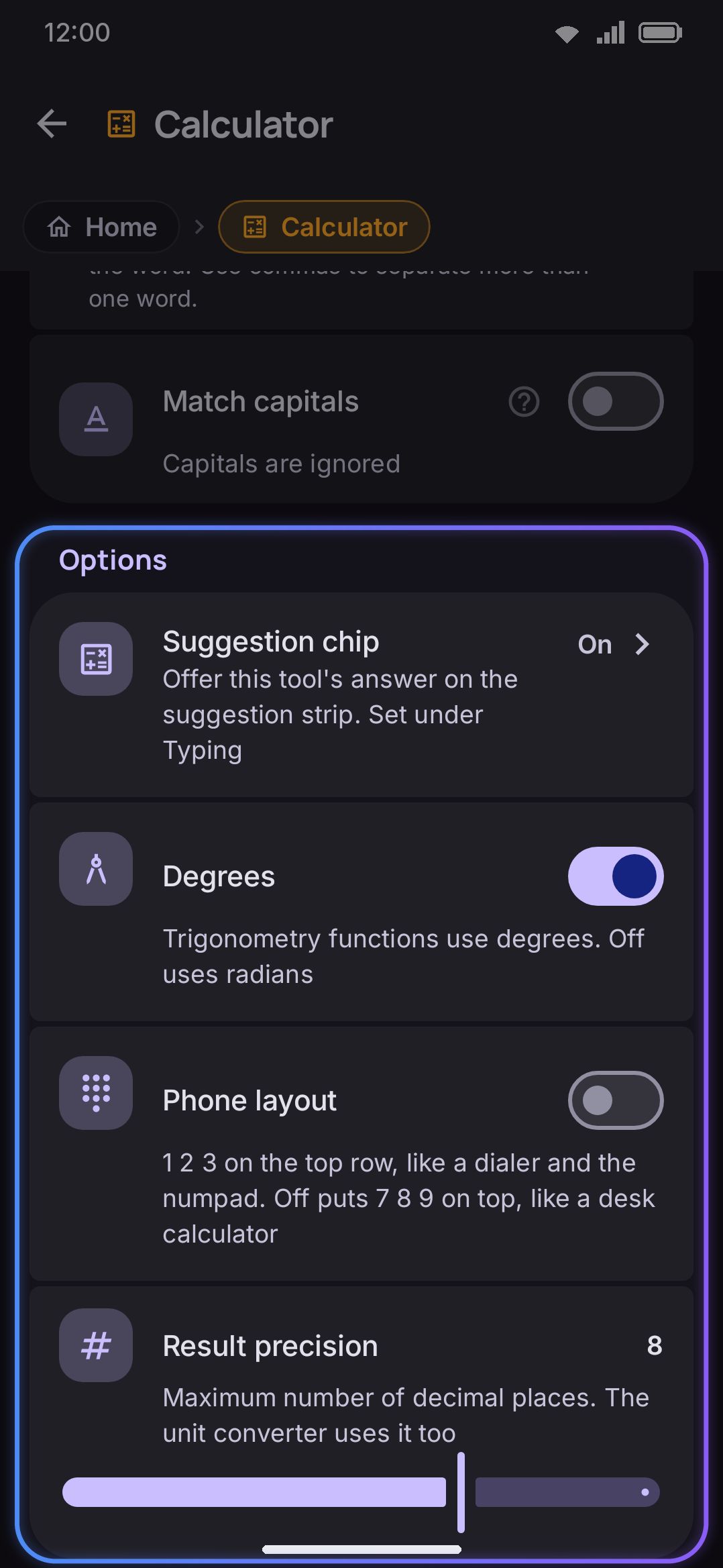
- Turn on: the identical switch from the list screen, just repeated here. Its subtitle reads “Show this tool on the toolbar and in the toolbox”.
- Show in toolbox: on by default, and only shown while the tool is on. Switch it off and the tool leaves the toolbox grid but stays on everywhere else: pinned on the toolbar, opened by its keyword, reached from selection actions or a hardware leader-key letter. It is for a tool you only ever reach one of those other ways, such as AI through a selection action, so the grid is one cell shorter. Each tool has its own switch.
- Icon colour: only shown while Colorful tool icons is on. Tap it to open the colour picker for just this tool’s icon. The row reads Auto until you customise it, then shows the swatch with a restore control beside it. With Gradient tool colors on as well, this one row becomes two: Icon colour, top left and Icon colour, bottom right, one per end of the gradient. Leave the bottom-right one alone and it keeps tracking whatever you pick for the top left.
- Keyword shortcut: a collapsed card, shown only for the tools that ship a built-in keyword. Tap its header to open it, and it stays open on that device. It holds a “Trigger words” field and a Match capitals switch, plus a “Reset to defaults” row once you’ve edited the words. Type one of a tool’s words on its own (
wiki,calc,qr, and so on) and a chip appears that opens the tool. Smart chips documents the feature in full. This screen only lets you edit or clear the words for one tool at a time.
Everything past that is specific to the tool, and most of it is already covered on that tool’s own guide page, linked from the table below rather than repeated here. Where a tool page used to repeat a switch that another screen owns (the emoji key on the toolbar, the split gap, the floating width, automatic incognito, the three smart-chip switches), it now shows a row with the current value that opens the owner.
Managers built into a tool’s screen
Section titled “Managers built into a tool’s screen”A handful of tools carry something bigger than a row of toggles: a model downloader, a list editor, a location picker. All of them live inline, inside that tool’s own detail screen. None of them is a separate destination in Settings’ navigation, apart from the three exceptions called out at the bottom of this table.
| Tool | What’s there | Notes |
|---|---|---|
| Voice typing | Recognition engine choice, the Whisper model manager, and the transcription server | Default engine is System recognizer. Offline Whisper is offered only Full edition only, and switching to it reveals a Translate to English toggle (off by default) and the model list. Transcription server is offered in every edition, and reveals Server address, Model, API key, Send the keyboard language (on by default) and a Test the server button. Full details: Voice typing, Offline voice (Whisper), Transcription server. |
| AI writing tools | Provider chips (Claude, OpenAI, Gemini, Grok, DeepSeek, Ollama, LM Studio, Other service, On your device) with per-provider API key or server fields, a local-model manager when On your device is selected, plus the action list, the changes view and the history | On your device is the only provider hidden on Lite edition only. See AI tools. |
| Handwriting | A recognition-model manager, one entry per typed language | Each model is an on-demand ML Kit download, roughly 8 MB to 26 MB depending on the language. See Handwriting. |
| Snippets | Full add/edit/delete list, plus import and export | Stored as a JSON file the tool manages itself. See Snippets & text expansion. |
| Weather | A location picker, a Fahrenheit toggle (off by default), and Fetch the forecast as you type (on by default, off in the F-Droid edition) | See Instruments. |
| Typing speed test | The default test’s mode and length, its Punctuation and Numbers switches, a Typing aids group (Glide typing, Suggestions), a Records group (tests completed, recent average, best score per test length and language, and a “Clear records” row once there’s something to clear), then an Achievements group | See Utility tools. |
| Plugins | A “Manage plugins” row | This one opens a separate screen. WM KeyboardToolsPlugins is just an entry point into Plugins overview, not an inline manager. |
| Stickers | A “Sticker packs” row alongside the tool’s own settings, and a Suggest while typing group: Offer your stickers as you type (on by default), Where they show (Tray, On the strip or One chip, default Tray; the tray’s place is set under Rows & bars) and After you send one (Remove the typed text or Keep the typed text, default Remove) | Also a separate screen. See Stickers and Stickers as you type. |
| Media controls | A “Music players” row, plus a notification-access row that reports the grant | Also a separate screen. The picker lists every installed app, players first. See Media controls. |
Lite edition
Section titled “Lite edition”Lite edition only hides five tools completely. There’s no settings row anywhere, not even a switch you can’t turn on.
- Handwriting
- Text scan (OCR)
- QR & barcode scanner
- Document scanner
- Grammar check
Two more flags narrow what’s inside a tool without removing the tool itself. The On your device AI provider chip and the whole Offline Whisper engine option are both full-only. AI writing tools and Voice typing still exist on lite, and still have a settings row, just with fewer choices on it. Lite ships 70 of the 75 tools.
One tool is gated by the device rather than the build. Document scanner is a Google Play services activity, so it’s hidden on any phone without Play services, even on Full edition only. Text scan and QR scan stay, since their models are in the APK.
Every tool’s guide page
Section titled “Every tool’s guide page”Every tool is documented somewhere outside this reference page, so use this table to jump straight to a tool’s full write-up instead of hunting for it:
| Guide page | Tools covered |
|---|---|
| The toolbar | Pinning, toolbox groups, direct boot, hardware leader key (mechanics for all 75) |
| Custom layouts & the layout editor | Secondary layout |
| Clipboard manager | Clipboard |
| Snippets & text expansion | Snippets |
| Text editing & cursor tools | Text editing, all fourteen cursor tools, Undo, Redo, Numpad |
| Trackpad | Trackpad |
| KDE Connect | KDE Connect |
| Handwriting | Handwriting |
| Camera tool | Camera |
| Voice typing | Voice typing |
| Offline voice (Whisper) | Whisper (part of Voice typing) |
| Scanner | Text scan (OCR), QR & barcode scanner, Document scanner |
| Translate | Translate |
| Search & Wikipedia | Web search, Image search, Wikipedia, Dictionary |
| Vocabulary | Vocabulary |
| AI tools | AI writing tools |
| Utility tools | Calculator, Unit converter, Currency converter, Special symbols, QR code generator, Password generator, Typing speed test |
| Instruments | Flashlight, Compass, Bubble level, Moon phase, Weather |
| Media controls | Media controls |
| Calendar | Calendar |
| Emoji picker | Emoji |
| GIFs | GIFs |
| Stickers | Stickers |
| Plugins overview | Plugins |
| Size & position | One-handed mode, Split keyboard, Floating keyboard, Keep on screen |
| Resize the keyboard | Resize |
| App launcher | App launcher |
| Power saving | Power saving |
| Modes & the symbol row | Keyboard modes |
| Sound & haptics | Sound & haptics |
| Autocorrect | Autocorrect |
| Selection actions | Selection actions |
| Mixed-language typing | English words |
| Grammar | Grammar check |
| Themes overview | Themes |
| Incognito & secure fields | Incognito |
Settings (the shortcut tool) has no guide page of its own. It just opens this settings app, and there’s nothing more to say about it.
Details & edge cases
Section titled “Details & edge cases”- Setup decides what starts enabled, not the shipped default. The default really is all 75 tools on, but you only ever see it after a settings reset. The setup wizard overwrites it the moment you answer its “how much keyboard do you want” question: 8 tools for “keep it simple”, 22 for the middle answer, 37 for “show me everything”, or all 75 if you tap Everything on its Tools page. Answering “extra strict” on privacy adds Incognito. A set that loses tools this build or device can’t run (grammar, handwriting, the scanners) gets Wikipedia and Power saving in their place, so the exact count moves a little. The wizard only writes over an untouched default, so a reinstall with your settings intact keeps your selection.
- Disabling a tool is one switch, not three. The tool disappears from the toolbar, the toolbox, and its hardware leader-key letter at the same moment. The one piece you can drop on its own is the toolbox: Show in toolbox on the tool’s own screen takes it out of the grid and leaves it working everywhere else.
- A tool hidden from the toolbox can still be pinned. If it is already on the toolbar it stays there. Drag it off the bar and it unpins without landing in the grid, since the grid no longer takes it; turn Show in toolbox back on to see it there again.
- The tune icon is a hint, not a guarantee of depth. Some tools with a tune icon add only one or two settings past the shared Turn on, Icon colour and Keyword shortcut rows. The icon means “there’s at least one more setting,” not “there’s a lot here.”
- A tool’s icon colour override survives disabling and re-enabling it. Turning a tool off and back on doesn’t reset any customisation made on its detail screen.
- Build-gated tools leave no trace. A tool hidden by the lite edition never appears as a disabled row: not in this list, not in settings search, not in the toolbox. The five lite-hidden tools are absent, and so is Document scanner on a device with no Play services.
- Rows here get the same restore button as everywhere else. Any switch or colour you’ve moved off its shipped value grows a small reset icon. See putting one setting back for how it behaves.
Related pages
Section titled “Related pages”- The toolbar: pinning, dragging, toolbox groups, direct boot, and the hardware leader key.
- Appearance: toolbar display options such as height, labels and grid size, plus where pinning itself is configured.
- Smart chips: keyword chips, including the “Tool keywords” toggle that turns this screen’s per-tool trigger words on or off globally.
- Full vs Lite: the complete edition comparison, tools included.