
Suggestion blacklist
Words the keyboard must never suggest, enforced across every suggestion path.
The suggestion blacklist is a list of words you never want offered back to you. A nickname you don’t want autocompleted for a stranger, a correction you’re tired of seeing, anything at all. Add a word to it and the keyboard keeps it out of the suggestion strip and out of autocorrect for good, while still letting you type and send it yourself whenever you choose to.
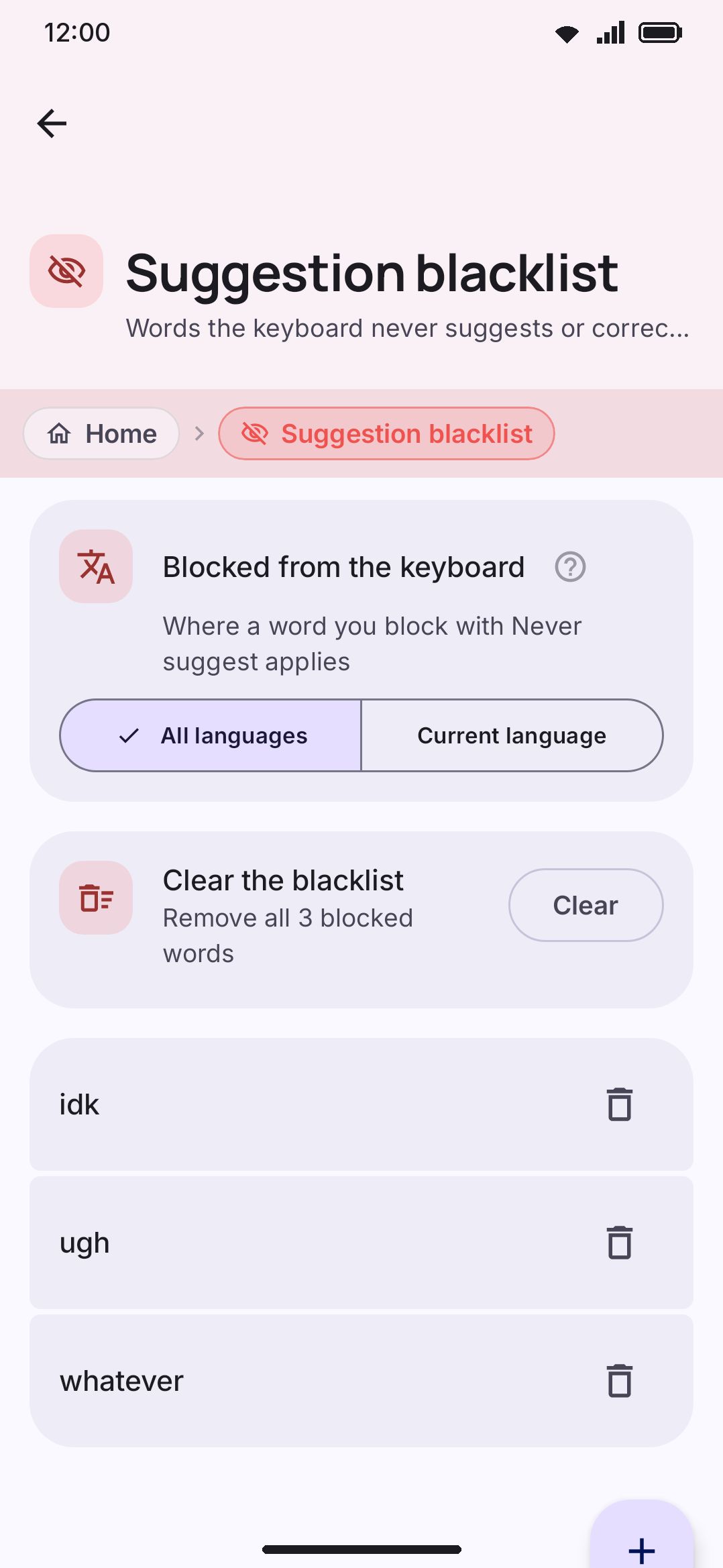
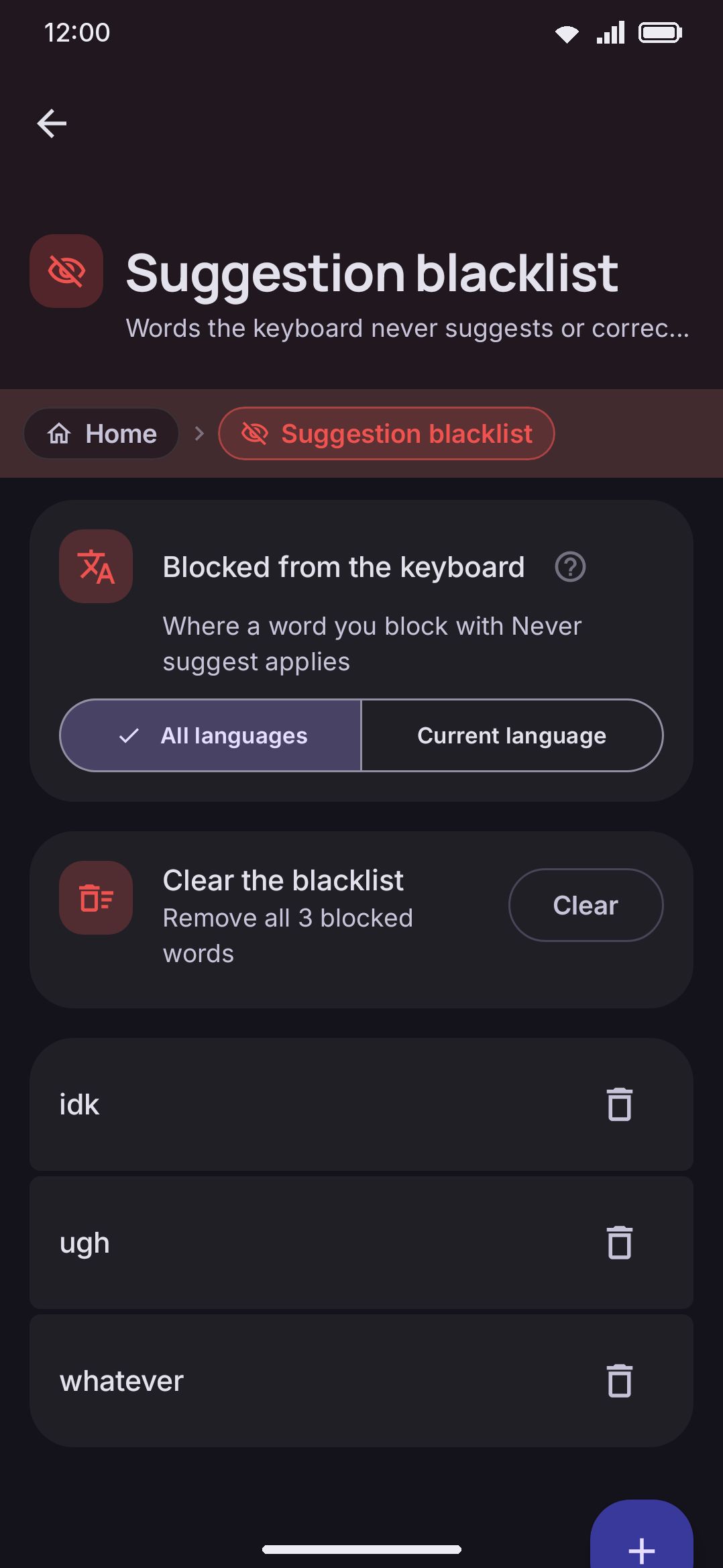
Adding and removing words
Section titled “Adding and removing words”Tap Add word at the top of the editor. A dialog opens with a Word field and a Block in row of chips: All languages, then one chip per language you have enabled. Type the word, pick where it applies, then confirm with Add. The Add button stays disabled until the field has something in it. The word is stored lowercased and trimmed, so capitalization and stray spaces in what you type don’t matter.
The list itself is sorted alphabetically, with a plain trash icon on each row to remove one. A word blocked in one language says so under the word (“Only in French”); a word blocked everywhere has no line under it. Once the list has at least one word in it, a Clear the blacklist row appears above it, which empties every list, global and per-language alike, after a confirmation. Past a dozen words a search field appears above the list, the same threshold the personal dictionary screen uses, and the list itself draws 100 rows at a time with a Show N more words row to reveal the rest, so a list hundreds of words long never composes all at once.
You can also add a word without leaving the keyboard. Press and hold it on the suggestion strip and pick Never suggest from the menu that opens. The same menu offers Suggest again for a word that is already on the list, so a slip is one hold away from being undone. The rest of that menu, and the word card behind its Edit item, are described on Personal dictionary.
Blocking a word in one language only
Section titled “Blocking a word in one language only”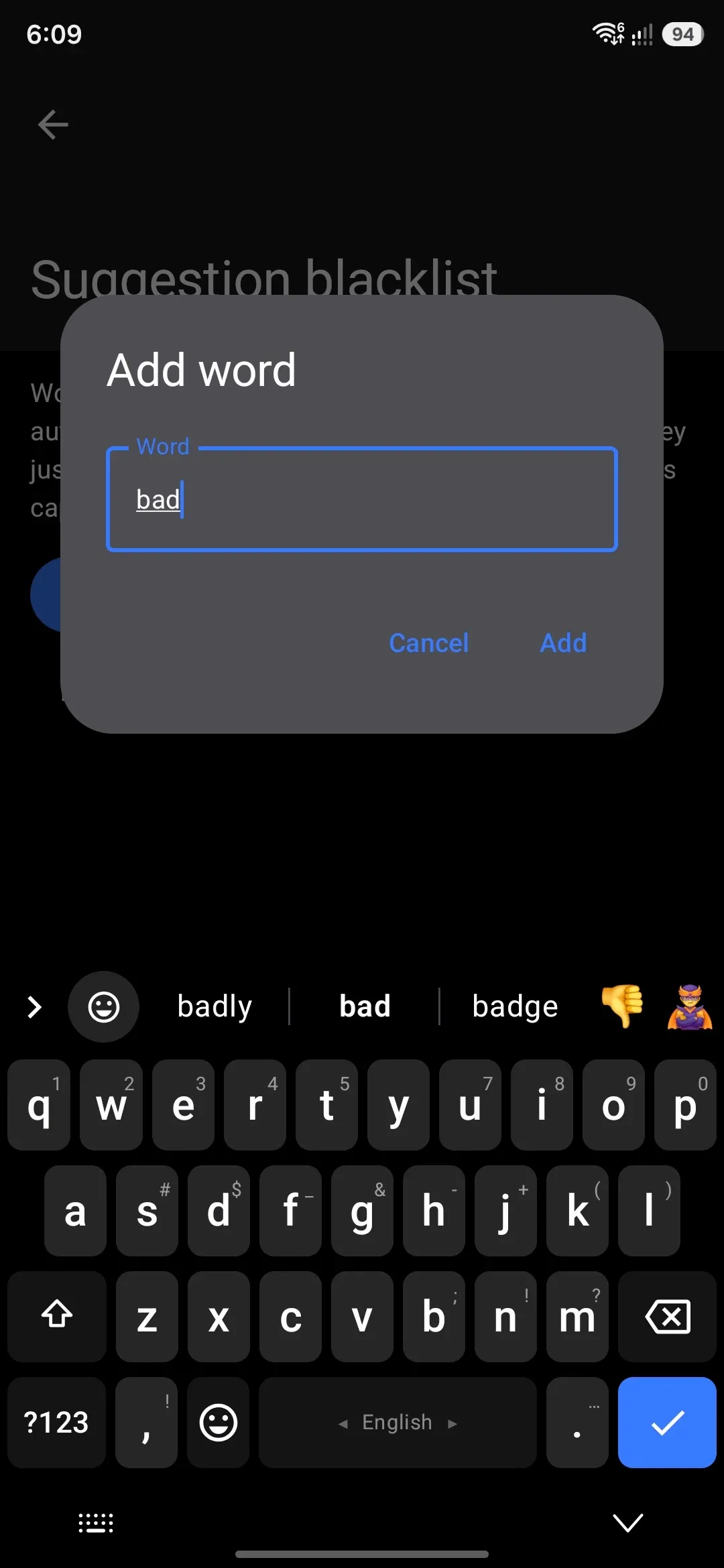
A word can be a nuisance in one language and perfectly good in another: a French word the English strip keeps guessing, say. Blocking it for all languages would take it away from French too, so the blacklist keeps two kinds of entry. A word blocked for All languages is never suggested, whatever you are typing in. A word blocked for one language is kept out of the strip only while that language’s keyboard is active, and offered as usual everywhere else.
The Add dialog asks which you want each time. The keyboard’s own Never suggest cannot ask, since it is one item on a hold menu, so Blocked from the keyboard at the top of the editor decides for it: All languages (the default, and how the menu has always behaved) or Current language, which blocks the word for the language you were typing when you held it. Deleting a word that only a downloaded word list still knows follows the same setting, since that deletion works by blacklisting.
Suggest again, and adding a word by hand from the strip’s menu or the word card, take the word off every list it is on. There is no per-language undo on the keyboard, because the opinion being reversed is “never”, not “never in French”.
A word blocked in one language is not forgotten from your personal dictionary, unlike a word blocked everywhere: the dictionary is shared between your languages, and the word is still wanted in the others.
Before you add anything, the screen shows “No words in this list yet. Add a word above.” The row back on the Typing screen reads “Words to never suggest or autocorrect to.” Once the list has entries, that row’s subtitle switches to a running count instead, like “3 words never suggested.”
What gets filtered
Section titled “What gets filtered”A blacklisted word is matched case-insensitively and kept out of every place the keyboard offers a word back to you, well beyond the ordinary English suggestion strip:
- Completions: dictionary, custom dictionary, secondary-language, personal-dictionary, contact-name, contact-email, and app-name completions, plus missing-space split suggestions, are all filtered before they reach the strip.
- Bangla (Avro) suggestions: loanword-map hits, phonetic siblings, and the phonetic transliteration itself are filtered the same way, so the blacklist reaches transliterated composing too, not only plain-English typing. The composing preview that shows a listed spelling mid-word skips blacklisted spellings too.
- Next-word predictions: the empty-composing bigram predictions that appear before you’ve typed anything are filtered as well.
- Glide typing: a decoded stroke’s candidates go through the same filter, so a blacklisted word can’t arrive by swipe either.
- Autocorrect targets: a blacklisted word is never chosen as the word autocorrect replaces your typo with, even if it would otherwise be the best-scoring candidate. The same holds for the two halves of a missing-space split correction.
The blacklist never touches the word itself as text. Typing it, editing it, and sending it all work exactly as normal. Blacklisting only removes a word from being offered, which makes it a suggestion filter rather than a content filter.
Details & edge cases
Section titled “Details & edge cases”- Nothing is blacklisted by default. The list starts empty and you build it entry by entry.
- A word can be on more than one list. Blocked in French by hand and later blocked everywhere from the keyboard, it shows twice in the editor, once per list, and the trash icon on each row removes only that entry. The row back on the Typing screen counts entries, so that word counts as two.
- The count and the filter are per language being typed. Switching keyboards switches which per-language list applies; the global list applies throughout.
- It’s mostly independent of your personal dictionary, with one automatic link. The blacklist and the personal dictionary of learned words are two separate stores, and neither settings screen offers a shortcut to push a word from one into the other. But blocking a word everywhere does purge it from the personal dictionary and from the words still waiting to be learned, the moment the keyboard picks up the change, and it stays out of both while it remains blocked; blocking it in one language only filters the suggestion, leaving what the keyboard learned alone. There’s also a link on the keyboard itself: Delete on a held suggestion forgets the word from the personal dictionary and, when the word is still in a downloaded or imported list, puts it on the blacklist as well, since that is the only way to unlist one word from a read-only list. As a candidate, meaning something offered to complete another word or something autocorrect would replace a typo with, the blacklist always wins, so the word stays suppressed either way. But if you type that exact word yourself, autocorrect leaves it alone regardless of the blacklist, the same as it would for any word already known to the keyboard.
- Removing a word un-blocks it immediately. If a global block already purged it from your personal dictionary, taking it off the blacklist starts the word over rather than restoring what it had learned before. You don’t need to touch the personal dictionary at all.
- A word doesn’t need history to be blacklisted. You can blacklist any word, learned or not. The blacklist doesn’t check whether the word exists in any dictionary first.
- Backed up like any other setting. The list lives in the same settings store as everything else in the app, so it’s included automatically in a settings backup. There’s no separate export step for it.
- An email field is the one gap. In a field the app marked as an email address, the strip is driven straight from your contacts’ addresses rather than through the ordinary suggestion pass, and that shortcut doesn’t consult the blacklist. Blacklisting an address keeps it out of the strip everywhere else, but not there. See Contact-aware typing for what that path does.
For the rest of the suggestion strip (completions, corrections, and next-word prediction), see Suggestions & prediction. For teaching the keyboard new words instead of blocking them, see Personal dictionary.