
GIFs
Search GIFs from Klipy and GIPHY and send them, with a copy-to-clipboard fallback when an app won't take them directly.
The GIF tool searches Klipy and GIPHY from a panel inside the keyboard, then sends the result straight into the field you’re typing in. No switching apps, no copy-paste. On the F-Droid build it also searches Wikimedia Commons without any key at all, an educational corpus rather than reaction GIFs. Every other build needs a Klipy or GIPHY key before the tool can search anything.
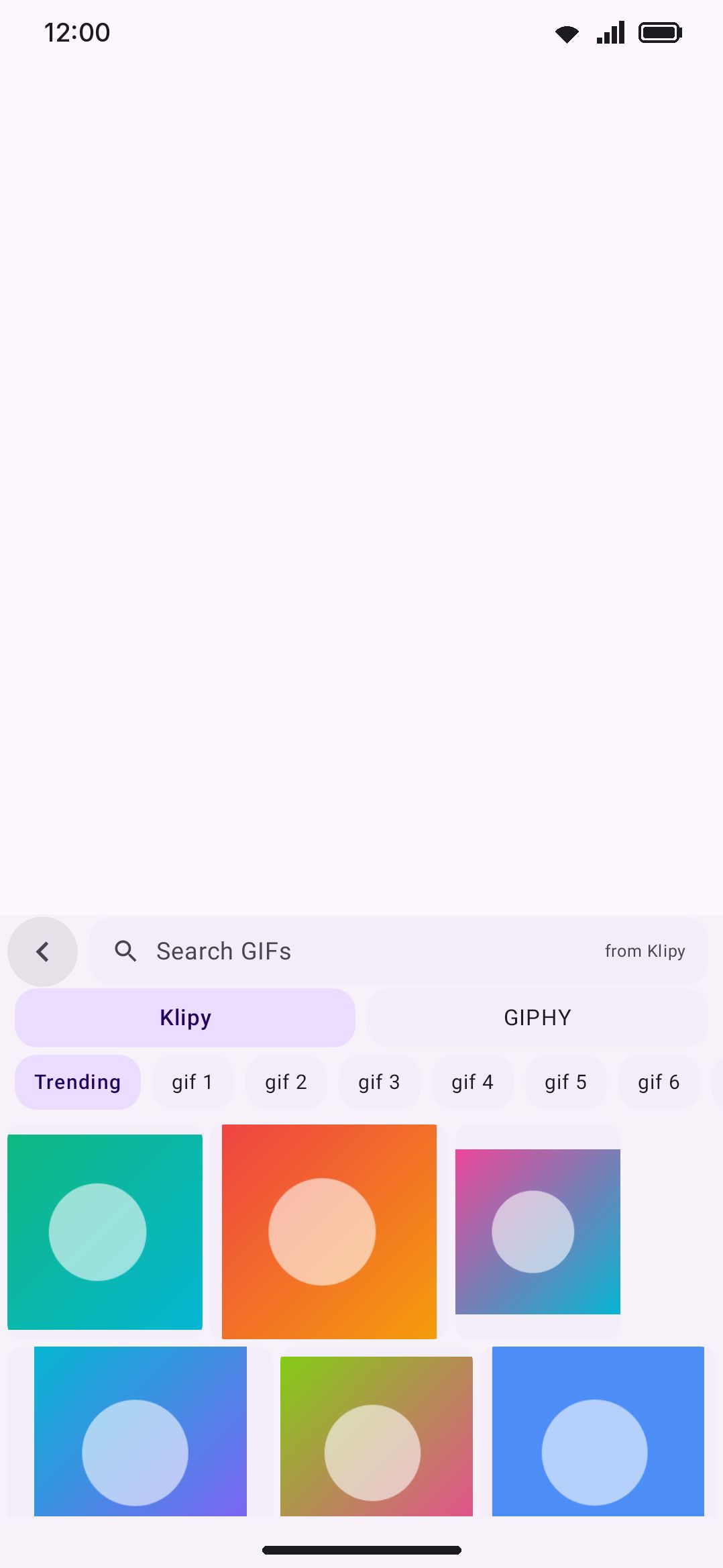
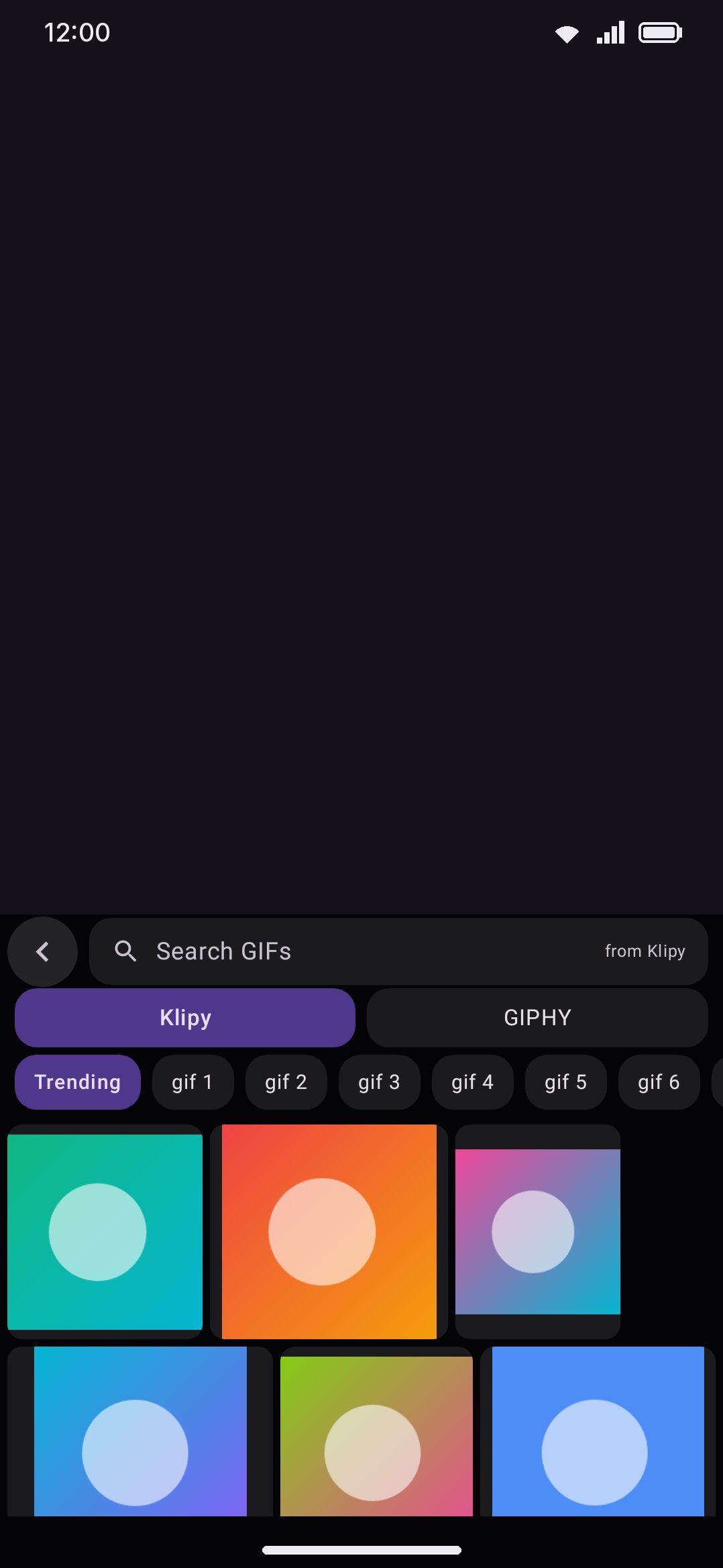
Searching for a GIF
Section titled “Searching for a GIF”Open the GIF tool and it fetches trending GIFs immediately, before you type anything. Start typing in the search box and results update live, 450ms after you stop. There’s no Enter to press. That’s different from the web and image search tools, which wait for you to submit the query; GIF and sticker lookups are cheap enough on Klipy and GIPHY to search as you type.
Results are laid out as justified rows of animated previews rather than a fixed grid: every preview keeps its own aspect ratio and nothing is cropped, so squarish results sit three across and a pair of wide ones fills a row on its own. At the end of the search box a small line reads “from Klipy” (or “from Klipy · GIPHY” once Mixed mode is pulling from both at once), so you know where a result came from.
Before you’ve typed anything, a scrollable row of category chips sits above the grid: Trending first, then Reactions, Love, Happy, Sad and so on. Tap one to run it as a search, which is a way to browse without thinking of a word. Tap the active chip, or Trending, to go back. The chips come from the provider itself when it publishes categories, and from a built-in list when it doesn’t, so the row is there offline too. It belongs to the default view only. Type anything and it steps aside for the results. With the full-screen picker turned off it also needs a certain amount of key height to be worth drawing, so a short three-row layout with the number row off loses it rather than losing the last row of the grid.
If neither provider has a key configured, the panel shows a “needs an API key” notice with a shortcut into settings instead of a grid. The F-Droid build never hits that notice, since Commons is already searching.
Sending a GIF
Section titled “Sending a GIF”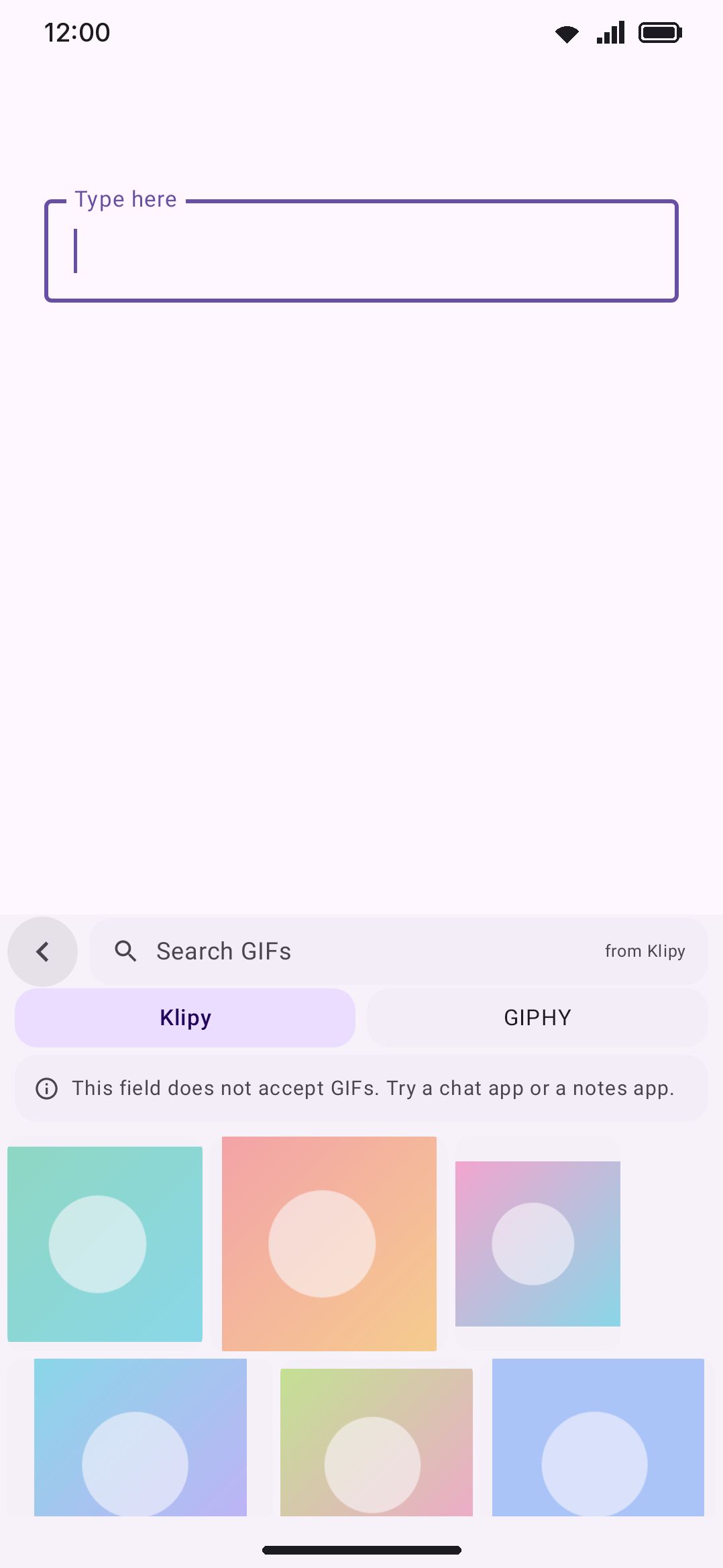
Tap a result and it downloads and lands in the field in one step. There’s no separate “insert” confirmation. What happens next depends on what the field will accept:
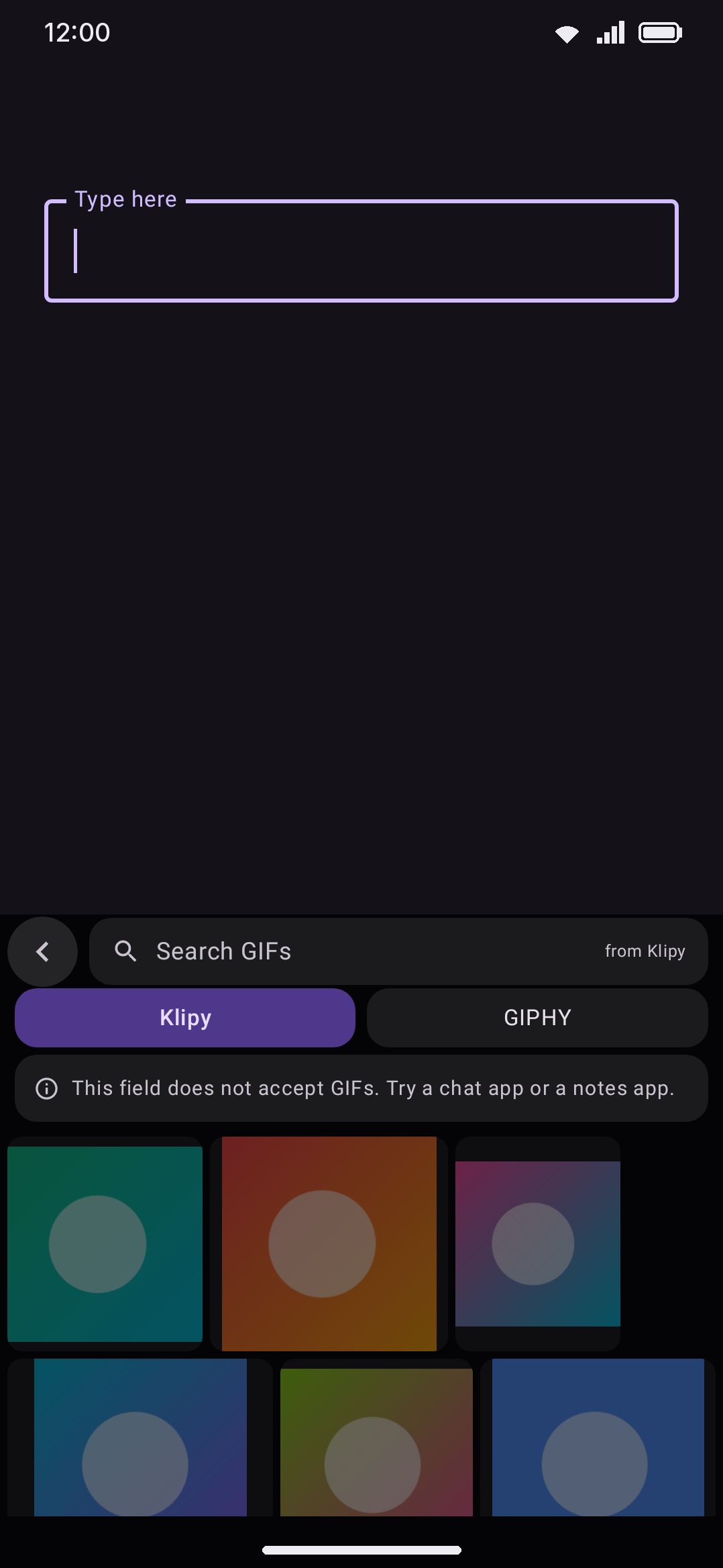
- The field doesn’t take images at all. Plain text boxes can’t receive a GIF through Android’s
commitContentmechanism. The panel shows a standing notice, “This field does not accept GIFs. Try a chat app or a notes app.”, and tapping a result does nothing beyond a short vibration. Nothing downloads. This is a pre-send check, not a failed attempt. - The field takes images. The full-size file downloads and commits using a MIME type the field advertises it can accept. With WM KeyboardToolsGIFsSend GIFs as set to Sticker, a WebP result first offers WhatsApp’s private sticker MIME (
image/webp.wasticker) before falling back to plainimage/webp. Android has no official “this is a sticker” flag, so this is a best-effort convention rather than a documented API. The PNG fallback only ever applies to a WebP-format download. If the field won’t takeimage/webpbut does accept PNG, a still WebP is re-encoded to a still PNG rather than failing outright. An animated WebP is skipped, since a PNG can’t hold the animation. A plainimage/gifdownload (what most GIF-panel results actually are) has no such fallback. If the field doesn’t acceptimage/gif, it goes straight to the clipboard fallback below. - Nothing matches. If the field won’t take any form the tool can produce, the file goes to the system clipboard instead, with a toast: “This app does not accept images here. The keyboard copied the image. Paste it instead.” Paste it in manually from there.
Animated GIFs can never actually become stickers. Android has no animated-WebP encoder, so a GIF-format result keeps sending as a plain image no matter what Send GIFs as is set to. Only sources that already provide WebP can take the Sticker path.
Long-pressing a result
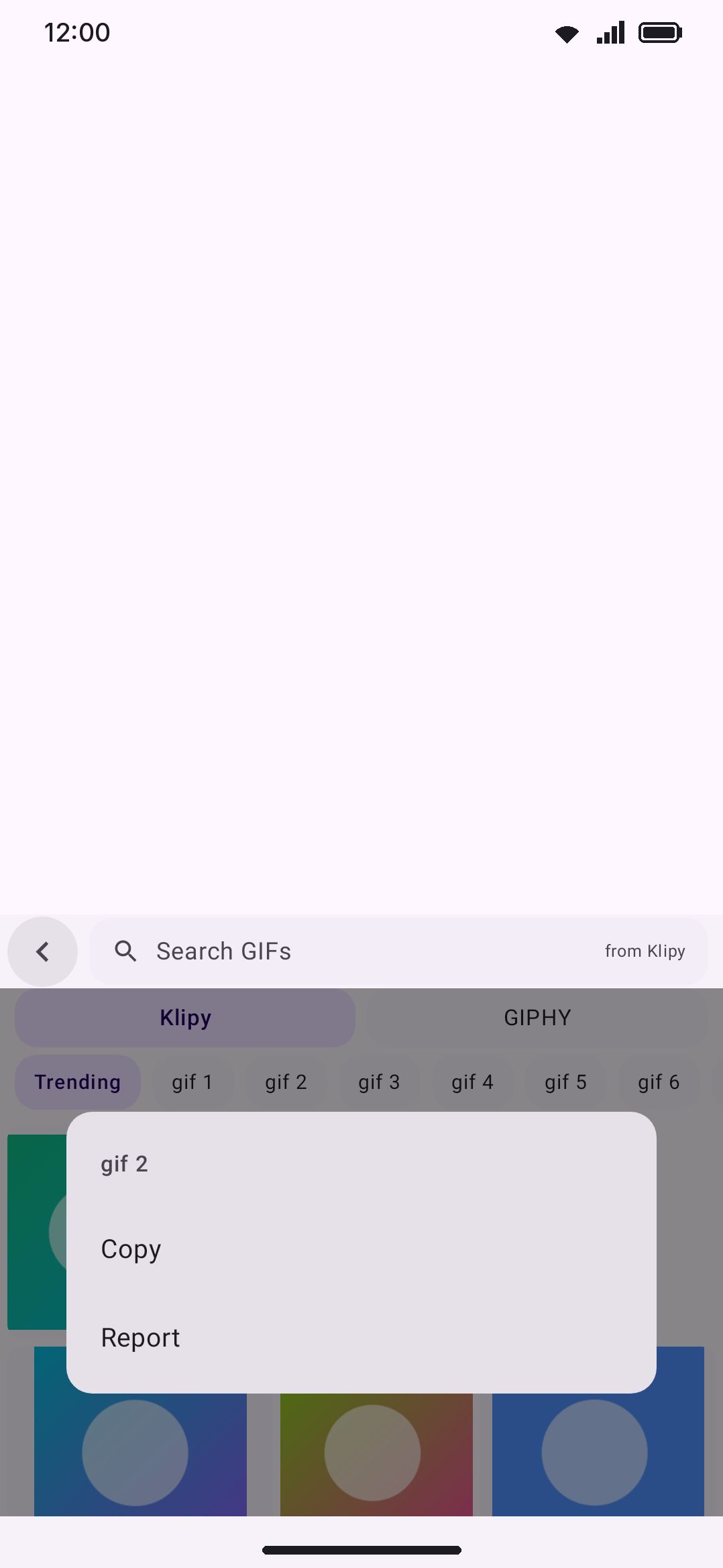
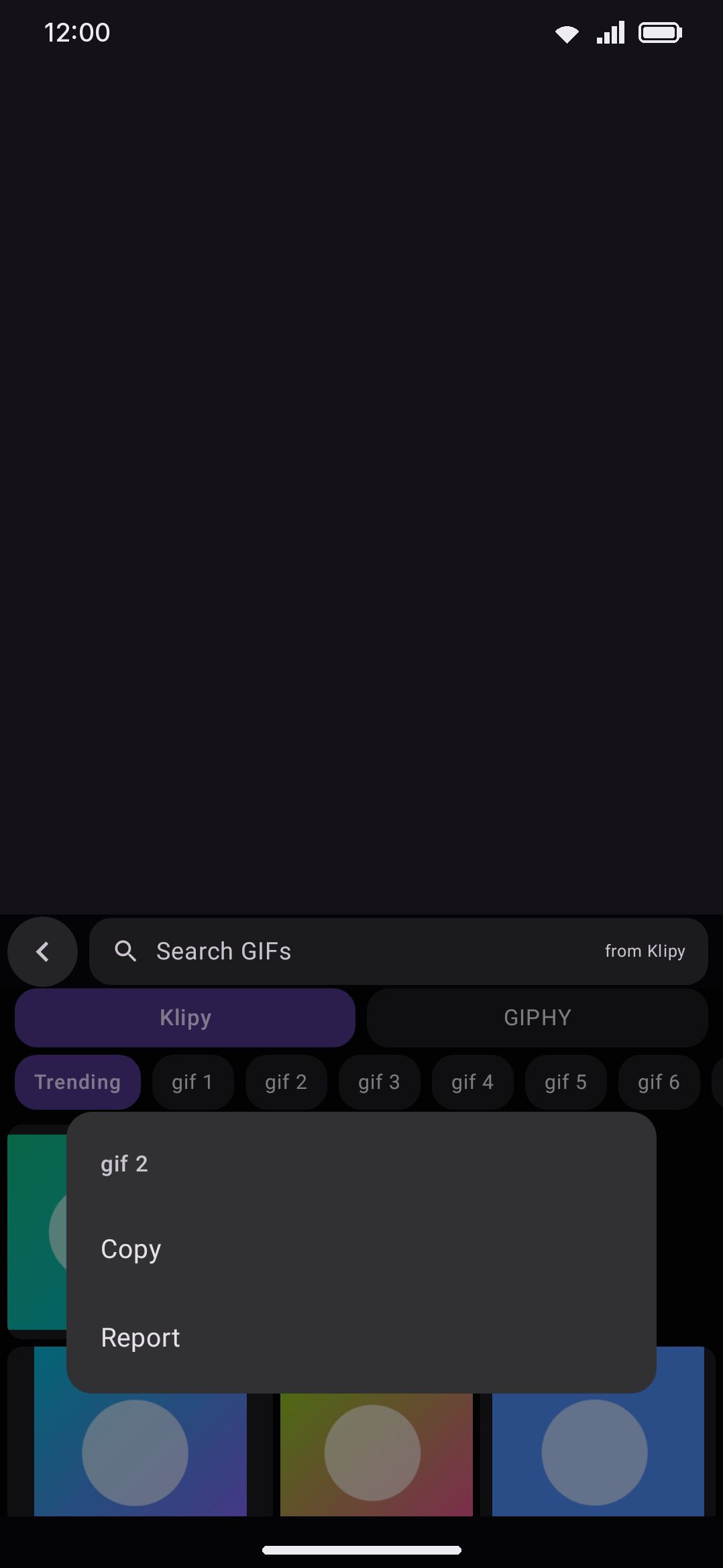
Section titled “Long-pressing a result”Long-press a GIF instead of tapping it and a small menu opens over the grid:
- Copy downloads the GIF and puts it on the system clipboard, so you can paste it wherever you like rather than into the field you happen to be in. It’s the same thing the fallback in step 3 above does, except you asked for it instead of finding out afterwards that the field wouldn’t take the file.
- Report opens a mail draft to the maintainer naming the provider, your search term, and the result’s id and URL, with room at the top to say what’s wrong with it. Nothing is sent from the keyboard. The draft lands in your mail app, and you can read, edit, or abandon it. Klipy and GIPHY answer a search out of their own catalogues, so a result nobody vetted can come back. This is where that goes.
Back (or tapping outside the menu) closes it without doing anything.
Saving to a pack is sticker-only, since a GIF can’t become one. That row shows on the sticker panel’s version of this menu, not here.
Options
Section titled “Options”| Setting | Default | What it does |
|---|---|---|
| Klipy API key | Empty | Paste a free key from partner.klipy.com. Klipy replaced Tenor as the primary provider after Google retired Tenor’s third-party API in mid-2026. |
| GIPHY API key | Empty | Paste a free key from developers.giphy.com, as a second source. |
| Full-screen picker | On | The toolbar, emoji row and symbol row step aside so the GIF grid gets the full keyboard height, with search moved up next to a back button. Shared with the sticker tool. |
| Send GIFs as | Image | Whether a tap tries to land the result as a sticker-style MIME first or always as a plain image. See the sticker-limitation note above. |
| Multiple sources | Tabs | Tabs: one chip per configured provider once you have more than one, to switch between them. Mixed: a single grid interleaving results from every provider evenly. The GIF panel shows no chip row at all here, since (unlike the sticker panel) it has no “My stickers” tab to distinguish the online results from. |
| Content filter | Medium | Four levels (Off, Low, Medium, High) mapped to each provider’s own content rating (High maps to G-rated results, Off to R). Shared with the sticker tool. |
| Results for each search | 24 | A slider from 6 to 48. How many GIFs one search or the trending view loads. Shared with the sticker tool. |
You only need one working key, Klipy or GIPHY, for the tool to work, except on the F-Droid build, which already has Commons. Configuring both Klipy and GIPHY adds a second source to search. Send GIFs as is only shown here, and the sticker tool’s Send stickers as only on its own page. Each governs the panel it sits under, so neither page offers the other’s setting. See Stickers for that one.
Details & edge cases
Section titled “Details & edge cases”- Not pinned to the toolbar by default on a phone. The onboarding wizard turns the GIF tool on for every persona, but a phone’s out-of-the-box pinned toolbar only holds Emoji, Clipboard and Settings, so GIF sits in the toolbox until you drag it onto the bar or open it from there. A tablet is the exception: its wider default bar pins GIF from the start.
- Trending, not random. An empty search box always shows each provider’s trending feed, not a blank grid, useful as a starting point before you type a query.
- 24 results per fetch, and you can change it. That’s the number each provider is asked for on a search or a trending call, and the Results for each search slider moves it anywhere from 6 to 48. In Mixed mode every provider is asked for that many and the merged grid is then cut back down to it, so the number is what the grid holds in total, not what each source contributes.
- Two of these rows never grow a restore button. Settings you’ve moved off their shipped value normally pick up a small restore button next to the control. Multiple sources and Content filter are the exception on this screen. They’re drawn as a bare segmented row under a heading rather than as full setting rows, so there’s nowhere for the button to sit. Put them back by picking Tabs and the middle filter level yourself. (The two API key fields don’t have one either, but there the shipped value is an empty box.)
- No size cap on downloads. Stickers cap the source file size. A GIF download has no maximum, so a very large or very long GIF still downloads in full before sending.
- Recently sent files are cached, not stored permanently. Downloaded files are kept in a local cache, so re-picking the same GIF skips re-downloading it. The cache keeps only the 30 most recently touched files and deletes the rest, so it isn’t a place to go looking for something you sent a while ago.
- Network use is opt-in and tool-scoped. Klipy and GIPHY are only contacted while the GIF panel is open: trending on open, live search as you type, and the download on tap. Nothing happens in the background. See Network policy for the full breakdown of what each online tool sends.
For custom sticker packs, long-press-to-save, and the Local tab, see Stickers. For the toolbar and toolbox in general, see The toolbar.